Signing in
Sign in to your workspace with your email and password, and know what you can do when the sign-in does not go through.
This page gets you into your workspace.
Each workspace has its own web address and its own accounts. An account in one workspace does not sign you into another.
Signing in
-
Open your workspace's web address. The screen is headed Sign in to your workspace, with Email and Password.
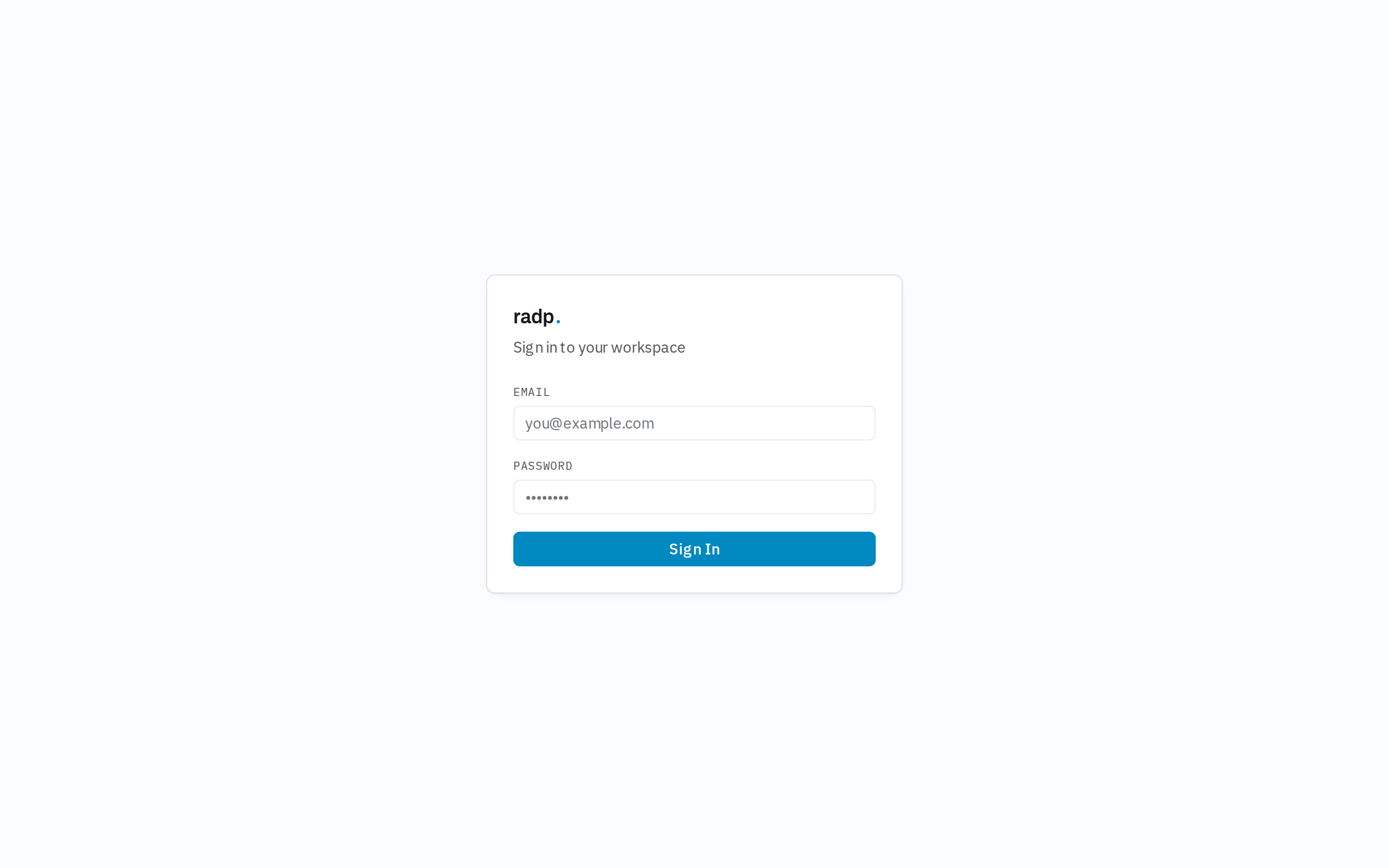
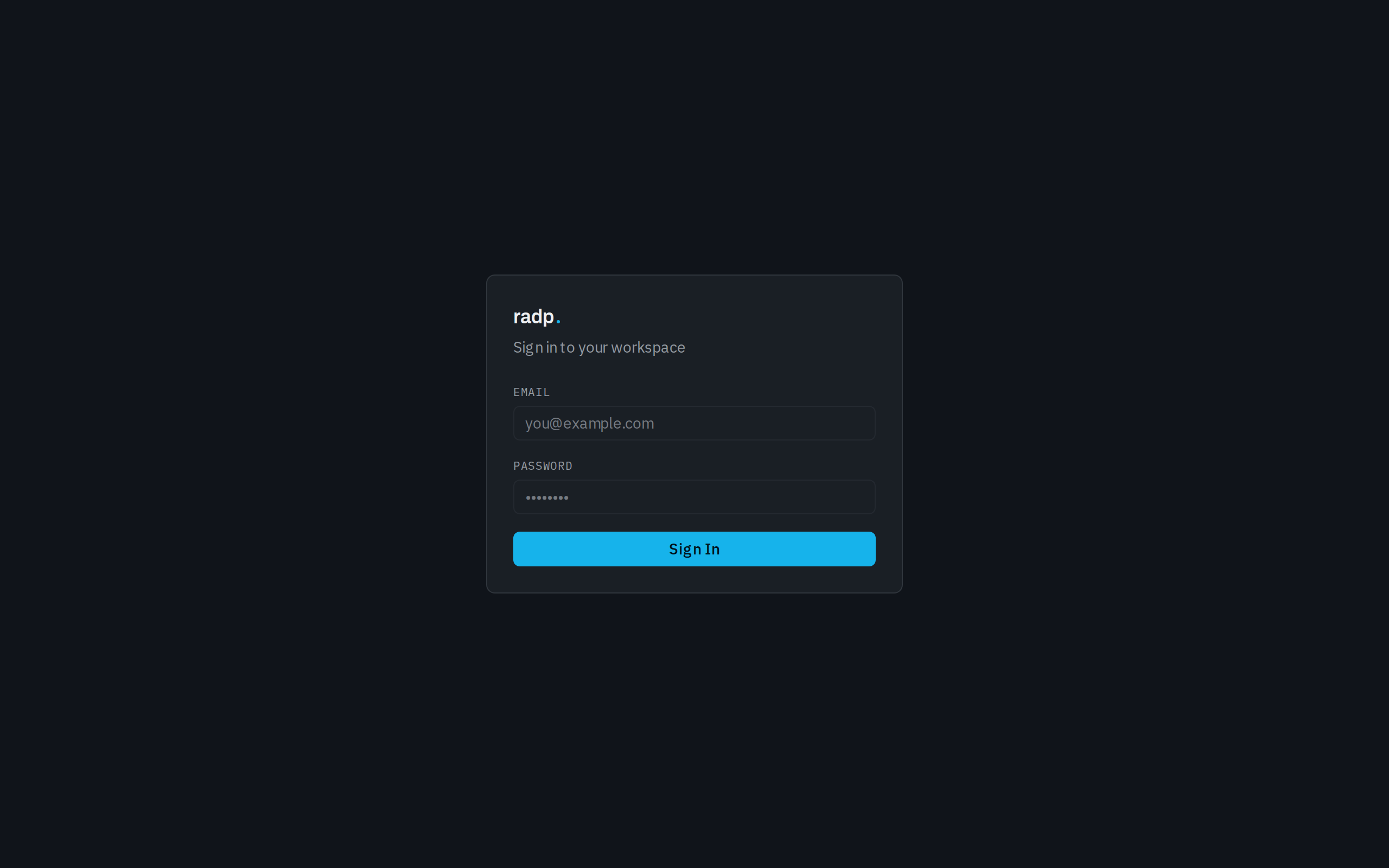
-
Type the email address your account was created with, and your password.
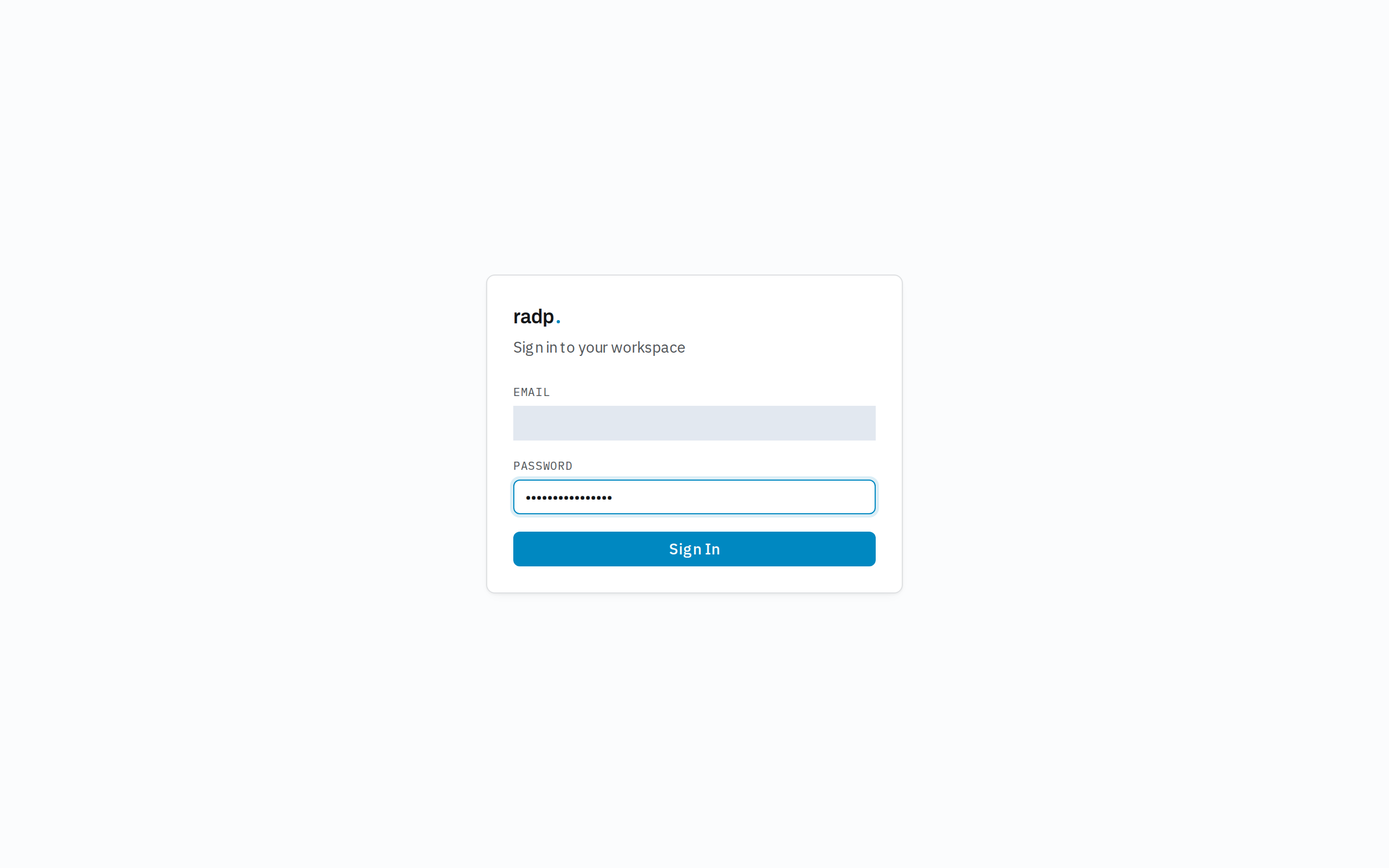
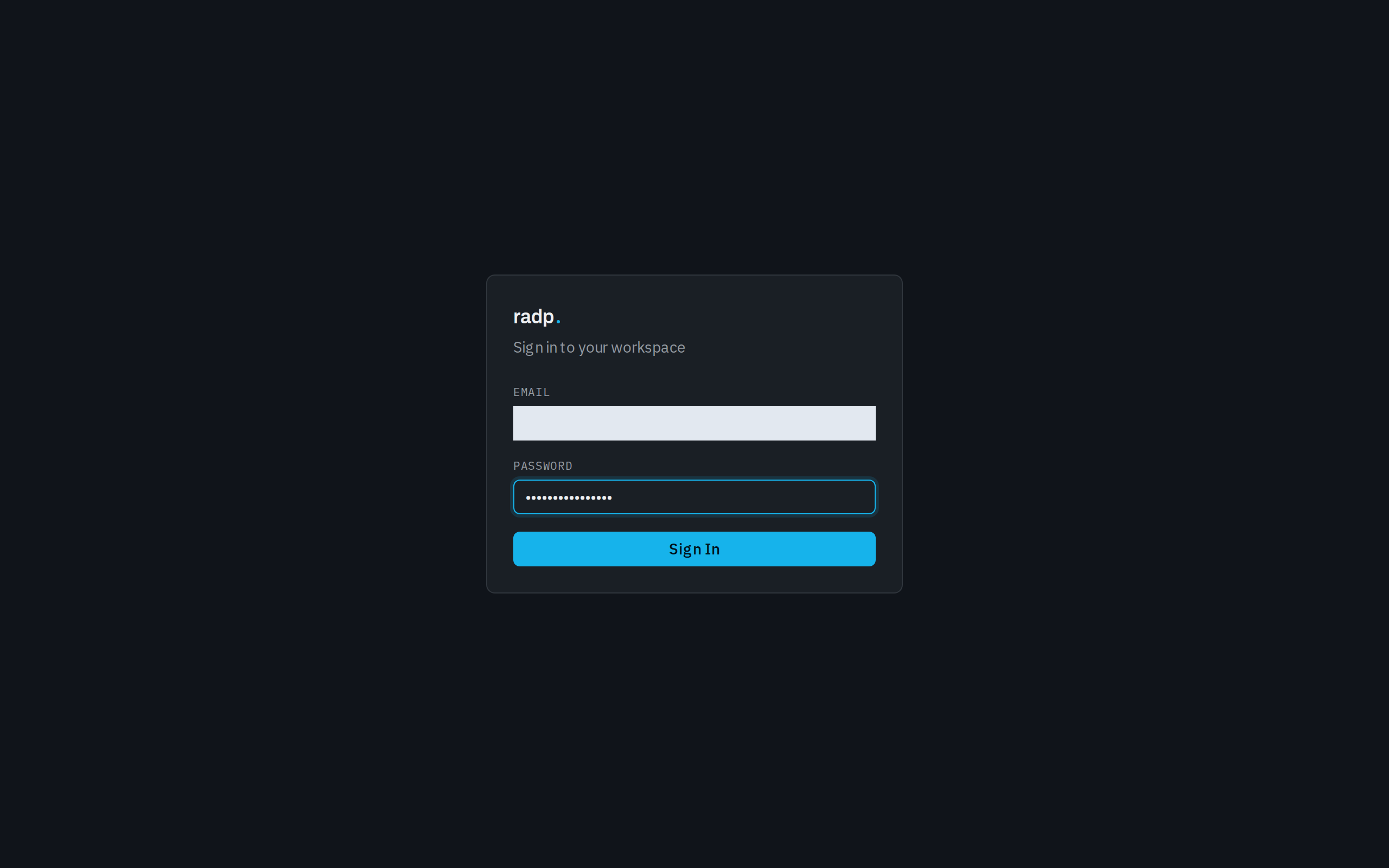
-
Select Sign In. You arrive on the Dashboard.
When the sign-in is refused
If the email address or the password is not accepted, you stay on the sign-in screen and nothing is signed in. Try again, checking the email address first: it must be the exact address your account was created with.
The sign-in screen offers nothing beyond Email, Password and Sign In, so you cannot reset your own password from here. If you still cannot get in, ask an administrator of your workspace.