What a workflow is
How a workflow attaches to a record type, and where the work it hands out reaches people.
A workflow is a process attached to one record type. It is switched on per record type, and it is what turns a record from something people simply fill in into something that is reviewed, approved and worked on.
Where a workflow is set up
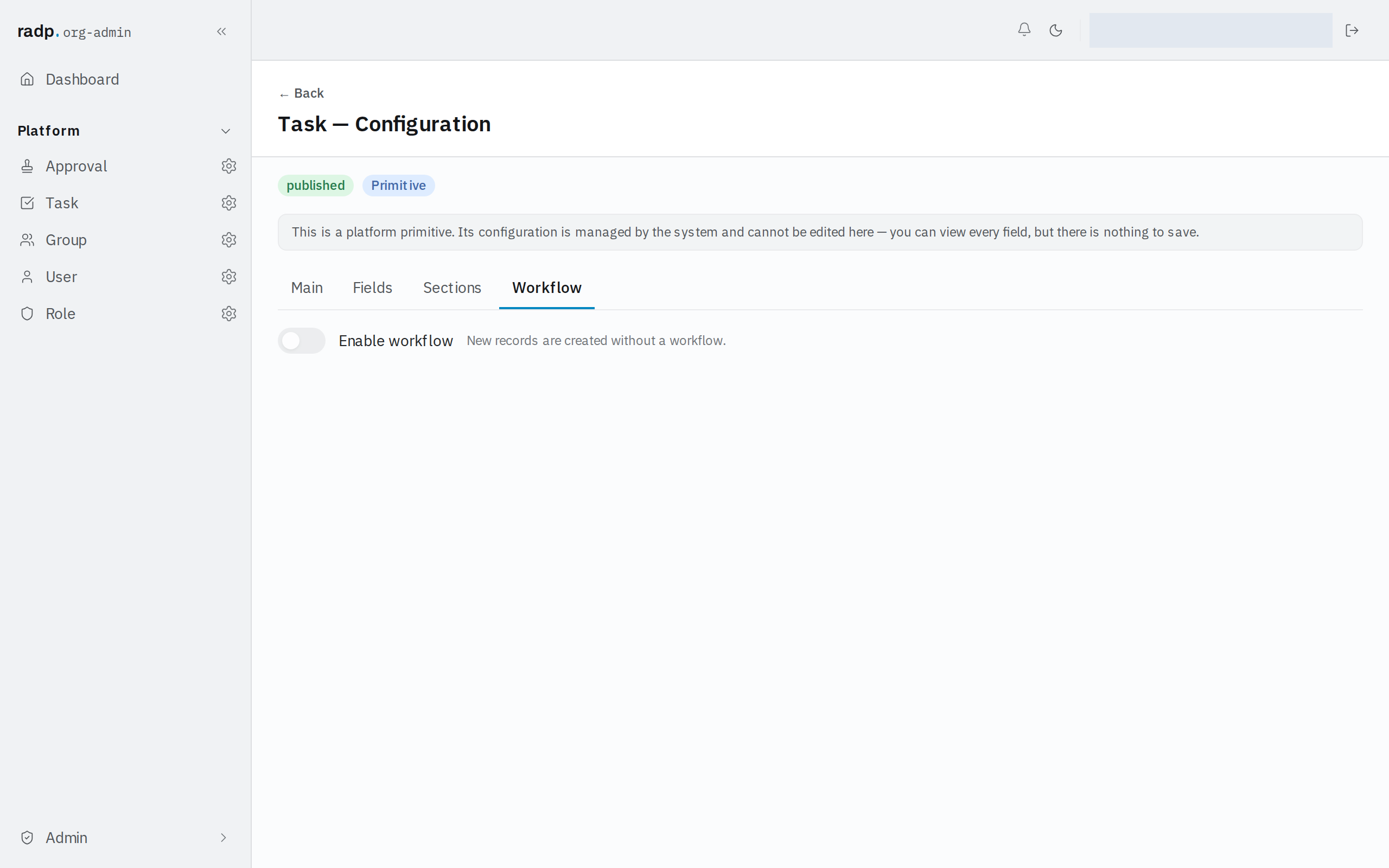
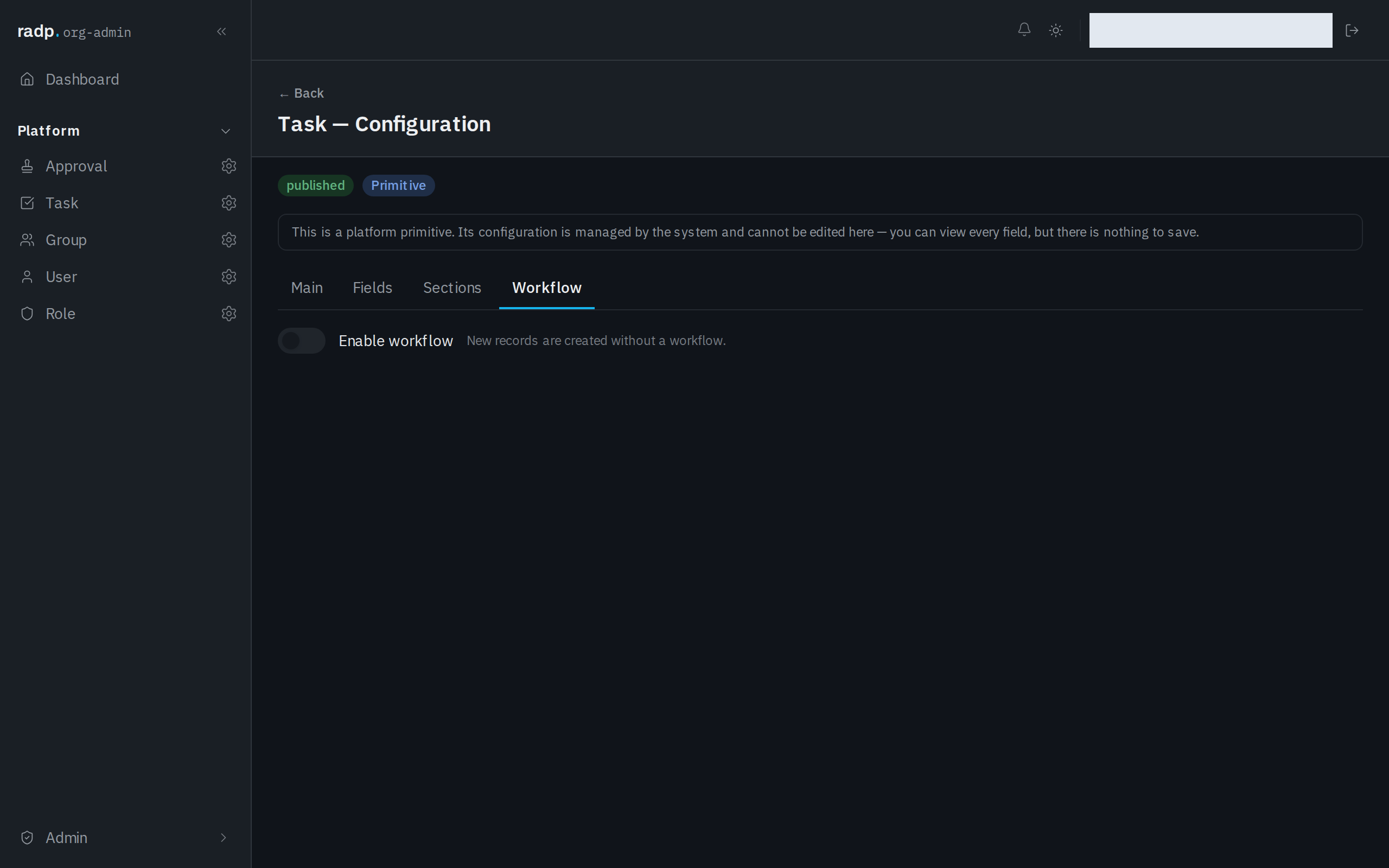
Each record type's configuration has four tabs: Main, Fields, Sections and Workflow. The Workflow tab holds the Enable workflow setting for that record type. While it is off, the tab says so plainly: New records are created without a workflow.
This is admin work. The record-type configuration lives in the Admin area, so only org-admins and radp-admins reach it. The platform record types — Approval, Task, Group, User and Role — show their Workflow tab for reading only; their configuration is managed by the system and cannot be saved.
Sending a record for a decision
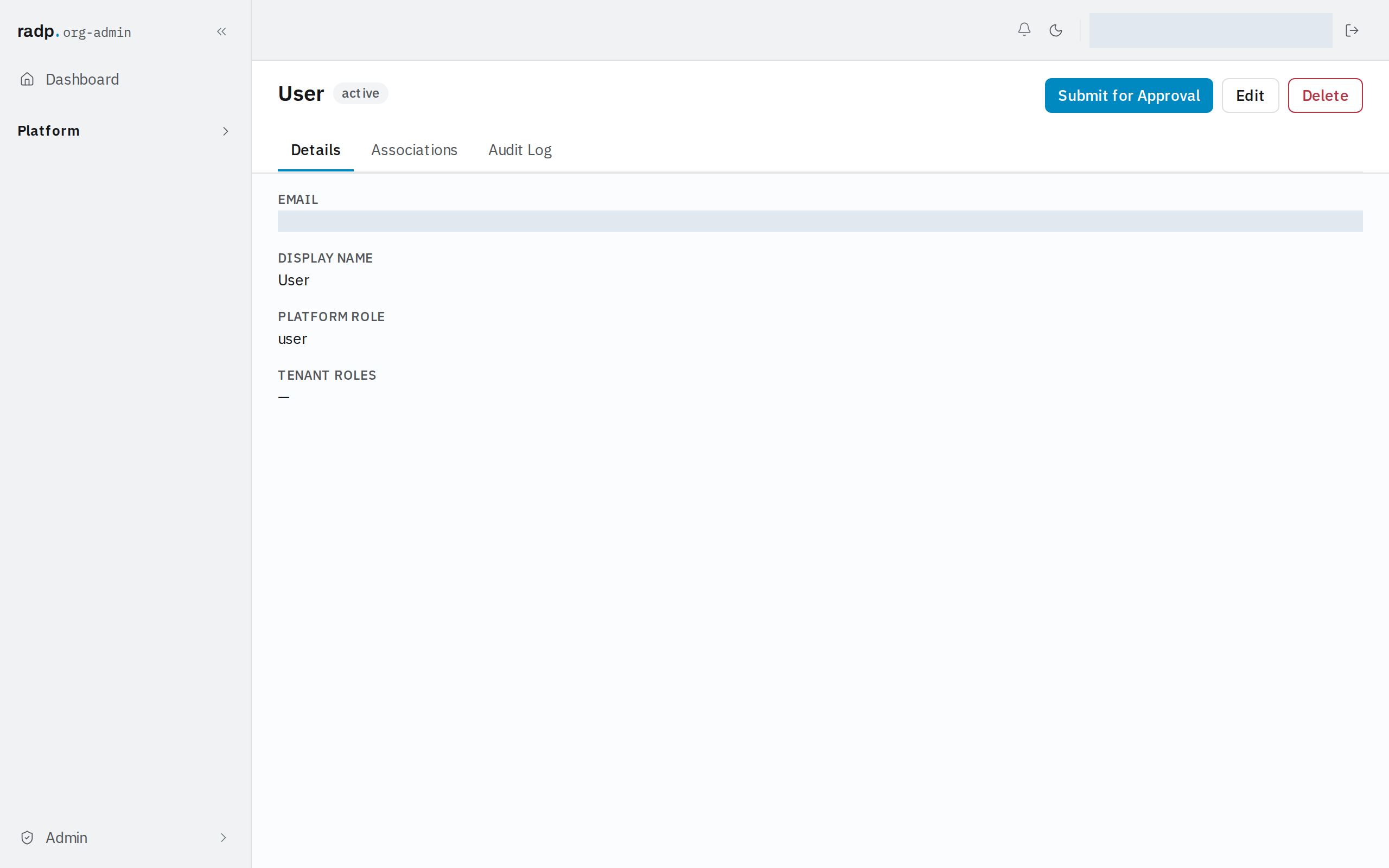
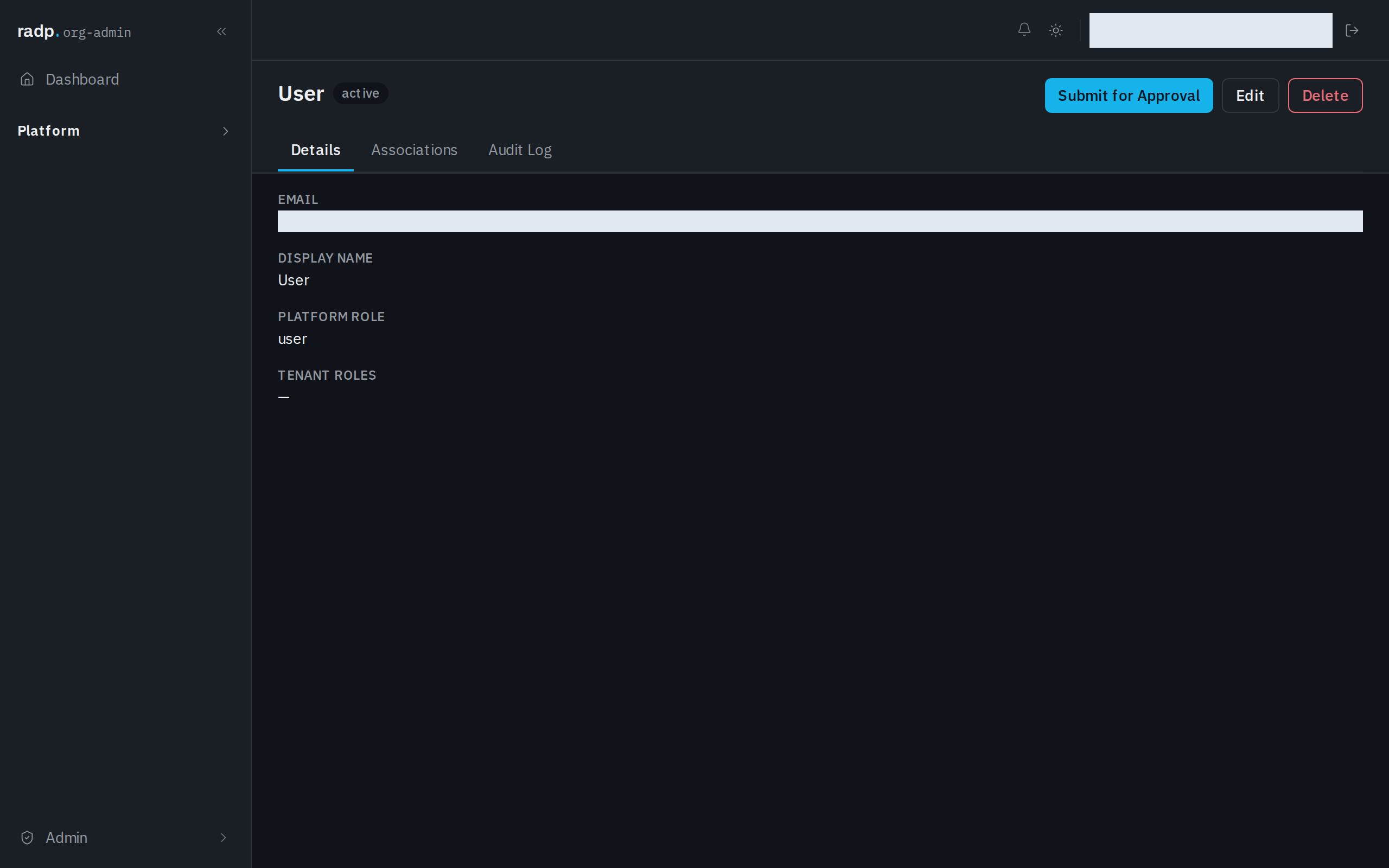
Open a record and you see what you may do with it next to its state. A record in the active state offers Submit for Approval alongside Edit and Delete. Use it when the record is ready for someone else to decide on.
The record page also has an Audit Log tab, so what happened to the record, and who did it, can be read back afterwards.
Where the work arrives
The Dashboard is the first place work shows up. It carries a Tasks awaiting you card and an Approvals awaiting you card, each with a count, so you can tell whether anything needs you without opening either inbox. When nothing does, they read Nothing in your queue and Nothing to decide.
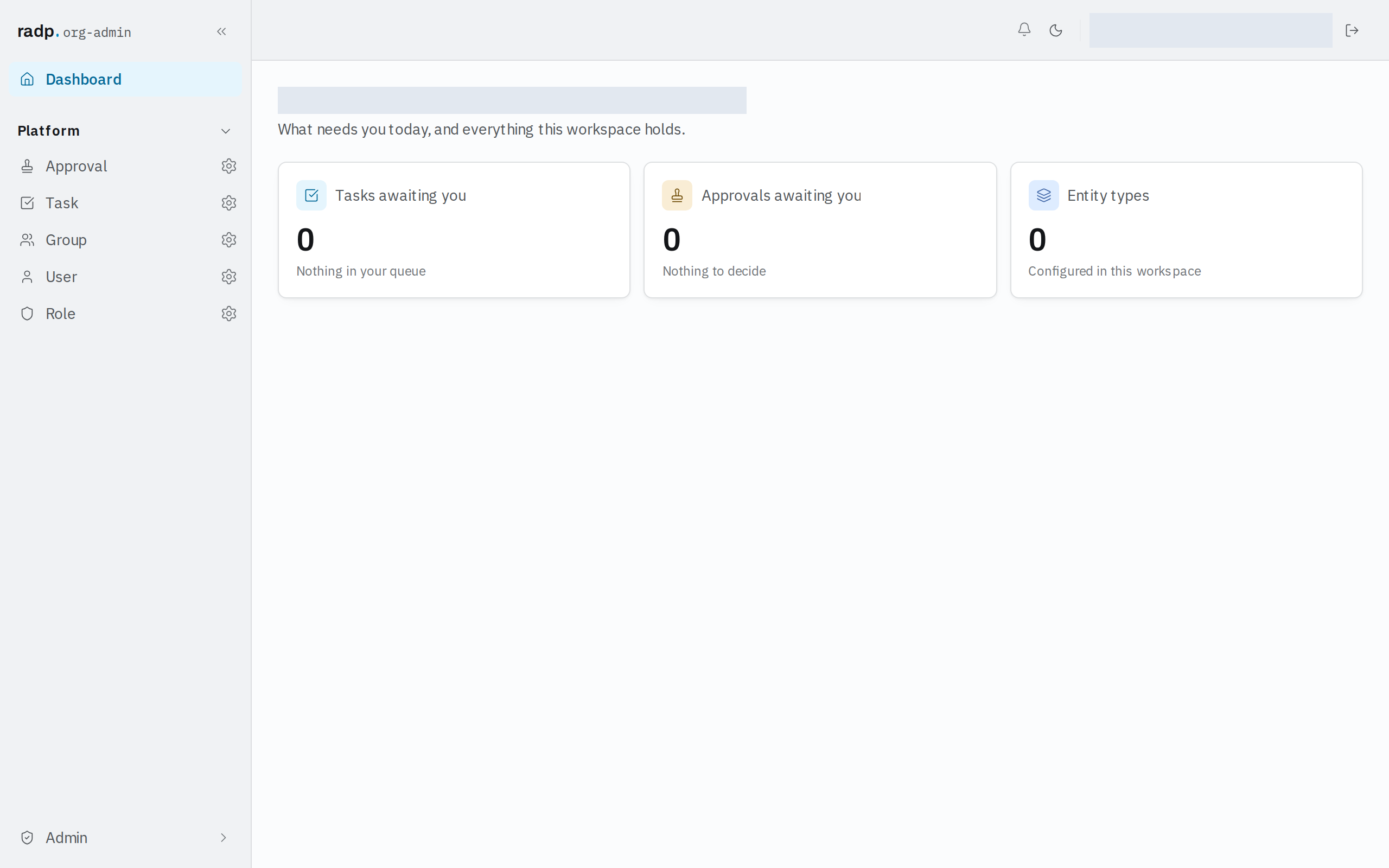
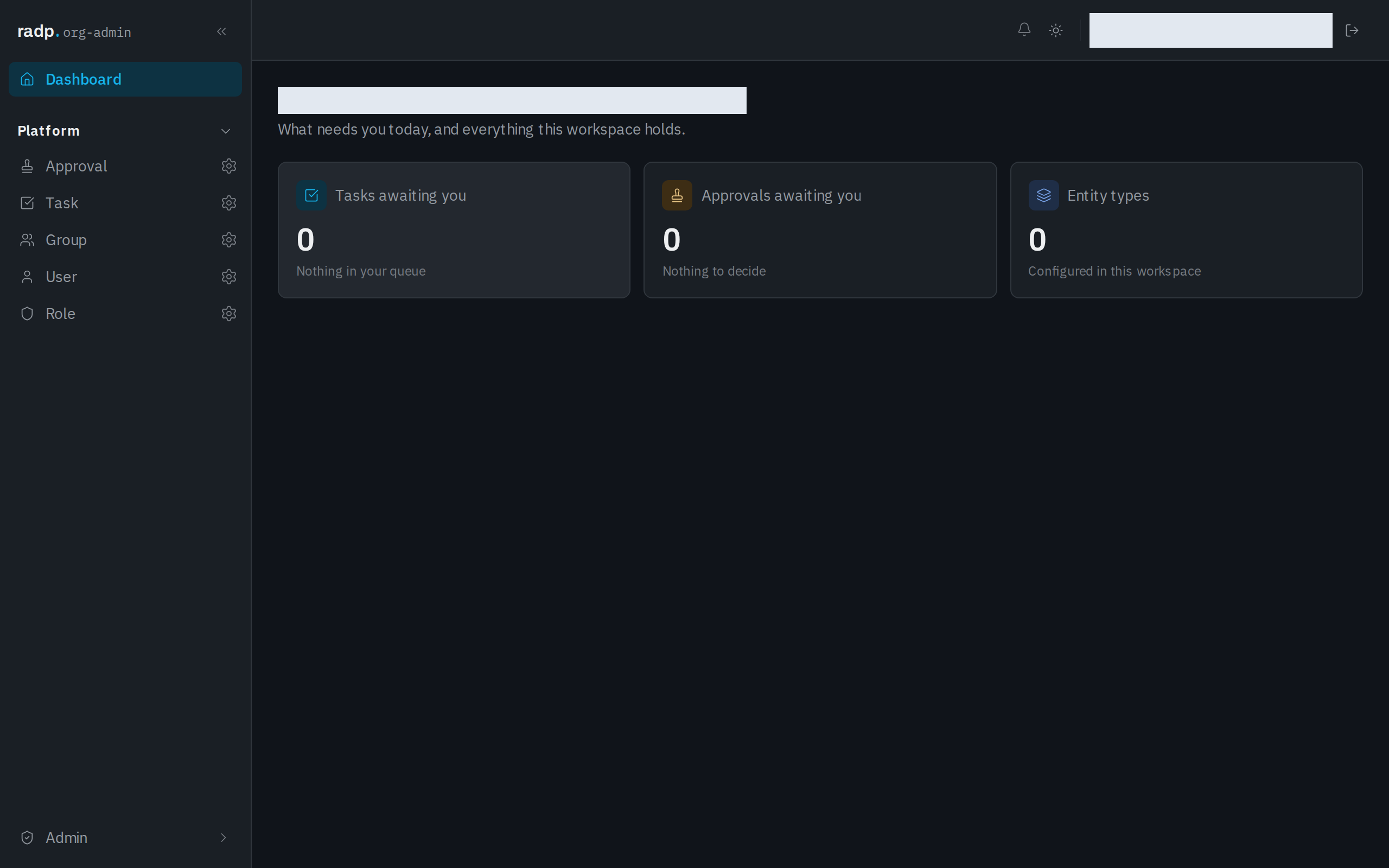
The work itself sits in two inboxes.
Tasks holds work assigned to you, and anything your groups can pick up. It separates MY TASKS from GROUP TASKS — AVAILABLE TO CLAIM, and you can switch between Assigned to Me and All Tasks. Turn on Show completed to see what has already been finished.
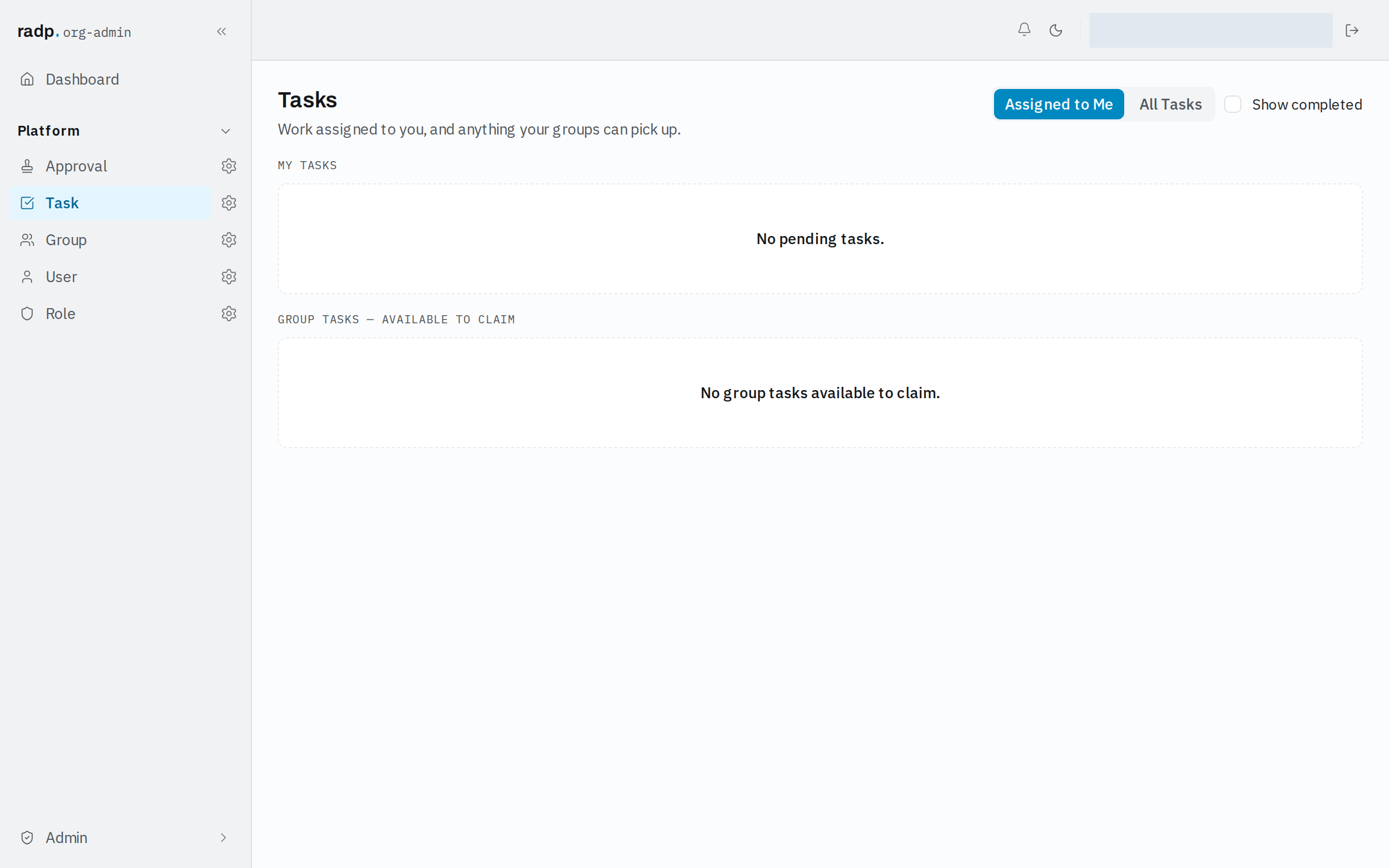
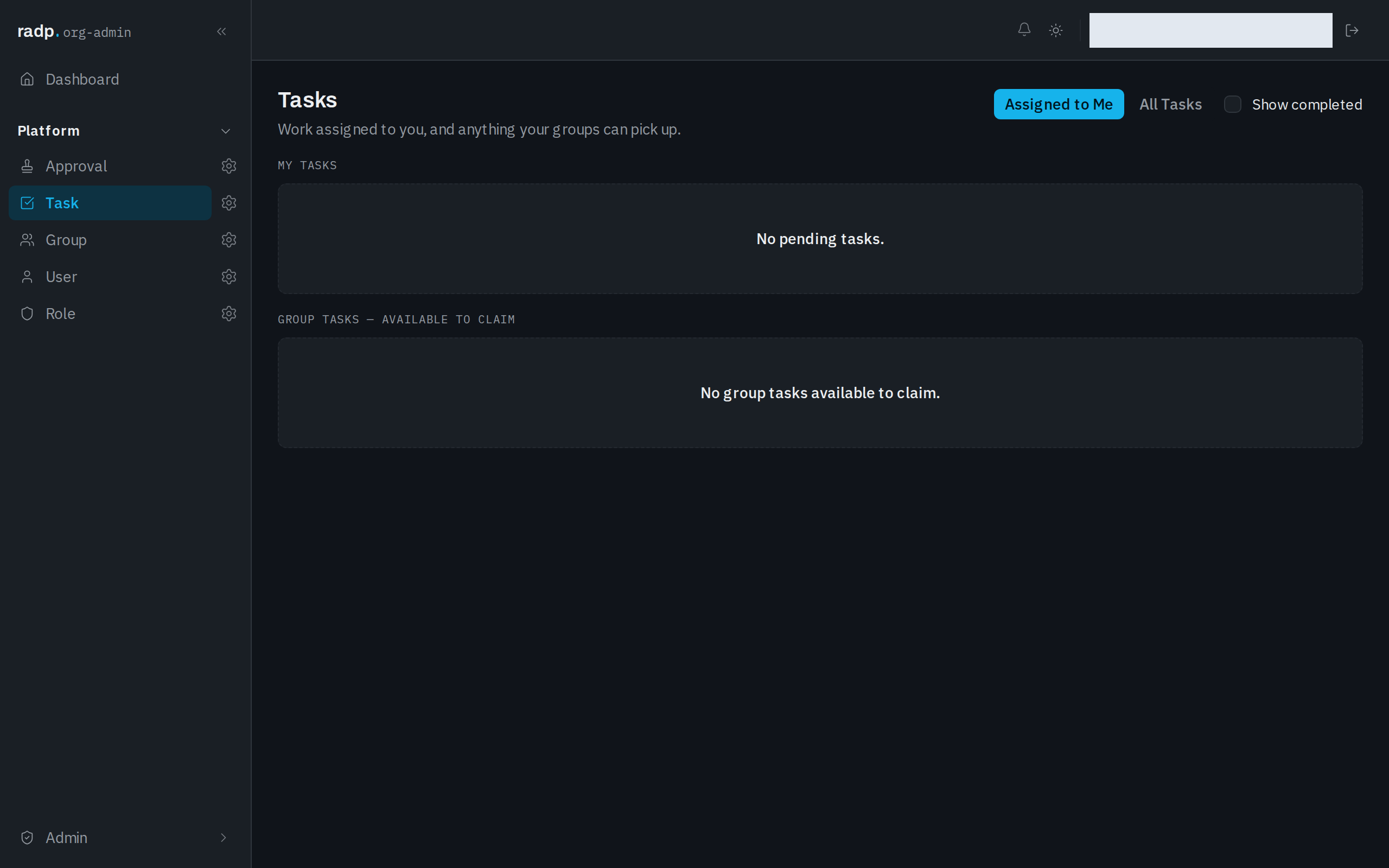
Approvals holds the decisions waiting on you, split the same way into My Approvals and Group Approvals — available to claim, with its own Show completed.
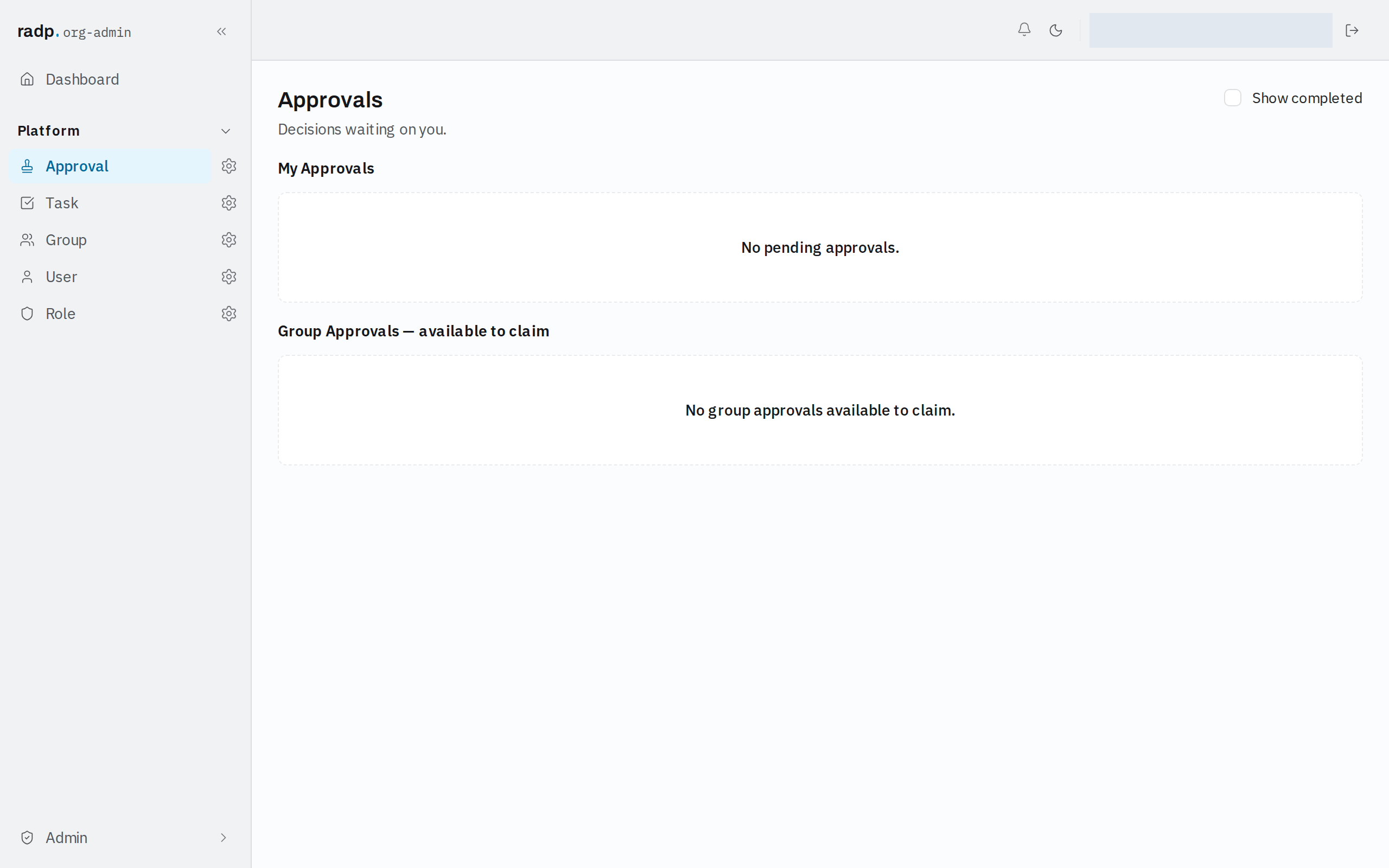
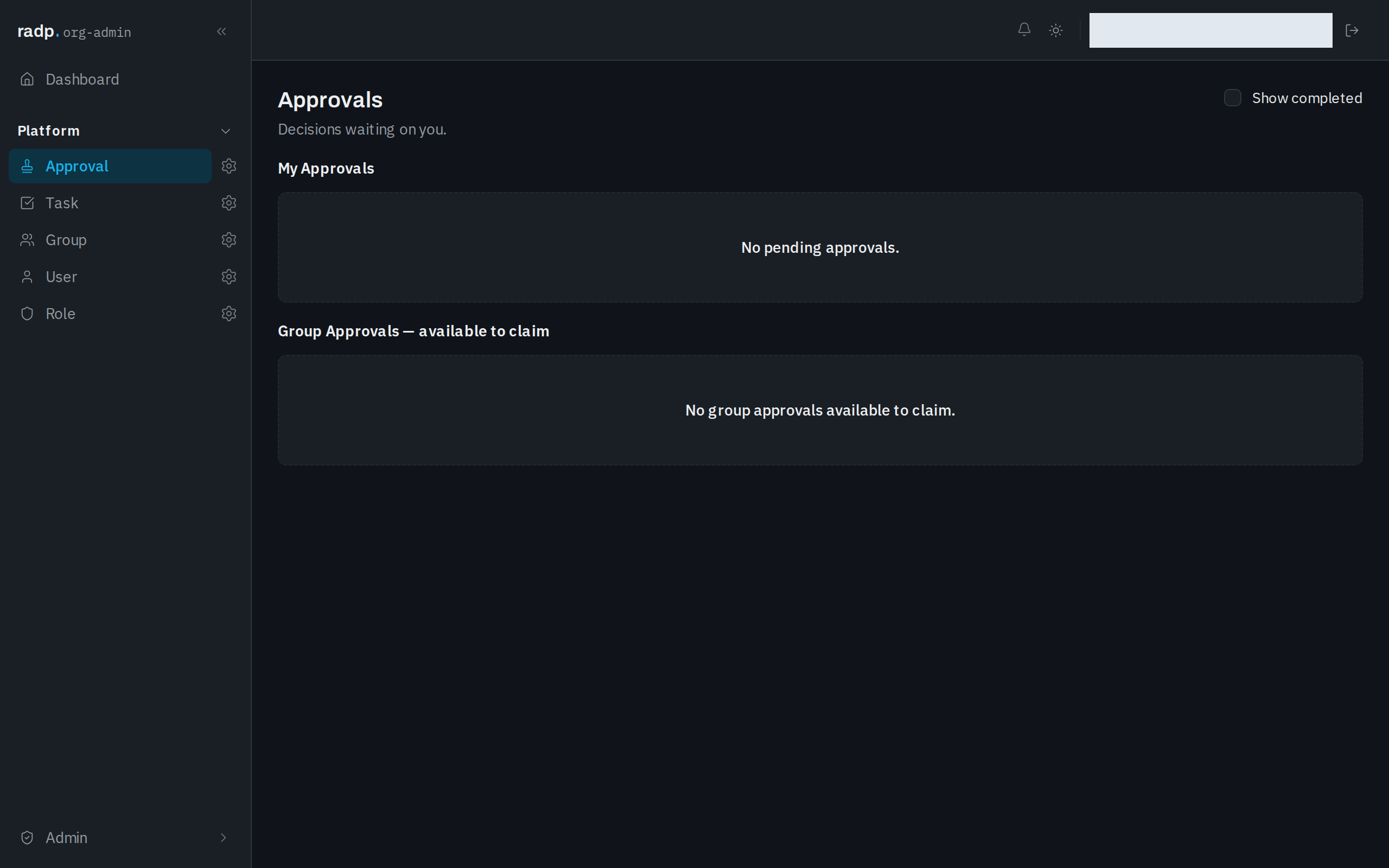
An item in a group list is not yours yet. Claim it to take it on; until someone does, it stays available to everyone the group covers.