How access works
Tell someone's fixed account role apart from the roles and groups that grant record permissions, and find out why a person can or cannot do something.
Access in your workspace has two separate layers. Work out which one you need before you change anything.
| Layer | Where it is shown | What it decides |
|---|---|---|
| Platform role | The Platform role column on Users | Whether someone is an administrator of the workspace. One per person. |
| Tenant roles | The Tenant roles column on Users, and the Tenant roles section of a person's profile | What a normal user may do with each record type. Given through groups. |
Platform roles
Open the Admin area and go to Users. Every person has exactly one platform role, shown in the Platform role column.
org-admin— your organisation's administrators. Full control of the workspace, including the Admin area.radp-admin— RADP staff. Everything an org-admin can do, plus RADP-only actions.user— everyone else. Only what their groups' roles allow.
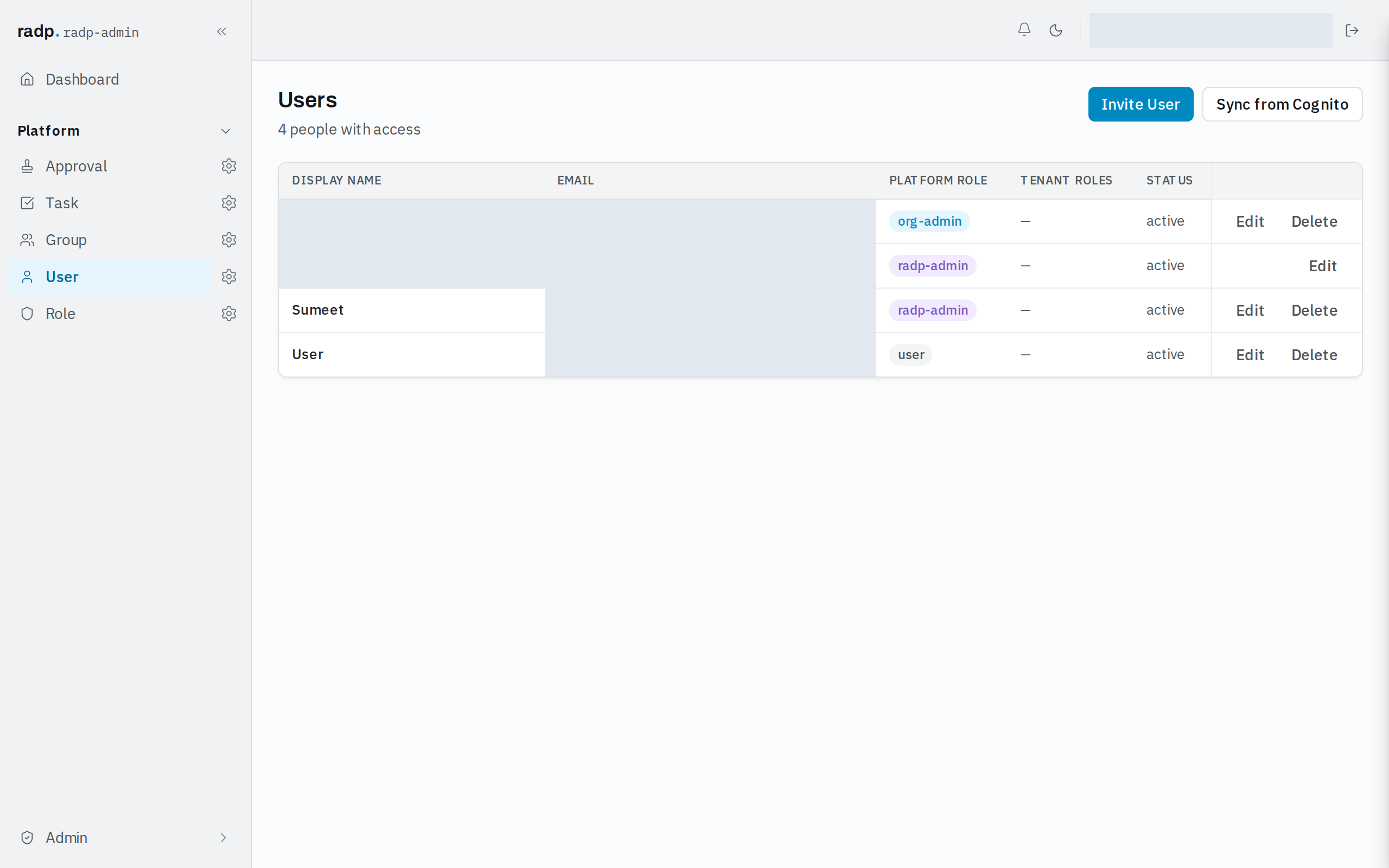
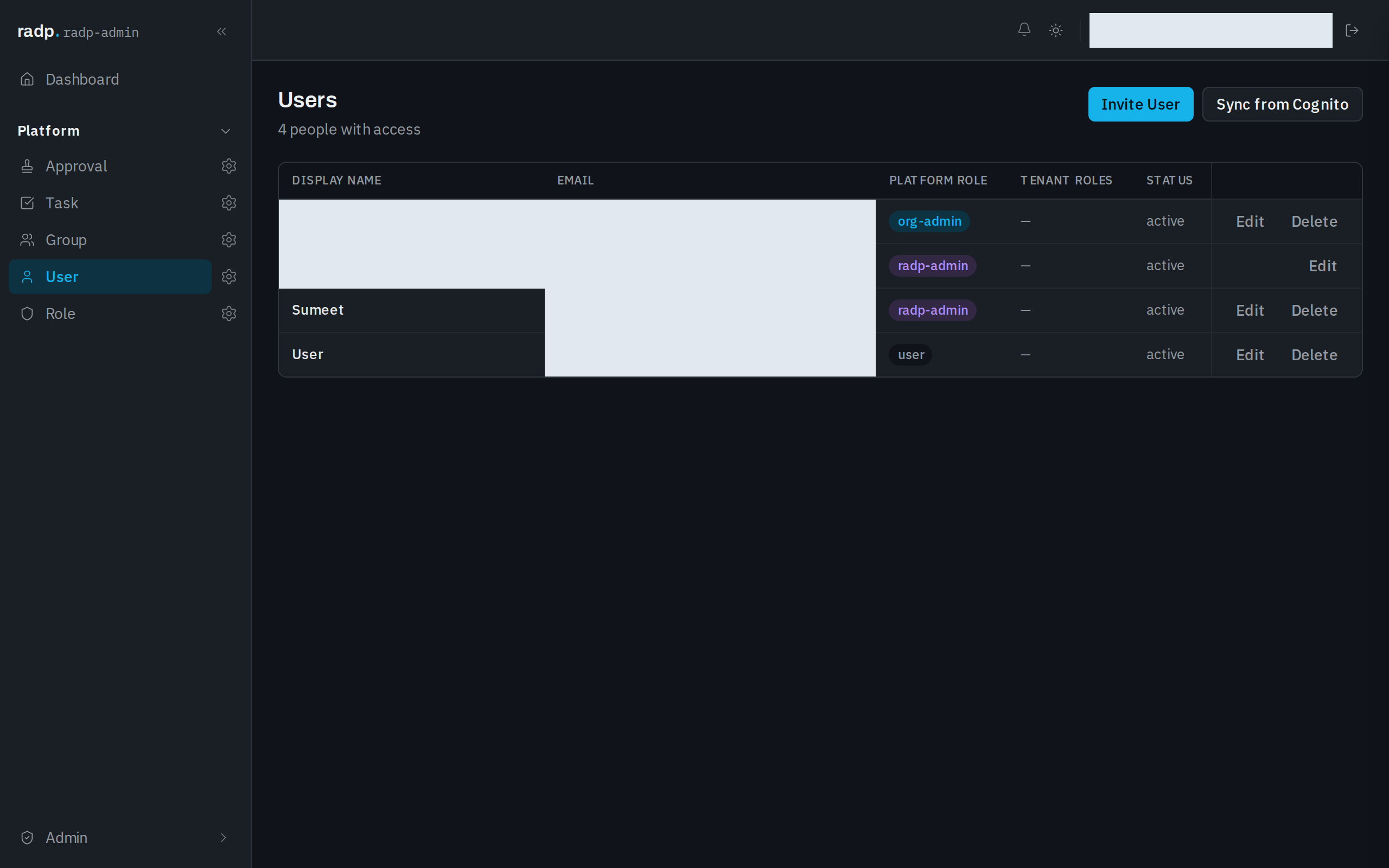
An administrator needs no tenant roles at all. A row with a dash in Tenant roles and org-admin in Platform role still has access to everything.
Roles and groups
For anyone whose platform role is user, access comes from roles:
- A role says, for each record type, whether it may create, read, update or delete. See Roles and permissions.
- A group collects people and is given roles. See Groups.
- A person gets the permissions of every role on every group they belong to. If any one of them allows an action, it is allowed.
Roles are never given to a person directly, only through a group. A workspace with no roles defined grants nothing to ordinary users.
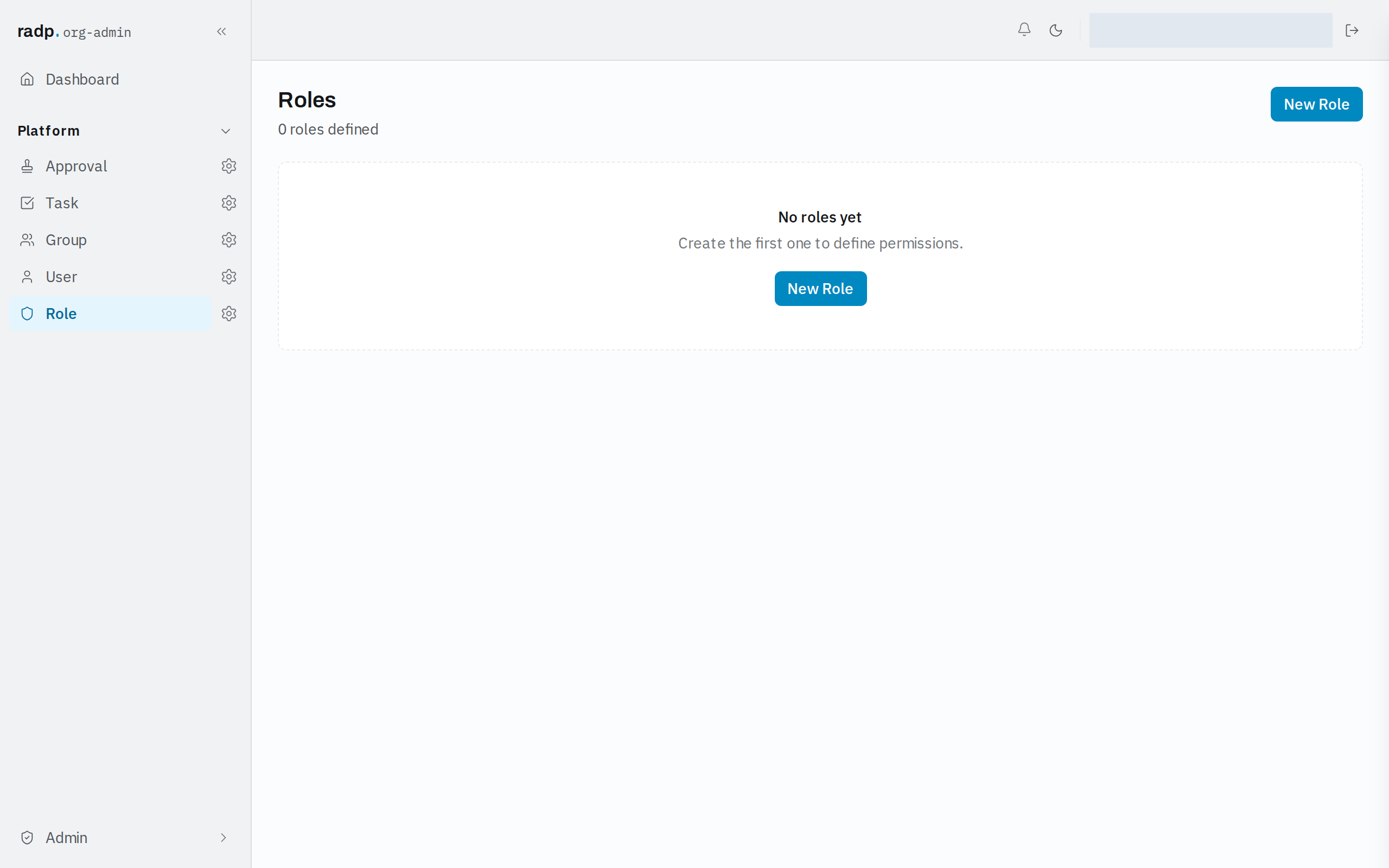
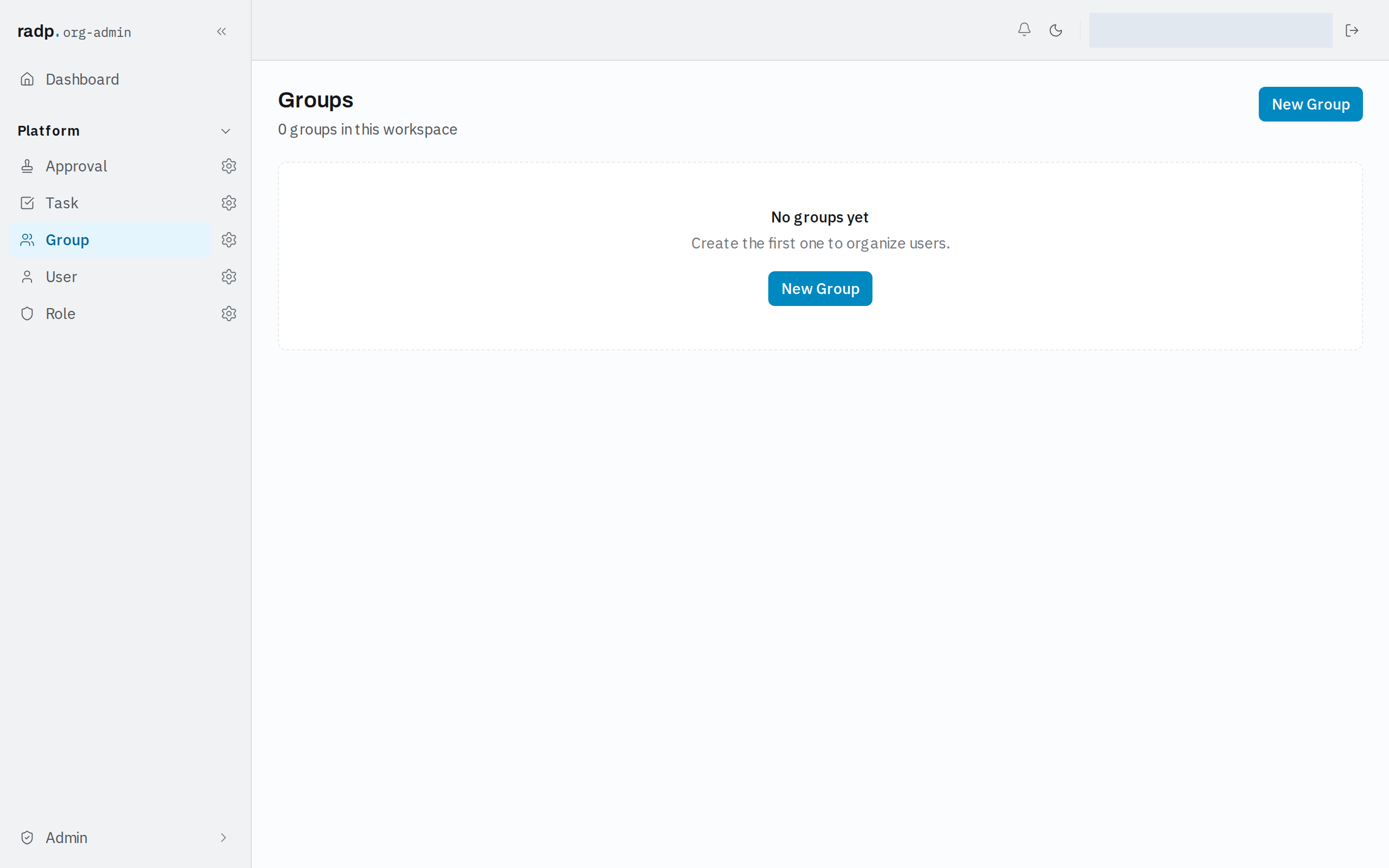
Until a group exists, there is nothing to put anyone in, and the Groups section of a profile says as much.
Checking what one person has
Anyone can open My Profile from the account menu to see their own details, tenant roles and group membership. It is the quickest way to confirm what a person actually holds. Where a person has none, the sections say No tenant roles assigned and No groups available rather than showing an empty box.
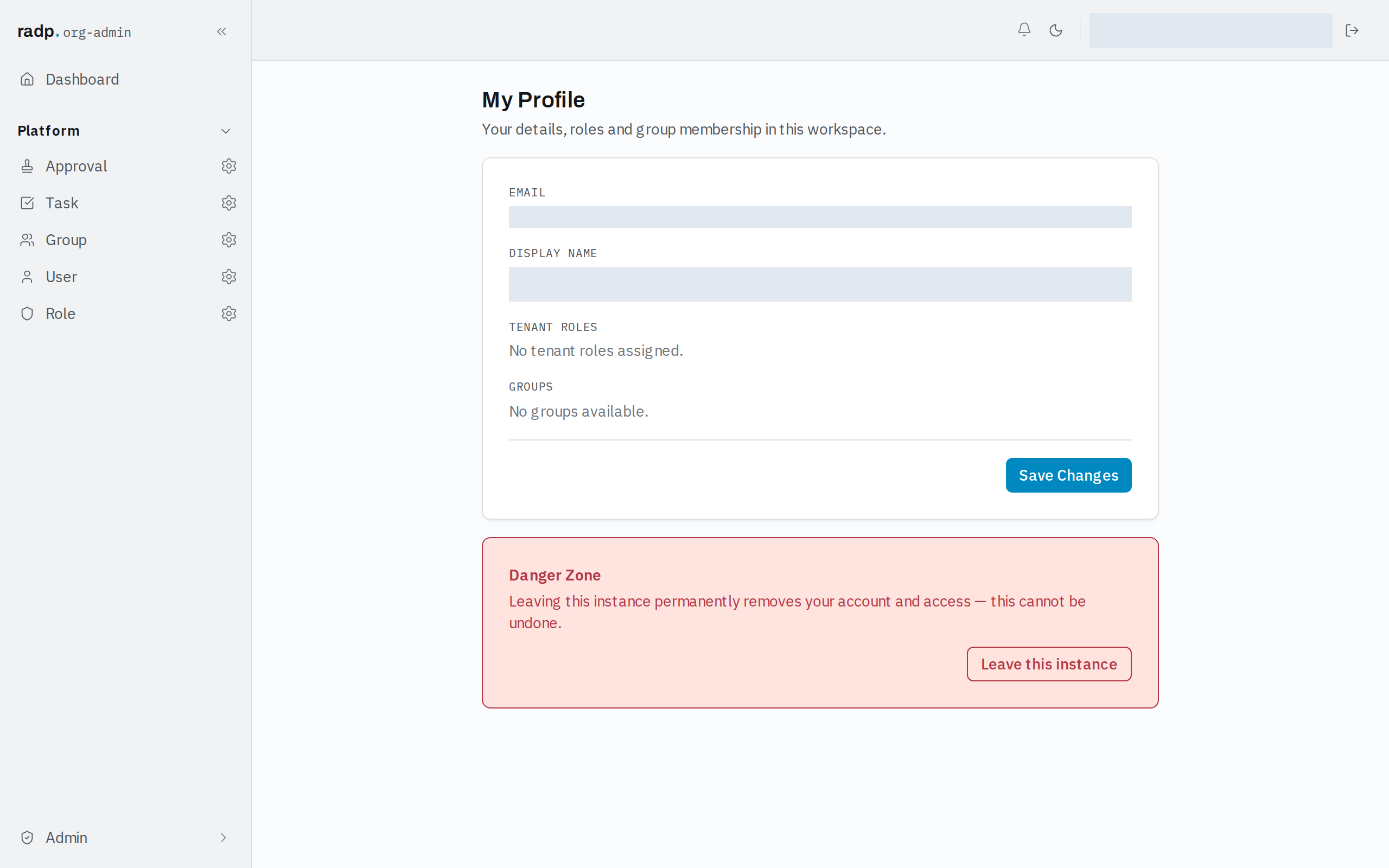
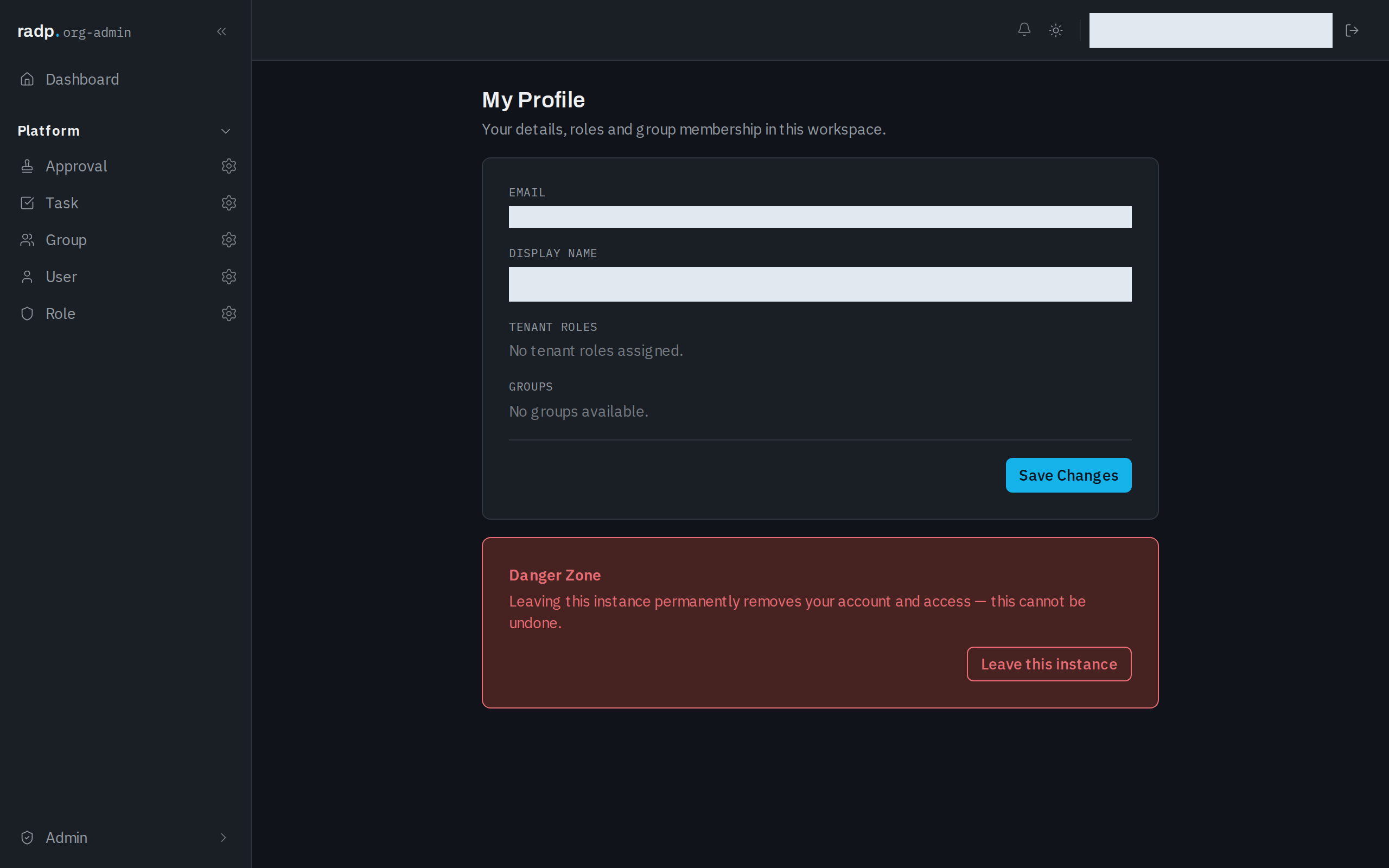
The same two sections appear when an administrator edits a person from the Users screen.
A person is also a record, so an administrator can read the same facts from their user record: in the sidebar, open Platform, then User. The record shows PLATFORM ROLE and TENANT ROLES on its Details tab.
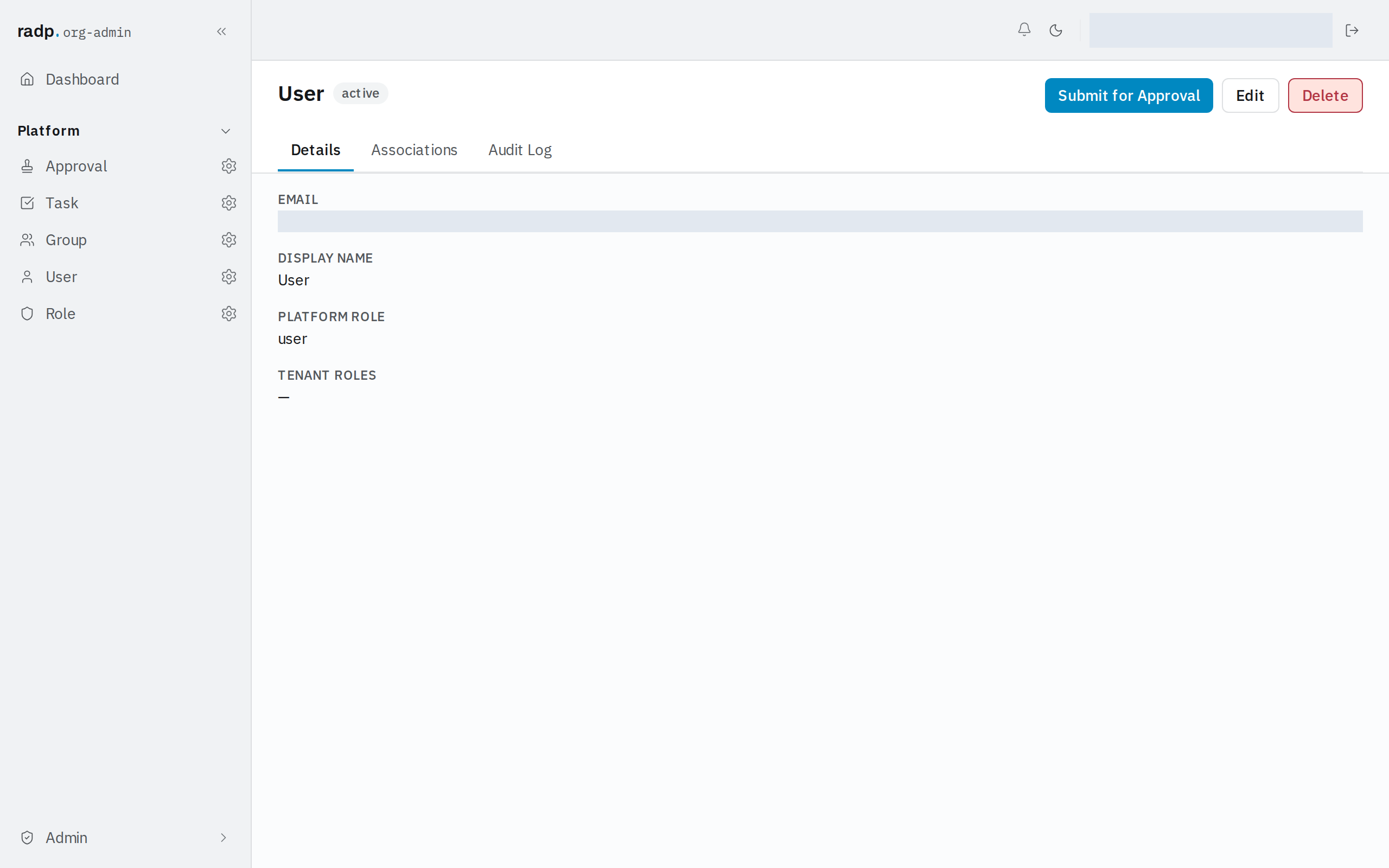
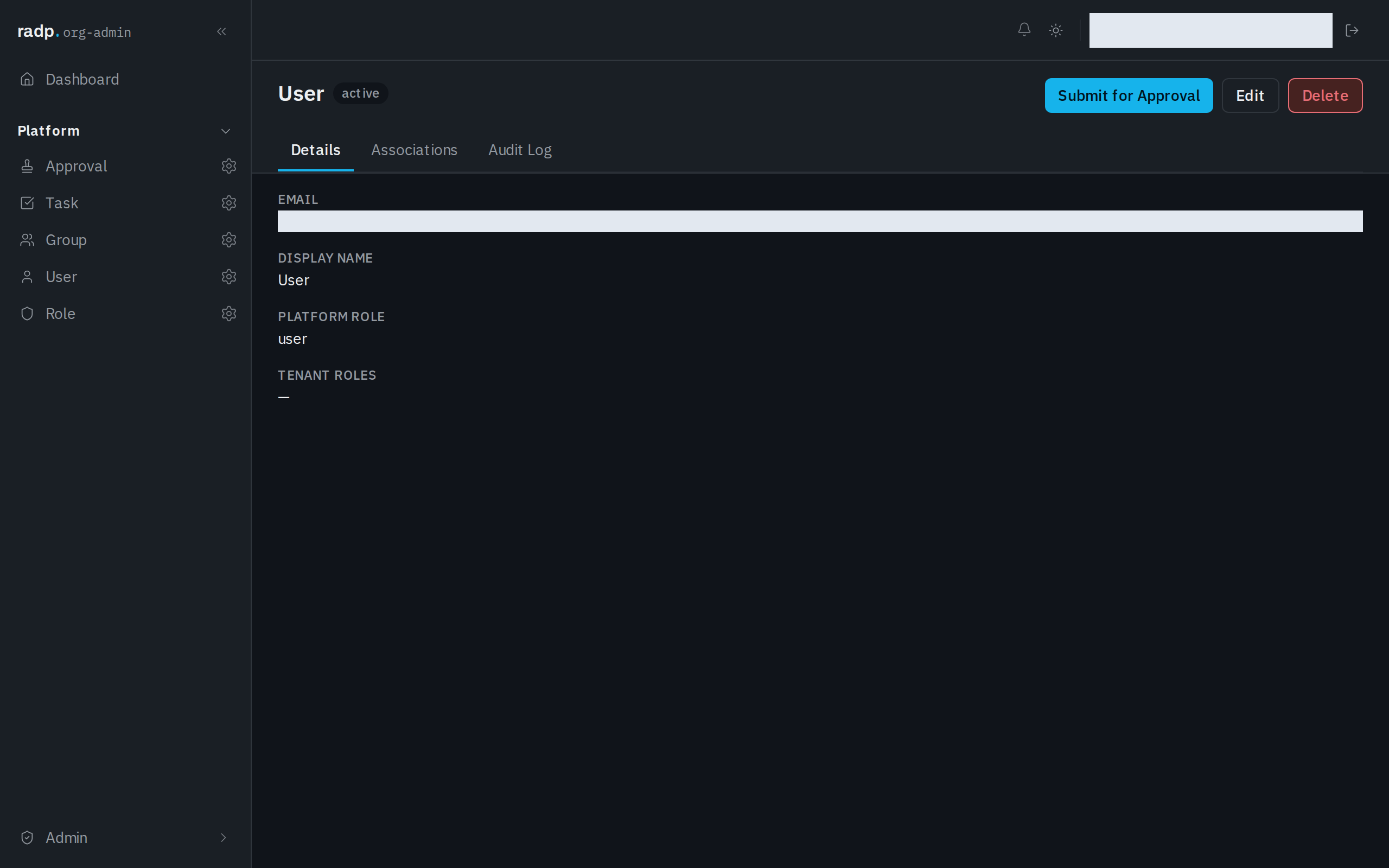
When someone cannot do something
Work down the layers in this order.
- Check their Platform role on the Users screen. An
org-adminorradp-adminis never short of permission; if they are blocked, the cause is elsewhere. - Check Tenant roles for that person. A dash means no role, and so no access to any record type.
- Check their Groups. A role only reaches a person through a group they are in.
- Check what the role itself grants for that record type. A role can grant read without update, so a person may see a record and still not be able to change it.
A record type nobody's role grants does not appear in that person's navigation.