Inviting and managing people
Invite someone into the workspace, set their platform role, edit or remove them, and bring accounts in from the sign-in directory.
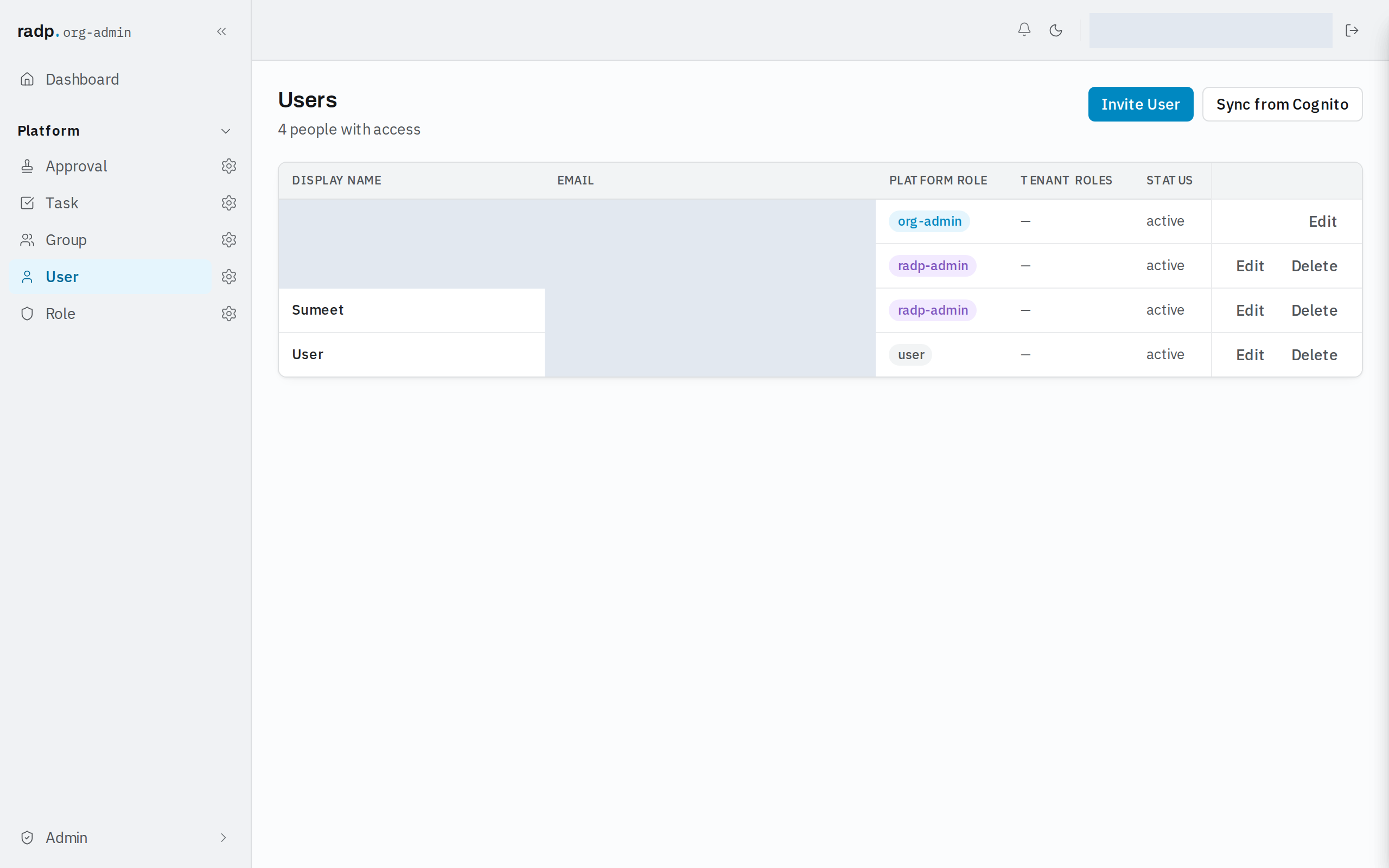
Everyone who signs in has an account in the workspace. Only org-admins and radp-admins can manage accounts. Open the Admin area and go to Users.
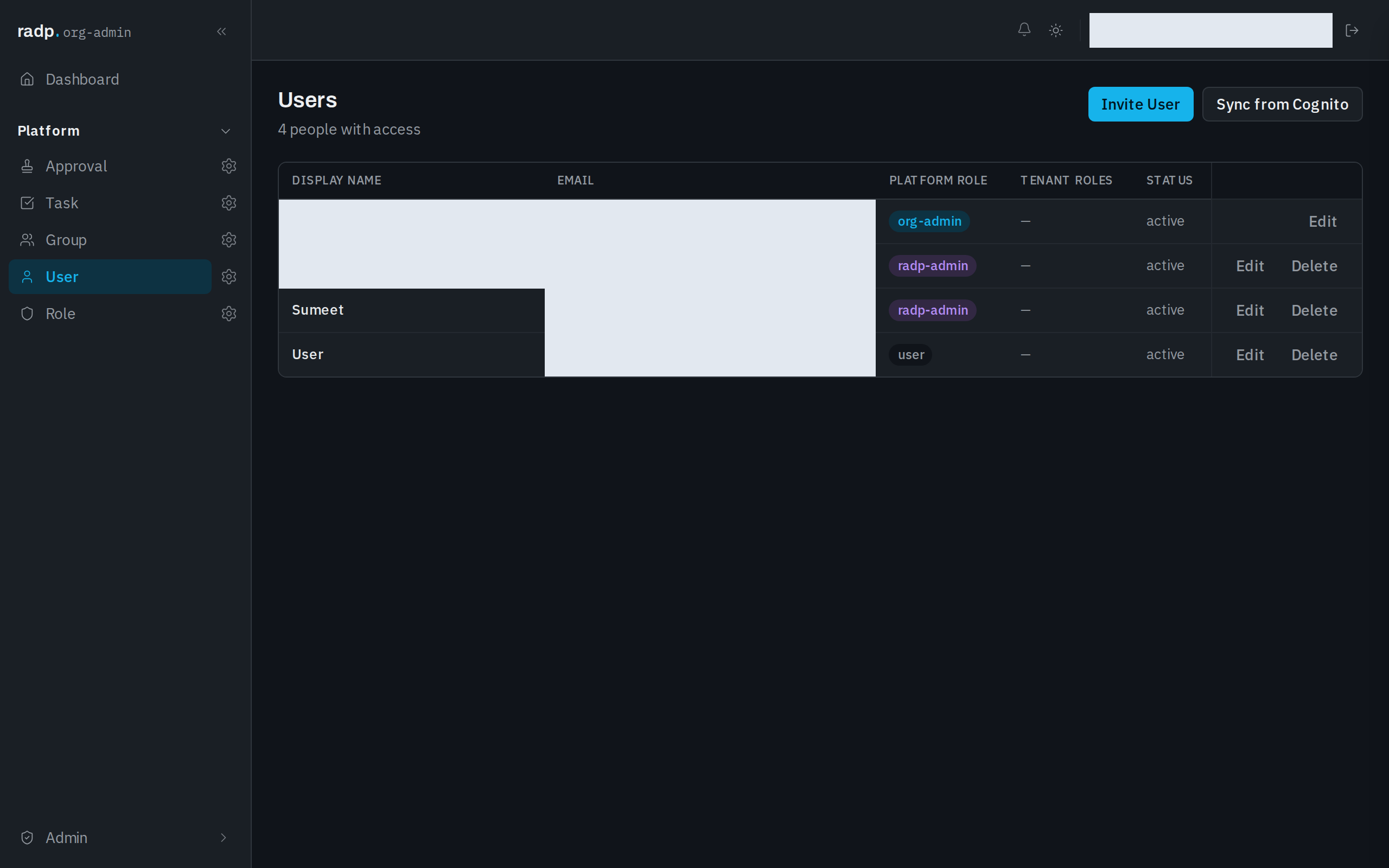
The list shows each person's display name, email, platform role, tenant roles and status, with the actions you may take on each row.
Inviting someone
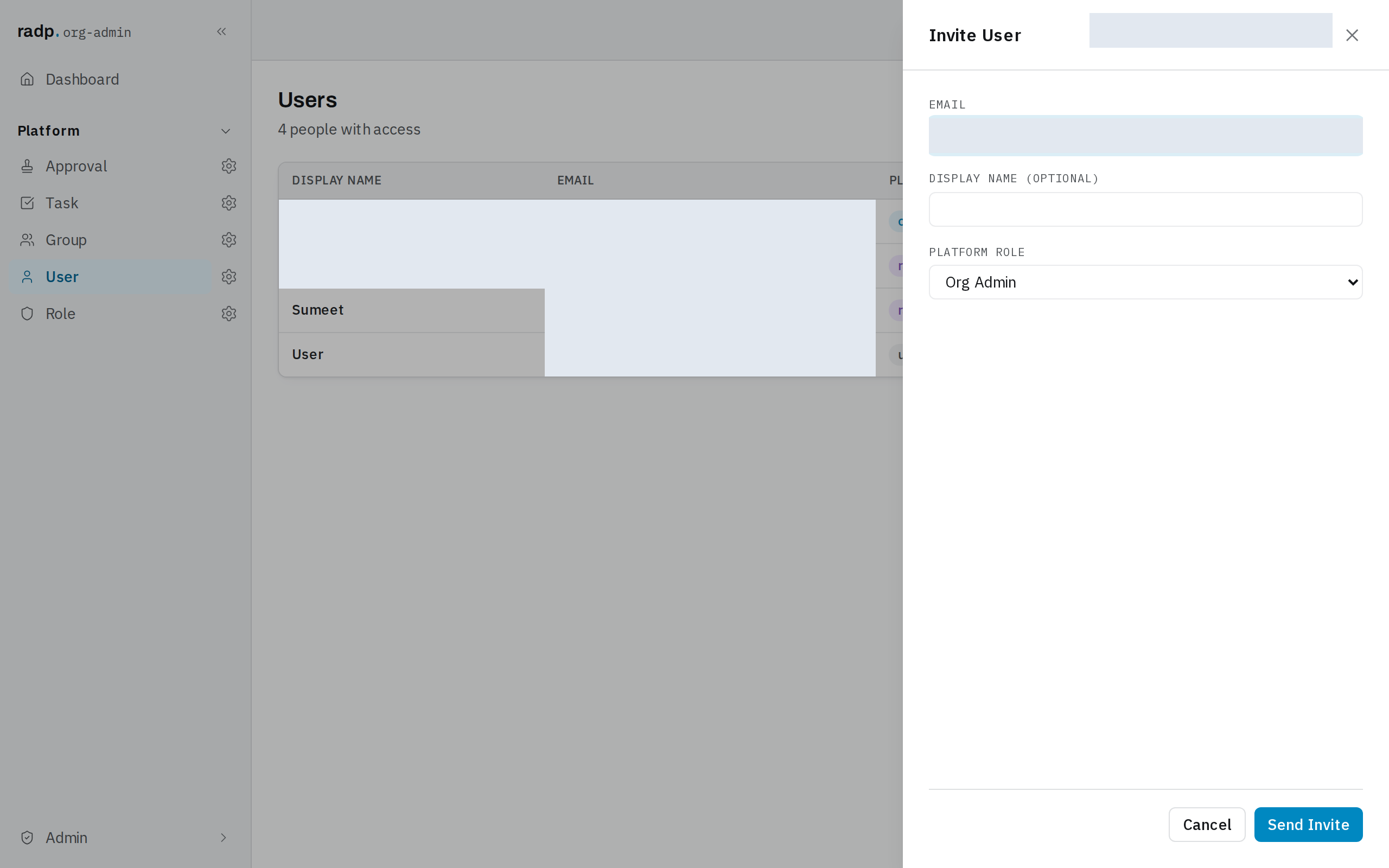
- Select Invite User.
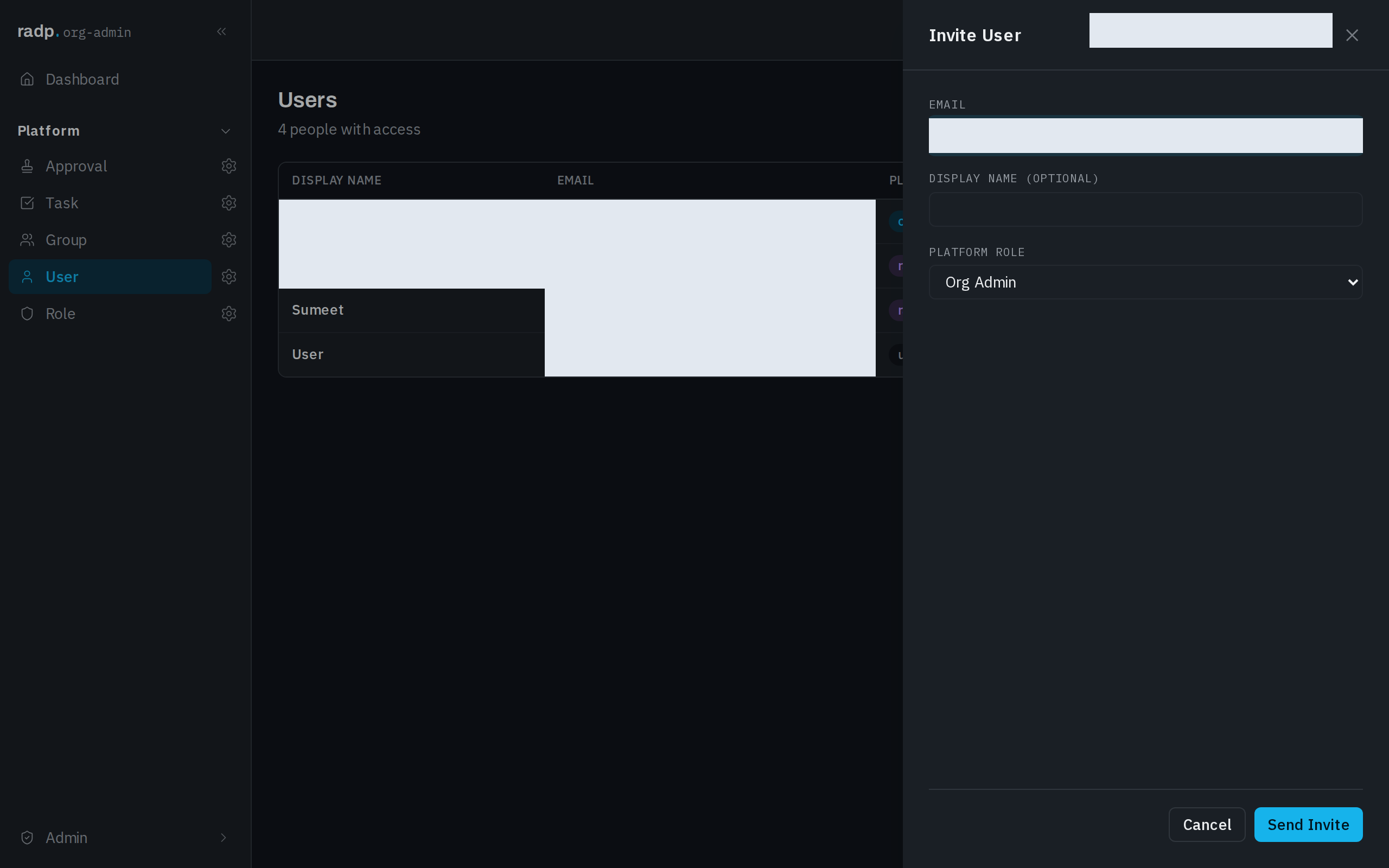
- Enter the person's Email. This is the address they sign in with.
- Enter a Display name if you want one. It is optional, and can be set later.
- Choose the Platform role: User or Org Admin. Choose User unless the person is to administer the workspace; an org admin can reach the whole Admin area and every record. There is no choice here that makes someone a radp-admin.
- Select Send Invite.
An invited person arrives with no tenant roles. Until you put them in a group that has a role, they can sign in but reach no record types. See Groups.
Editing and removing someone
Each row in the list has its own actions.
- Edit opens the person's details: their Display name, their Tenant roles and their Groups. Their email is shown but is not something you set here. Select Save to keep the change, or Cancel to leave it as it was.
- Delete removes the account from the workspace.
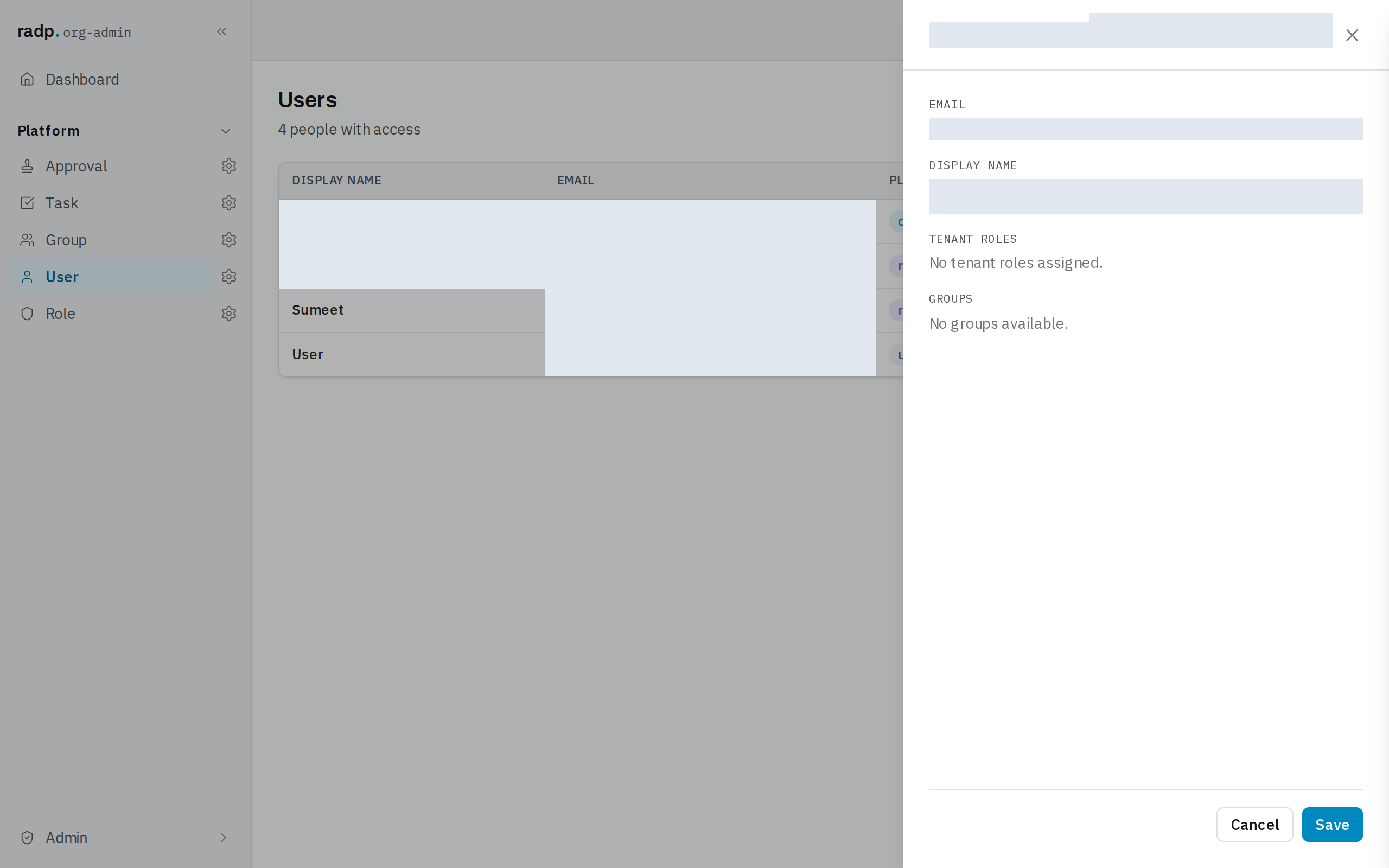
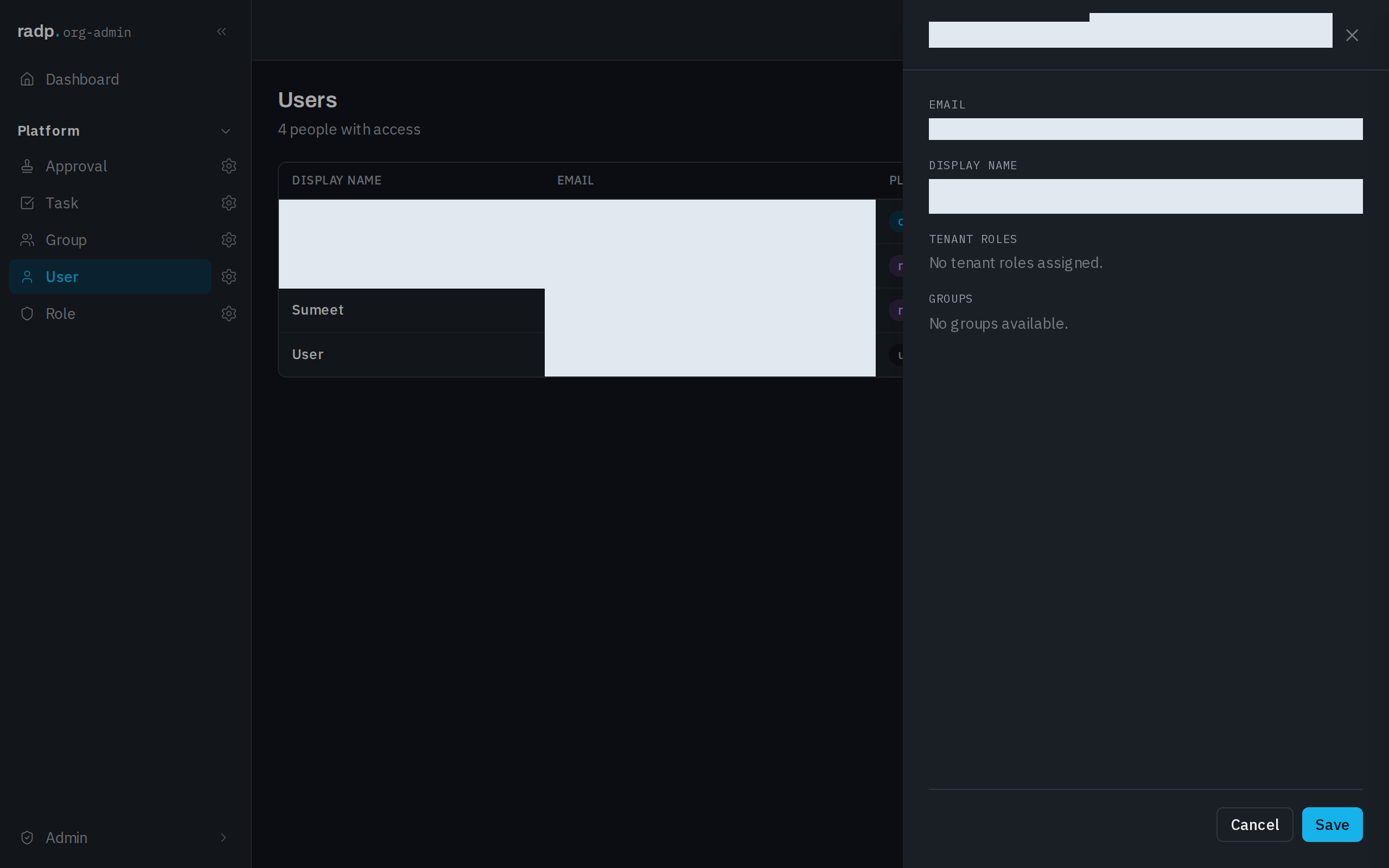
The row for the account you are signed in with offers Edit only. Use another administrator's account if an org-admin account has to be removed.
Bringing in accounts from the sign-in directory
Sync from Cognito, next to Invite User, brings accounts in from the sign-in directory rather than inviting them one at a time.
A person is also a record
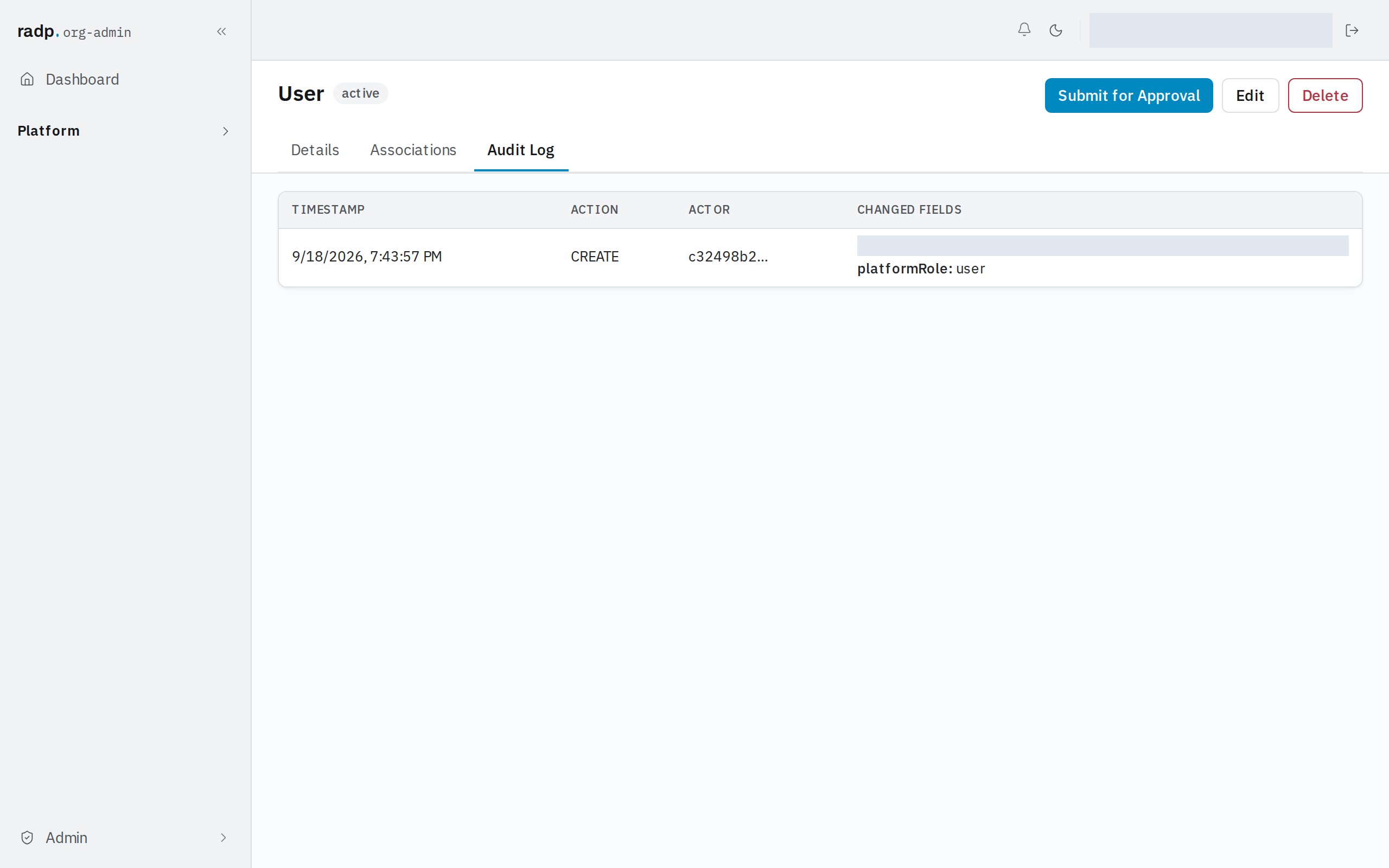
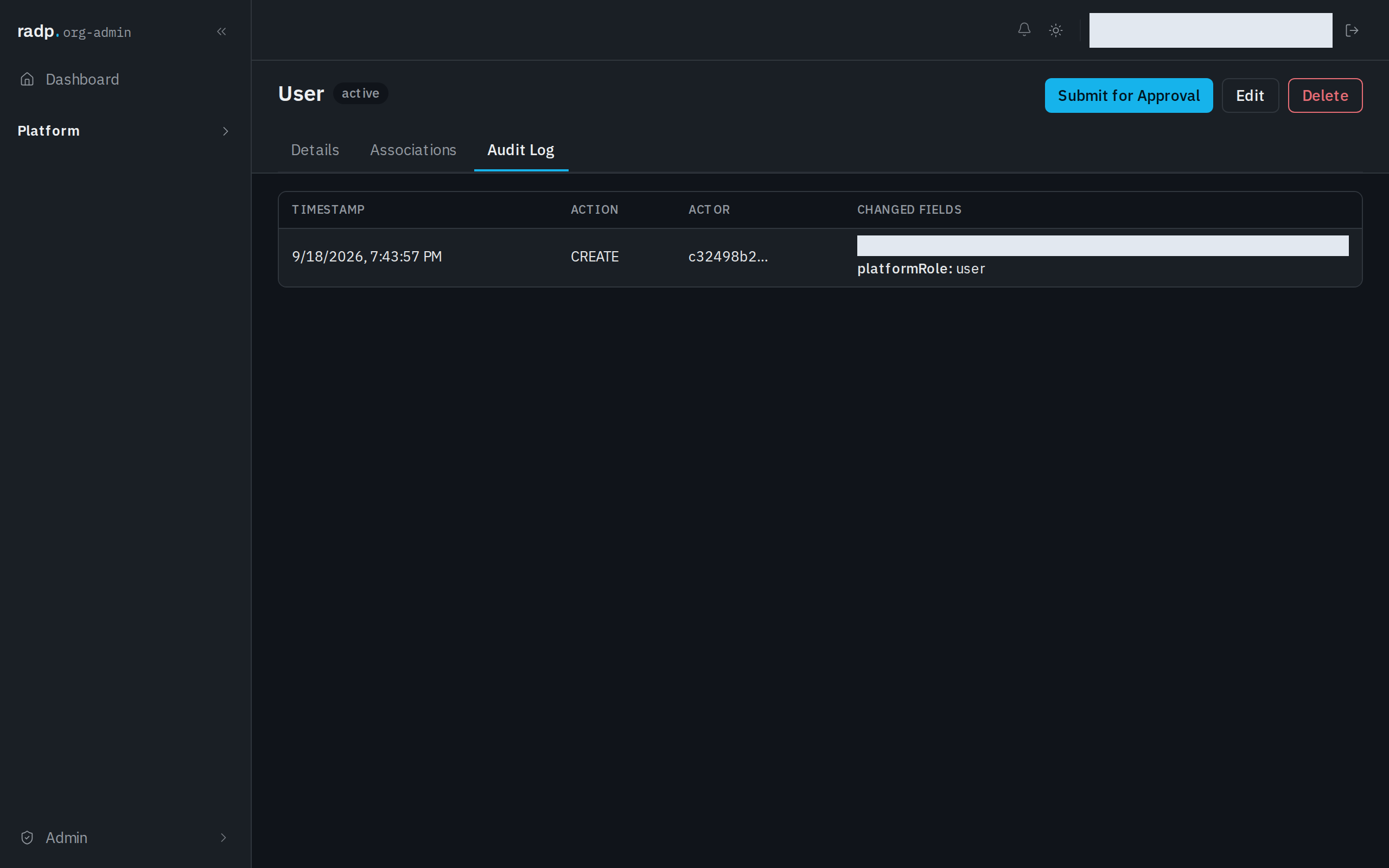
User is one of the platform record types, so a person can be opened like any other record — in the sidebar, open Platform, then User. The record shows their email, display name, platform role and tenant roles, with Details, Associations and Audit Log tabs.
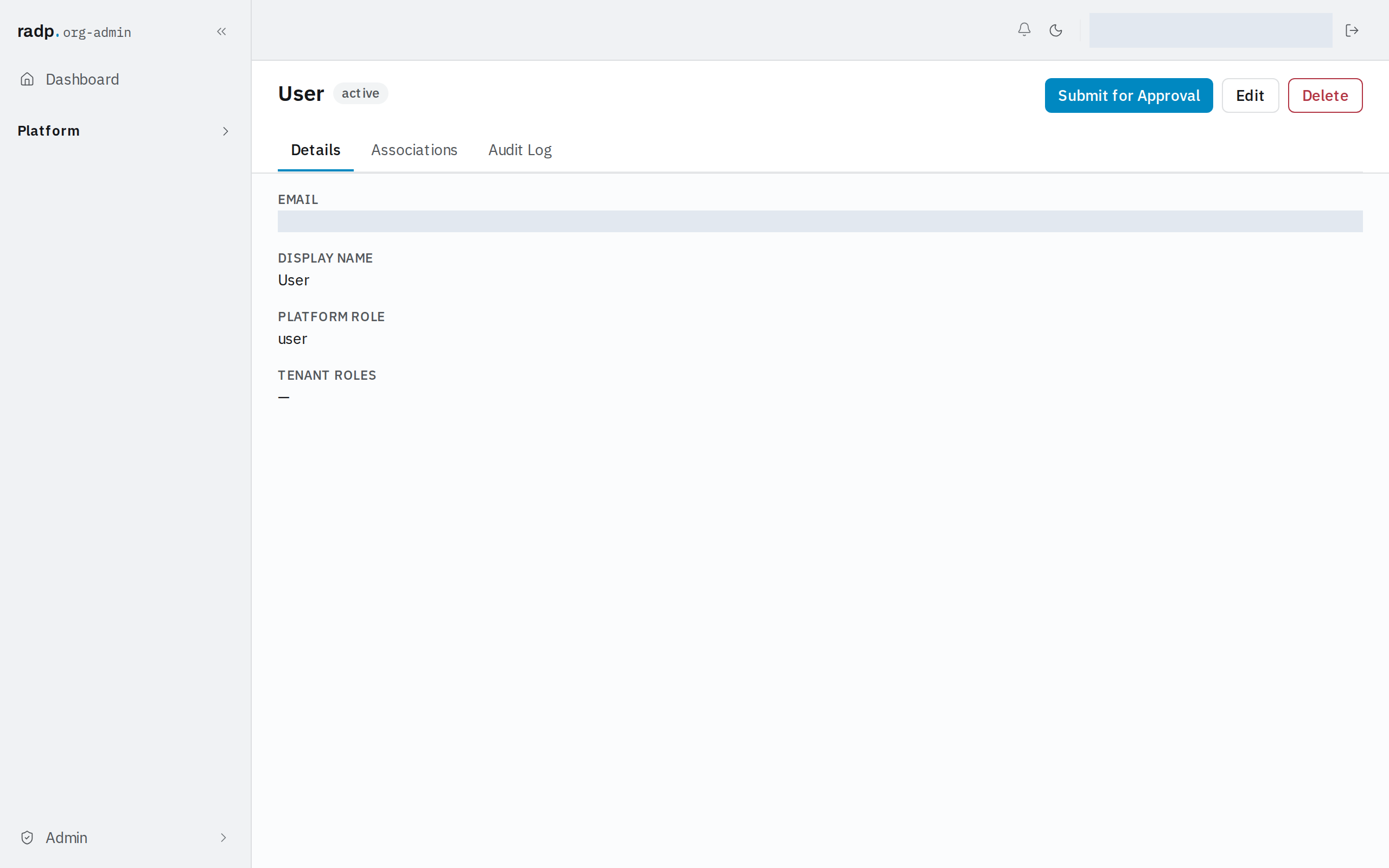
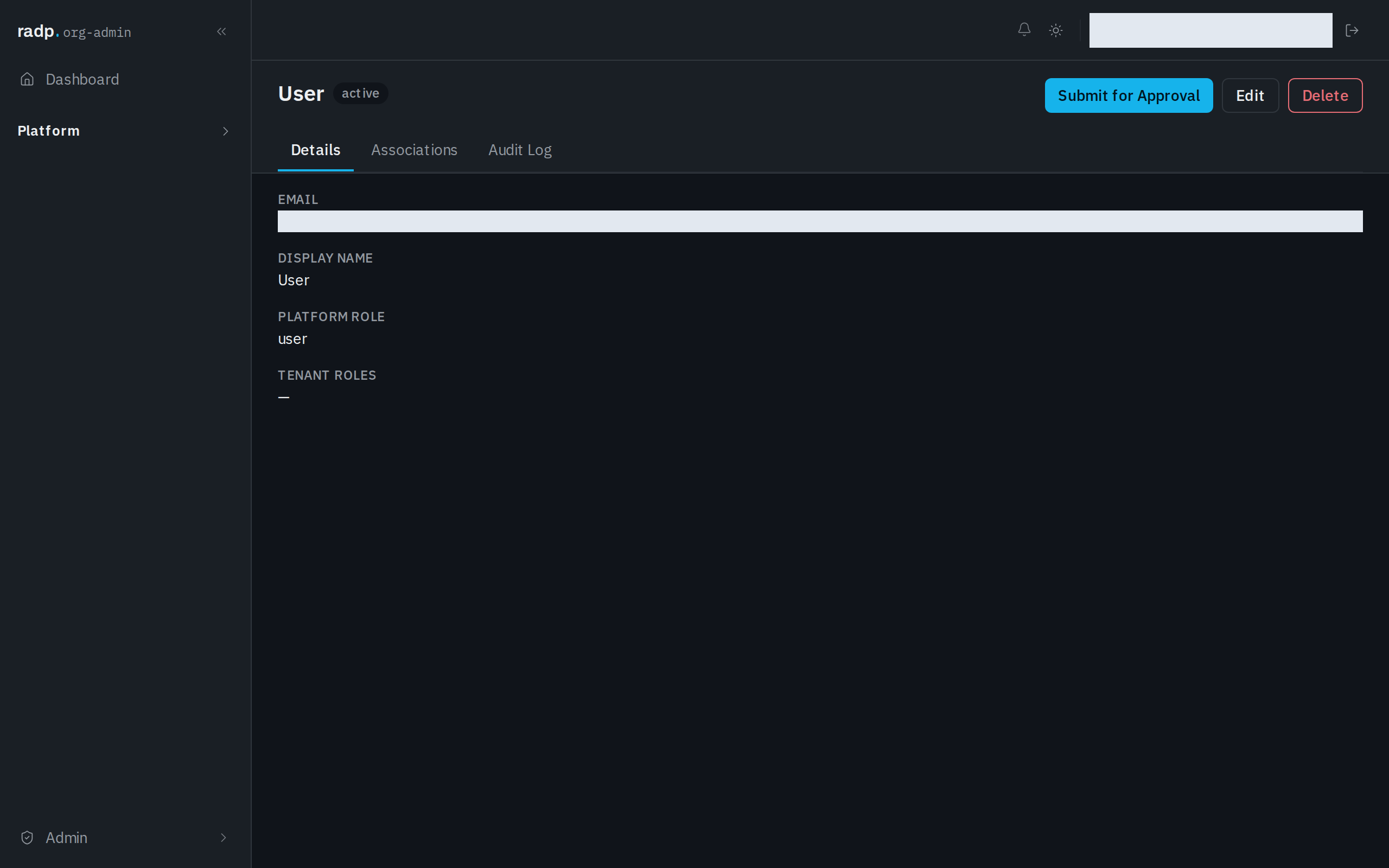
The Audit Log tab lists every change to that account, with when it happened, what the action was, who did it and which fields changed. Use it to answer questions such as who granted someone their role.
Platform record types come with RADP: you can view a user record and edit the account, but you cannot change how the User record type itself is configured.