Finding records in a list
Open a record type's list, read its table and row actions, and narrow a long list with filters and paging.
Every record type you can read has a list. This page is about getting to the record you want.
Opening a list
Expand Platform in the sidebar and select a record type. Record types you have no access to are not there.
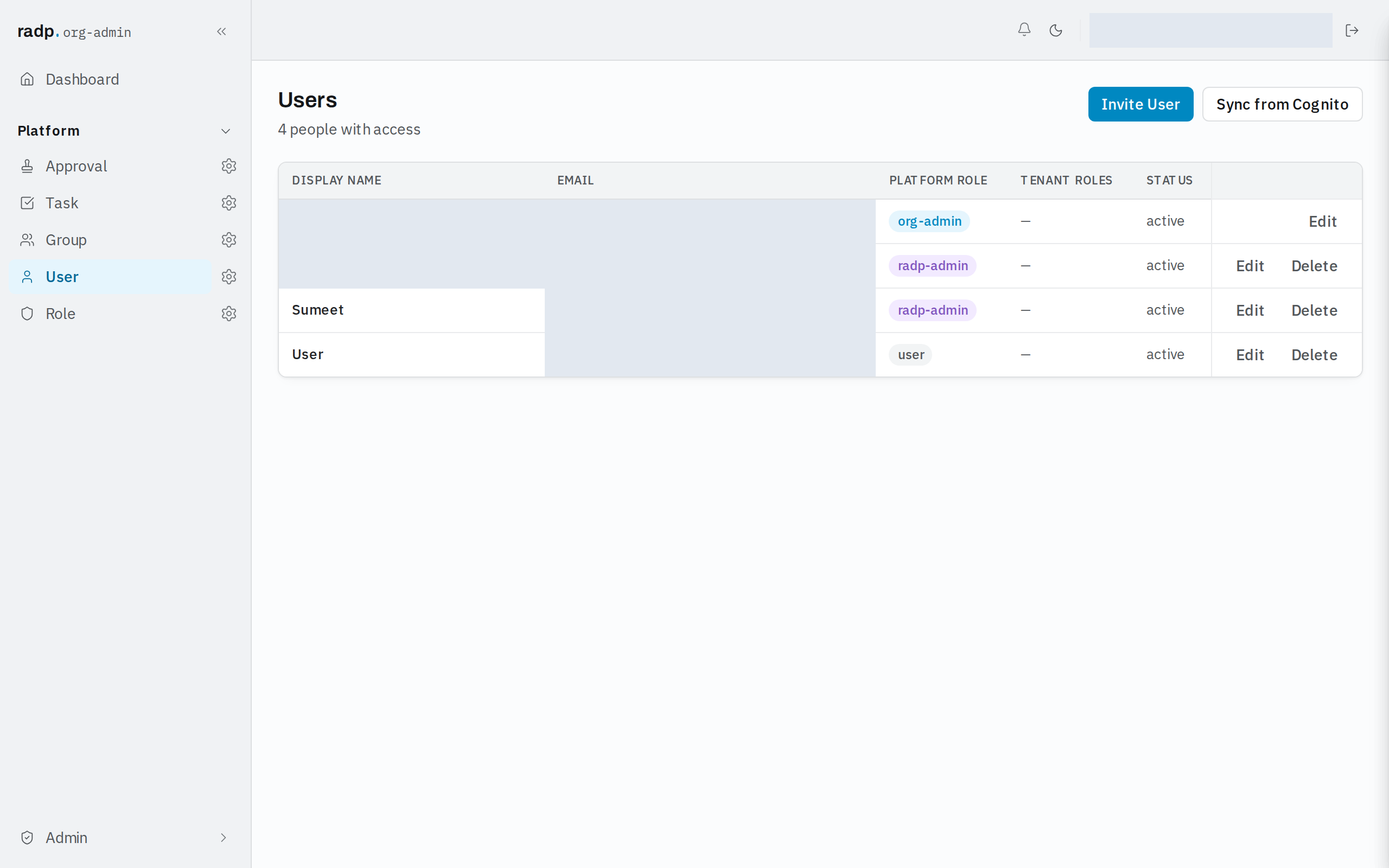
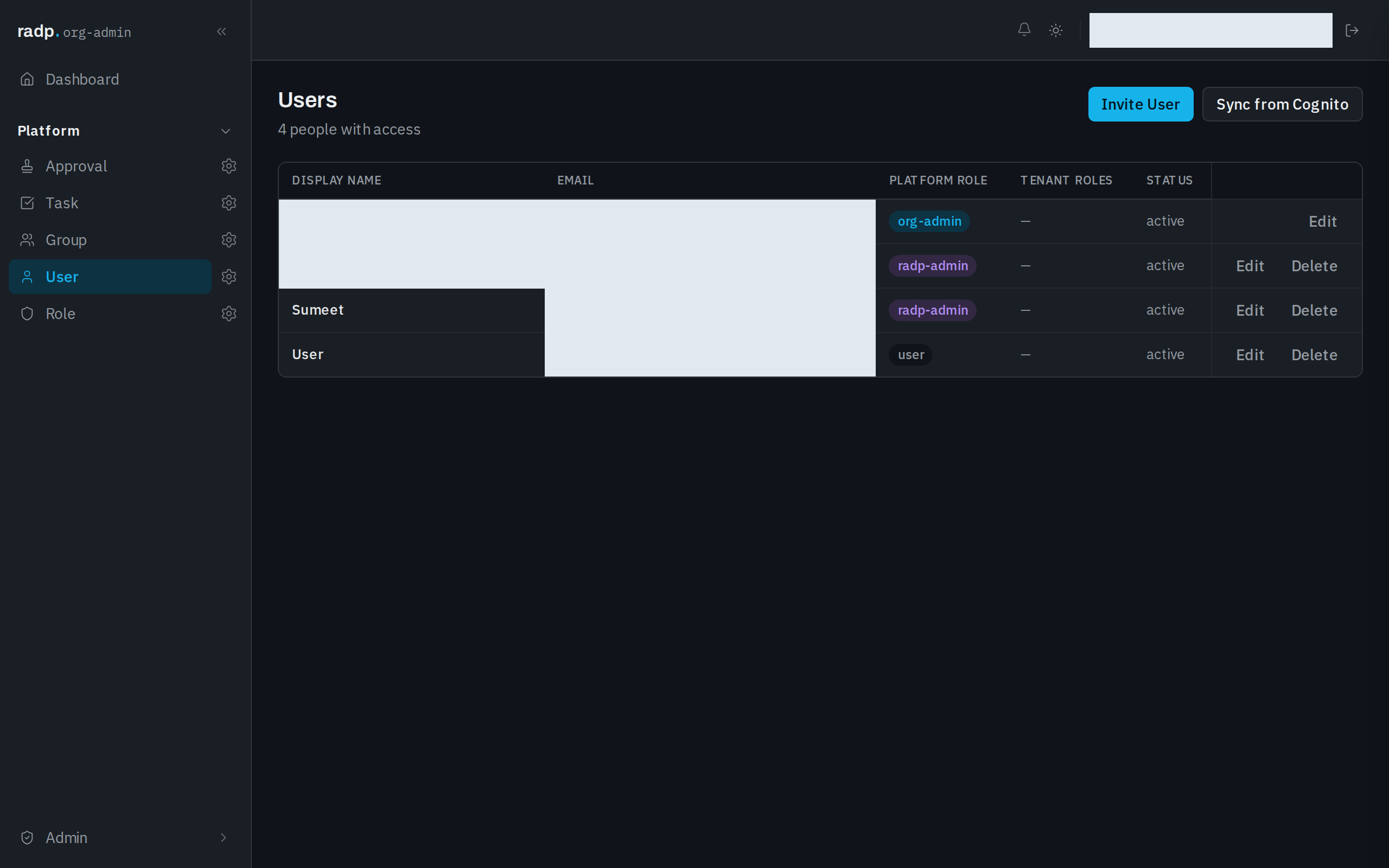
The list is a table: one row per record, one column per field the record type shows, and an Actions column at the end. Which actions a row offers depends on what you may do with that record — a row may offer Edit alone where deleting is not allowed.
Paging
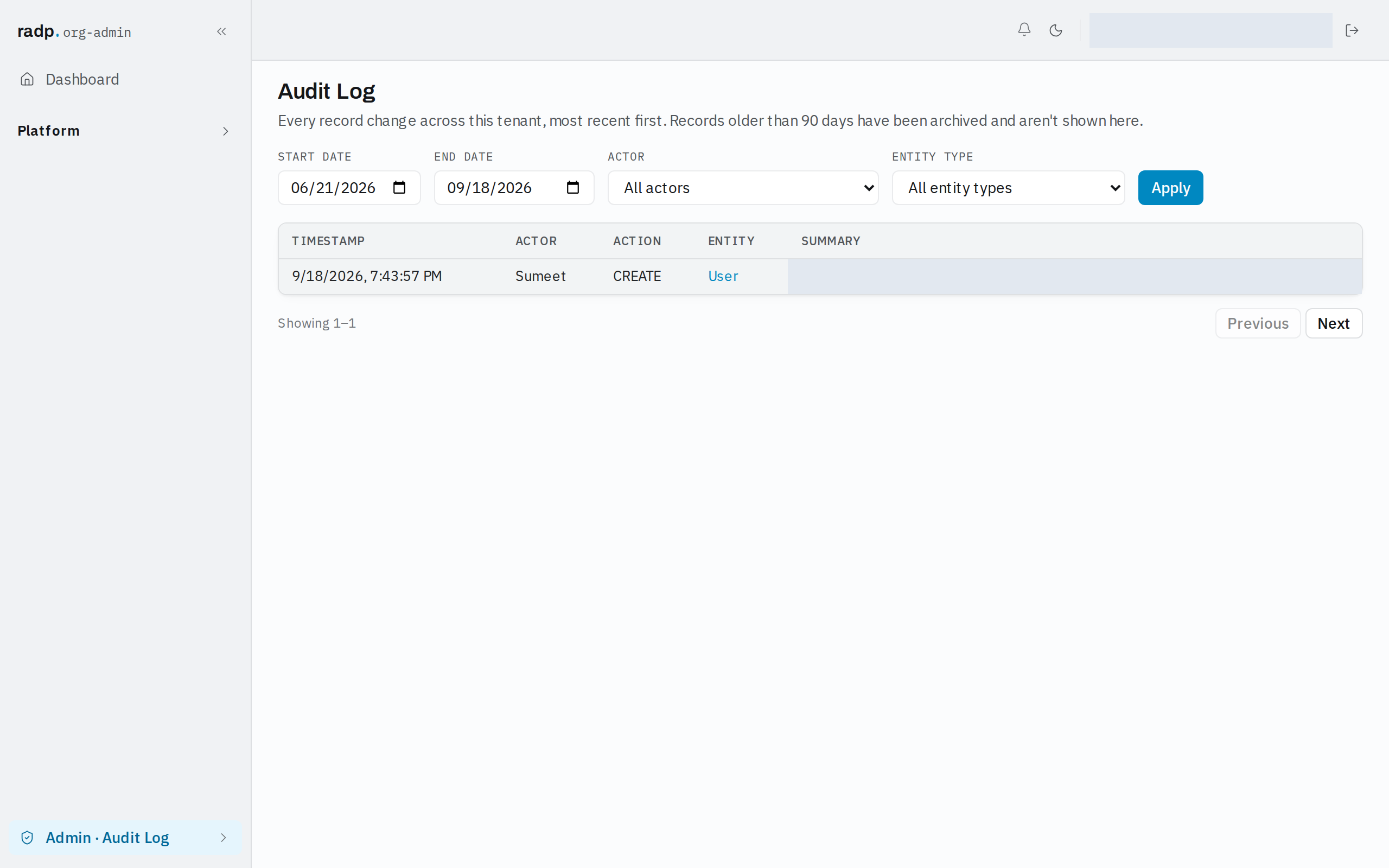
A list shows one page at a time. Under the table, a Showing line tells you which rows you are looking at, and Previous and Next move a page back and forward. There is no total count.
Filtering
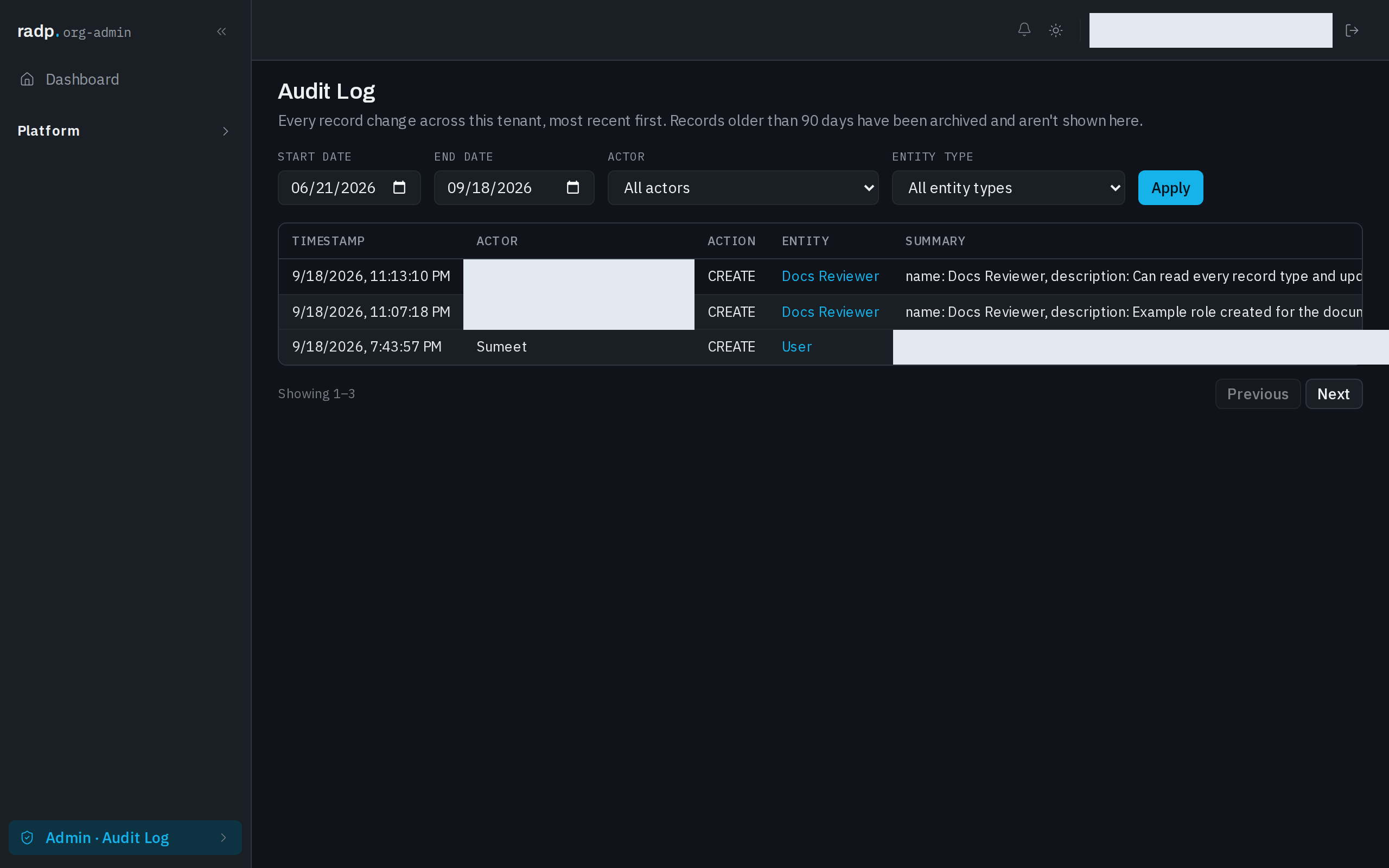
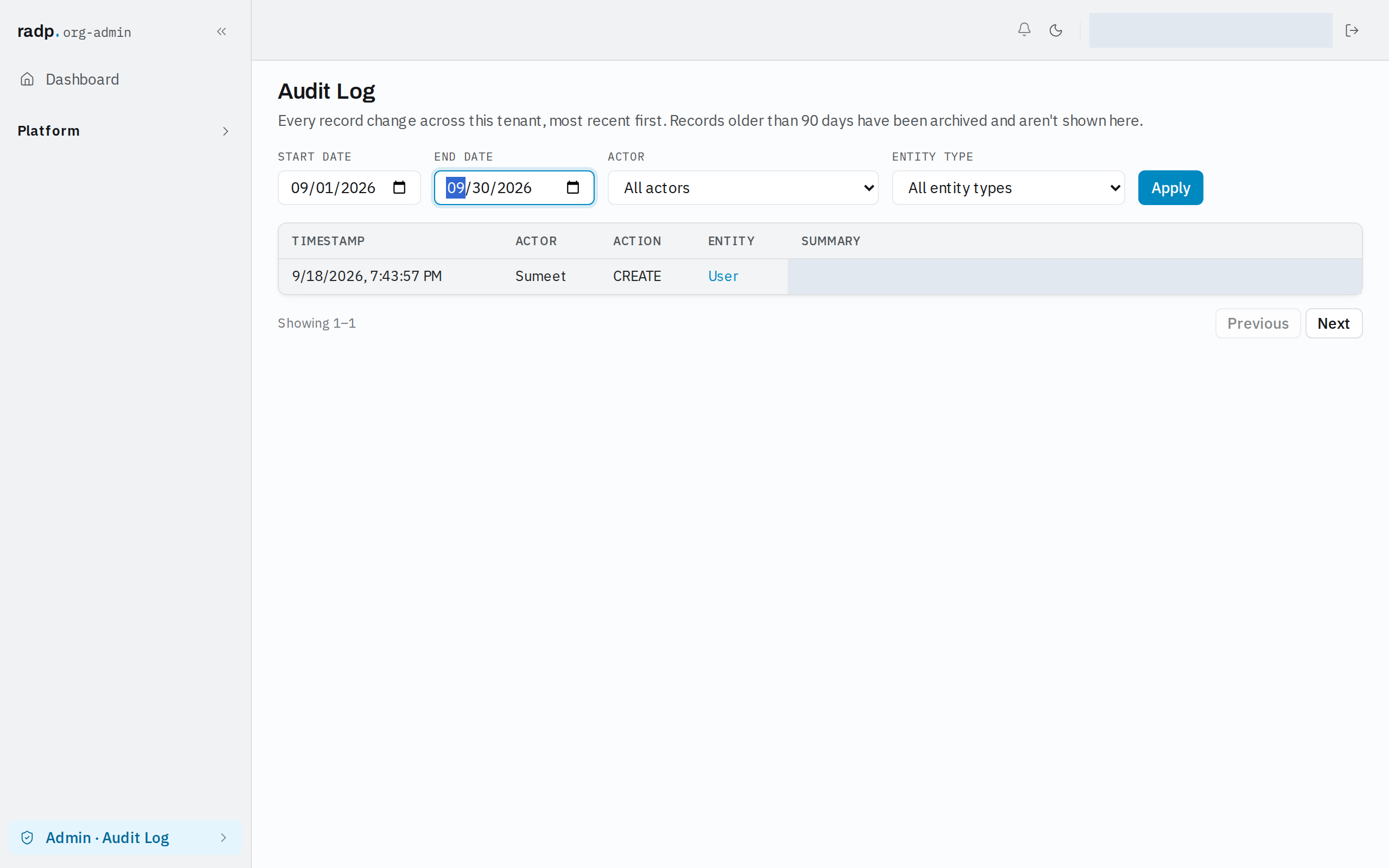
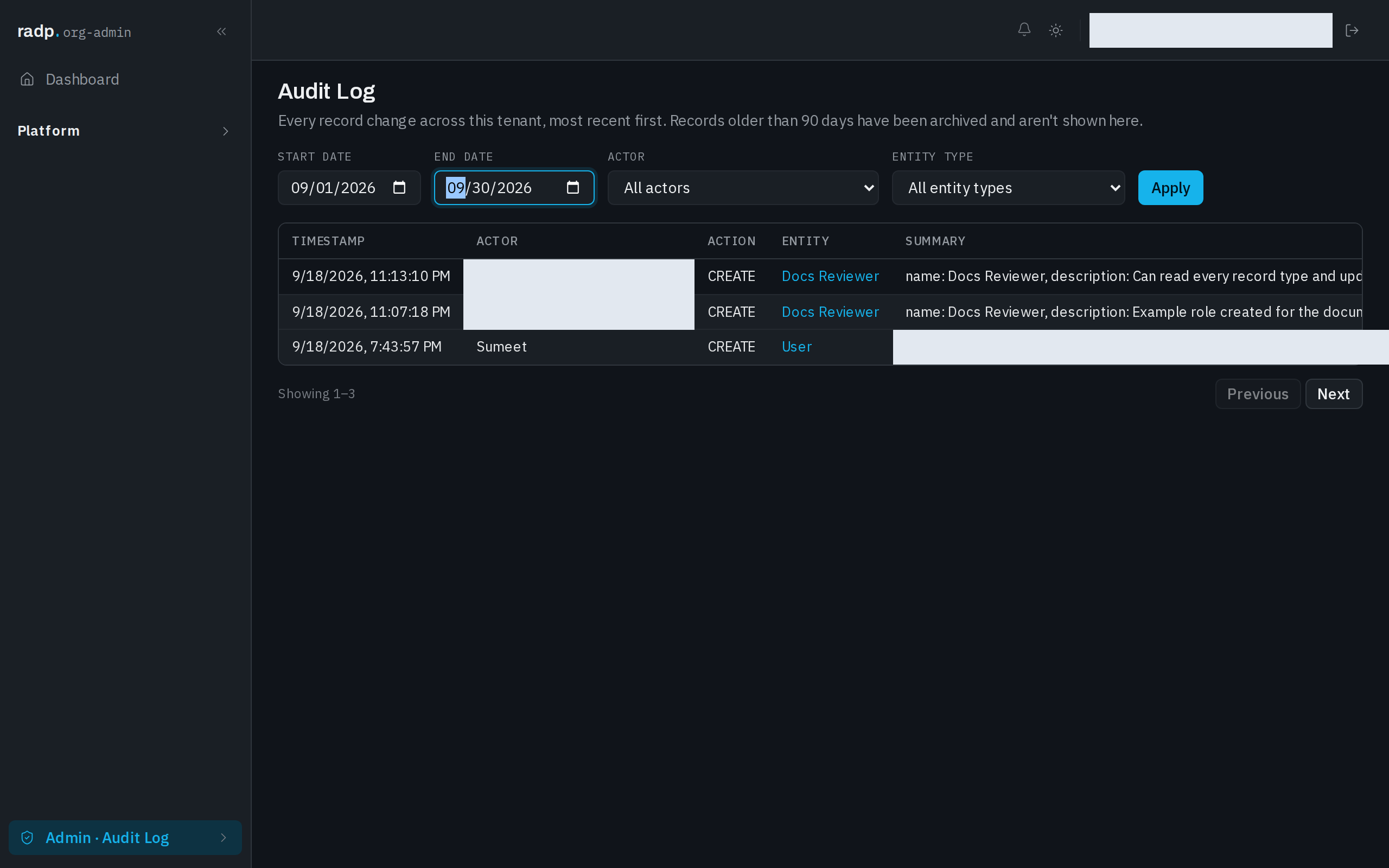
Where a list offers filters, they sit in a row above the table and take effect when you select Apply. Typing in a filter changes nothing until you do.
The Audit Log is the clearest example. It filters on:
| Filter | What it narrows to |
|---|---|
| Start date / End date | Entries in that date range. |
| Actor | Entries by one person. All actors is the default. |
| Entity type | Entries about one kind of thing. Besides the record types, you can choose Configuration changes or Module check-in / check-out. All entity types is the default. |
-
Set the filters you want.
-
Select Apply. The table reloads with only the matching entries, and paging works over that narrower set.
To widen a list again, put the filters back to All actors and All entity types, clear the dates, and select Apply once more.
When a list looks empty
A list with nothing in it says so in place of the table, and offers the button that creates the first record.
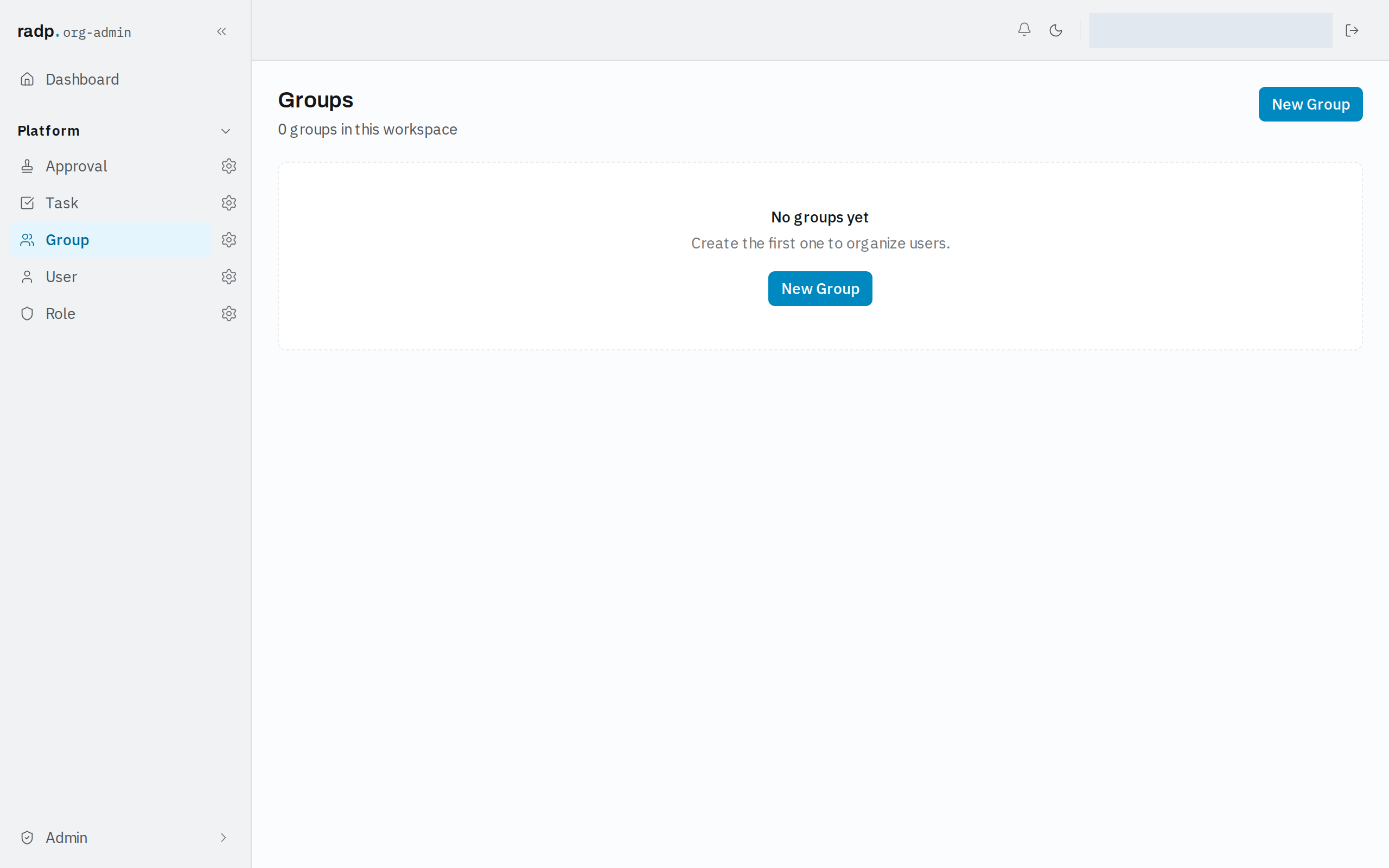
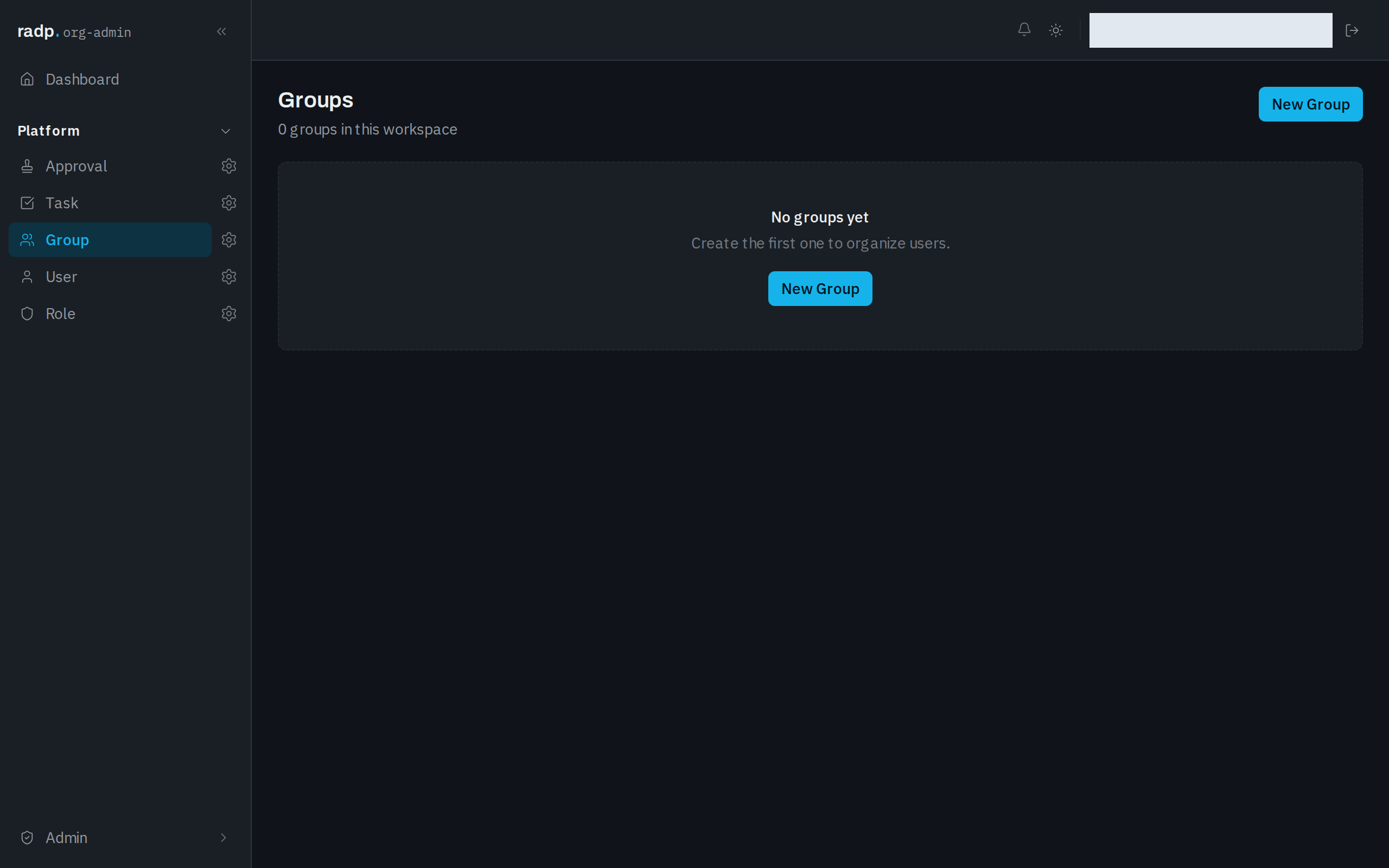
If you expected records to be there, check the filters above the table first: a date range left over from an earlier search hides everything outside it.
The Audit Log has a second reason to look short. Entries older than 90 days are archived and are not shown there at all, whatever you filter on.