Opening and editing a record
Use a record's Details, Associations and Audit Log tabs, edit its values, and send it for approval.
Every record has its own page. This is what you can do there.
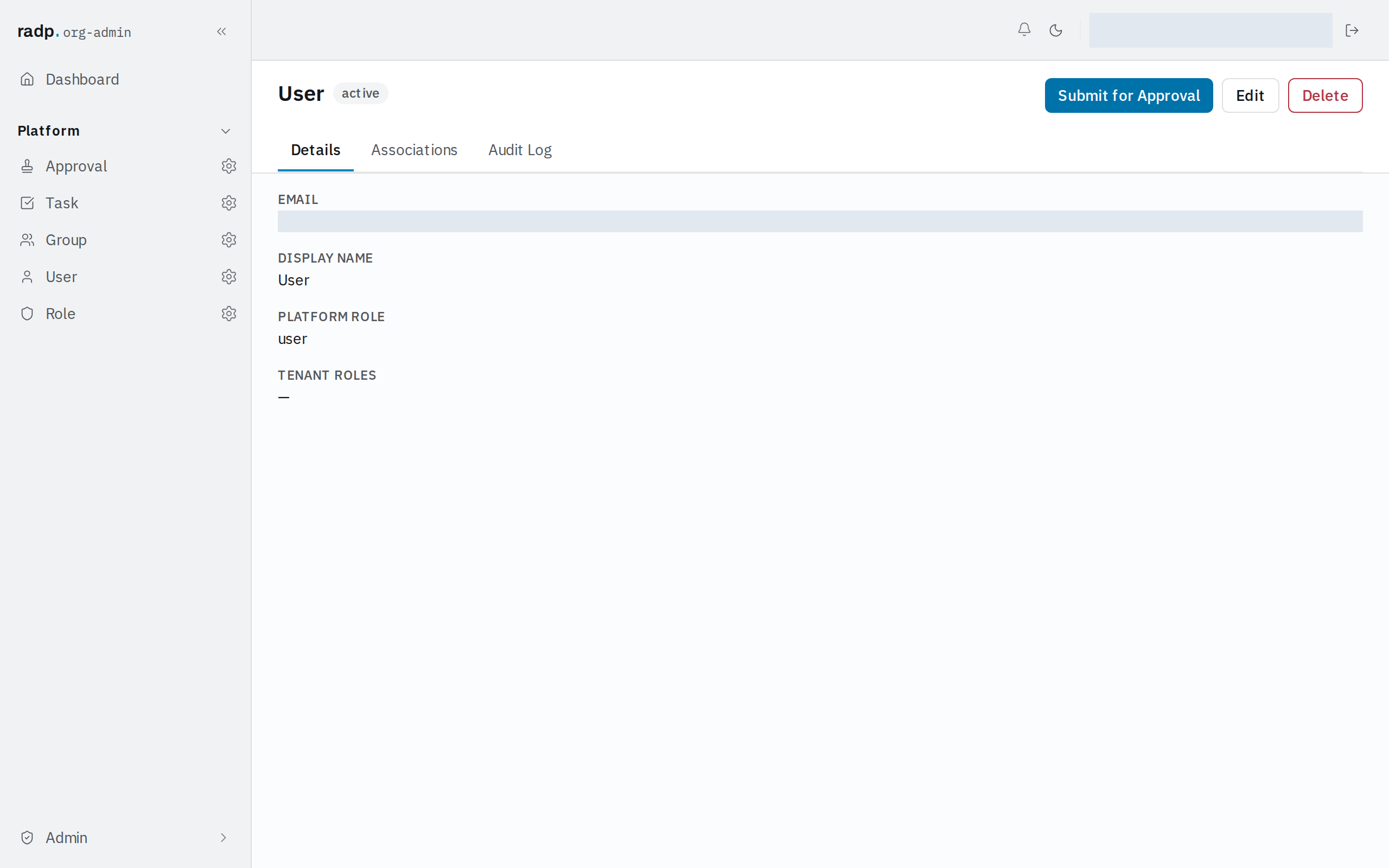
The record page
At the top are the record type's name and the record's state beside it. You do not set the state by hand; a workflow moves it.
The buttons on the right are the actions on the whole record: Submit for Approval, Edit and Delete. Beneath them are three tabs.
Details
Details is the record itself: each field with its value. A field with nothing in it shows a dash.
Associations
Associations answers "what else is hanging off this record", in two parts:
- Related records — records of other types that reference this one. When none do, it says so.
- Workflow tasks & approvals — with a count of the tasks and approvals that reference this record.
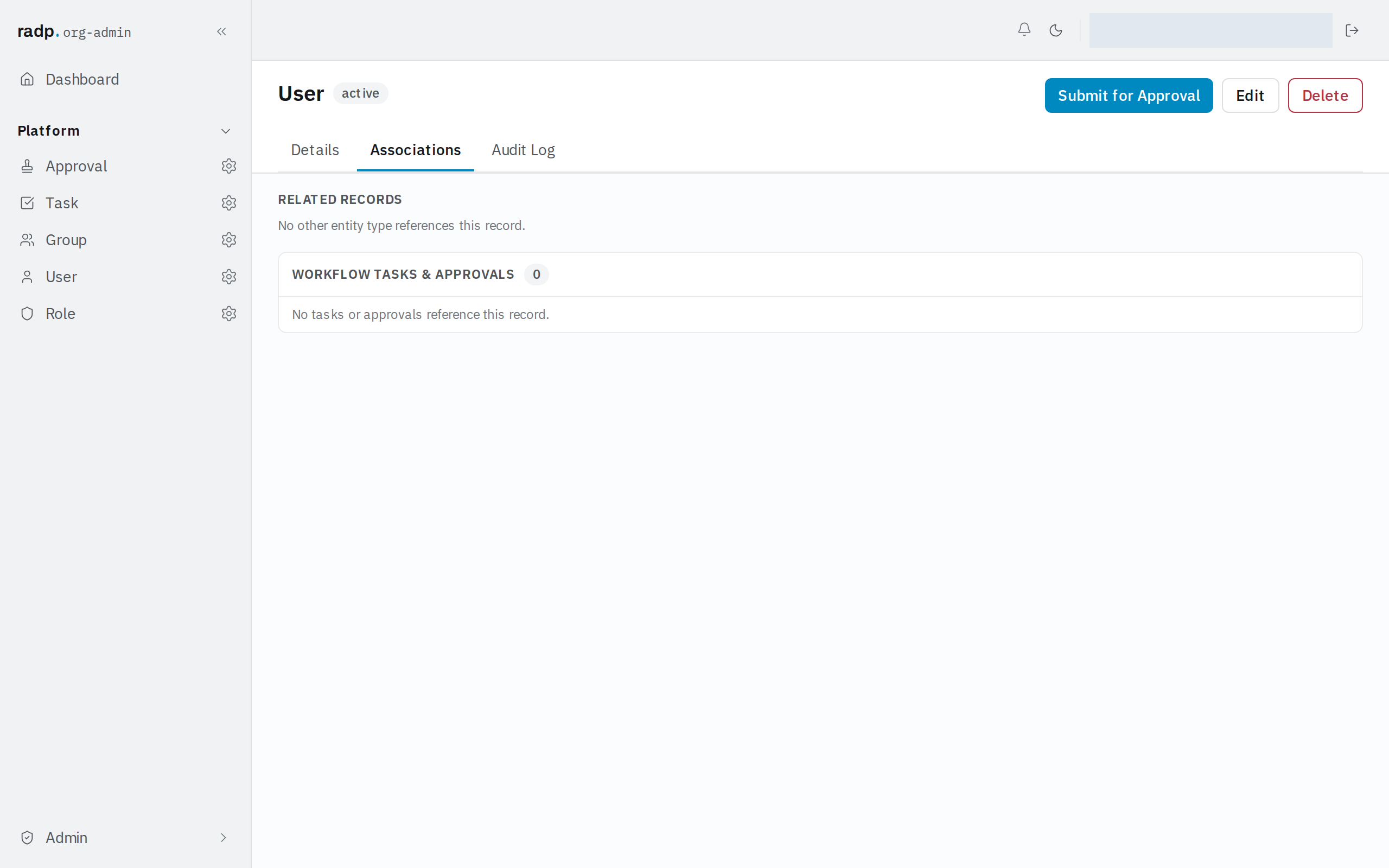
It is worth a look before you delete anything: it is where you see what else points at the record.
Audit log
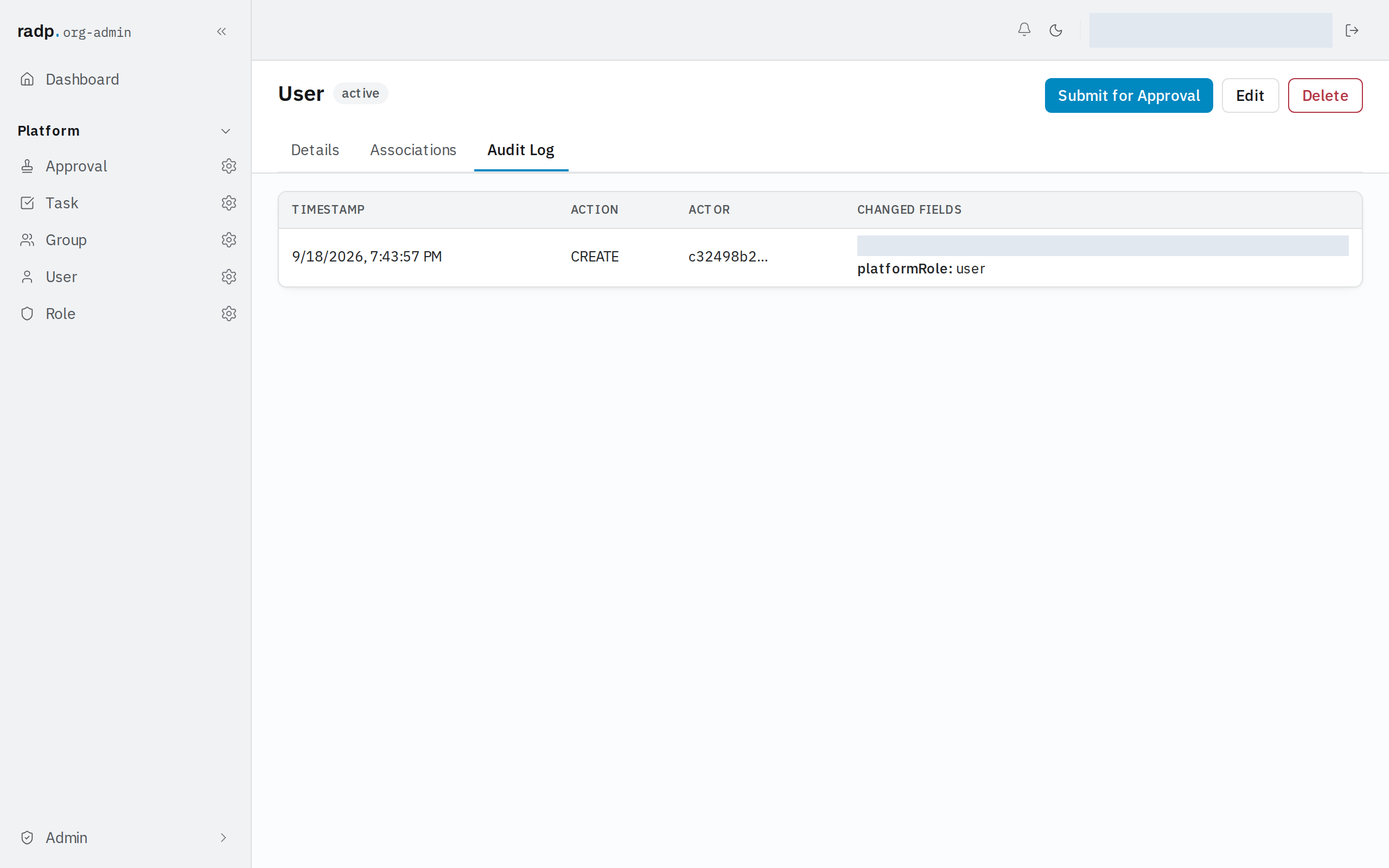
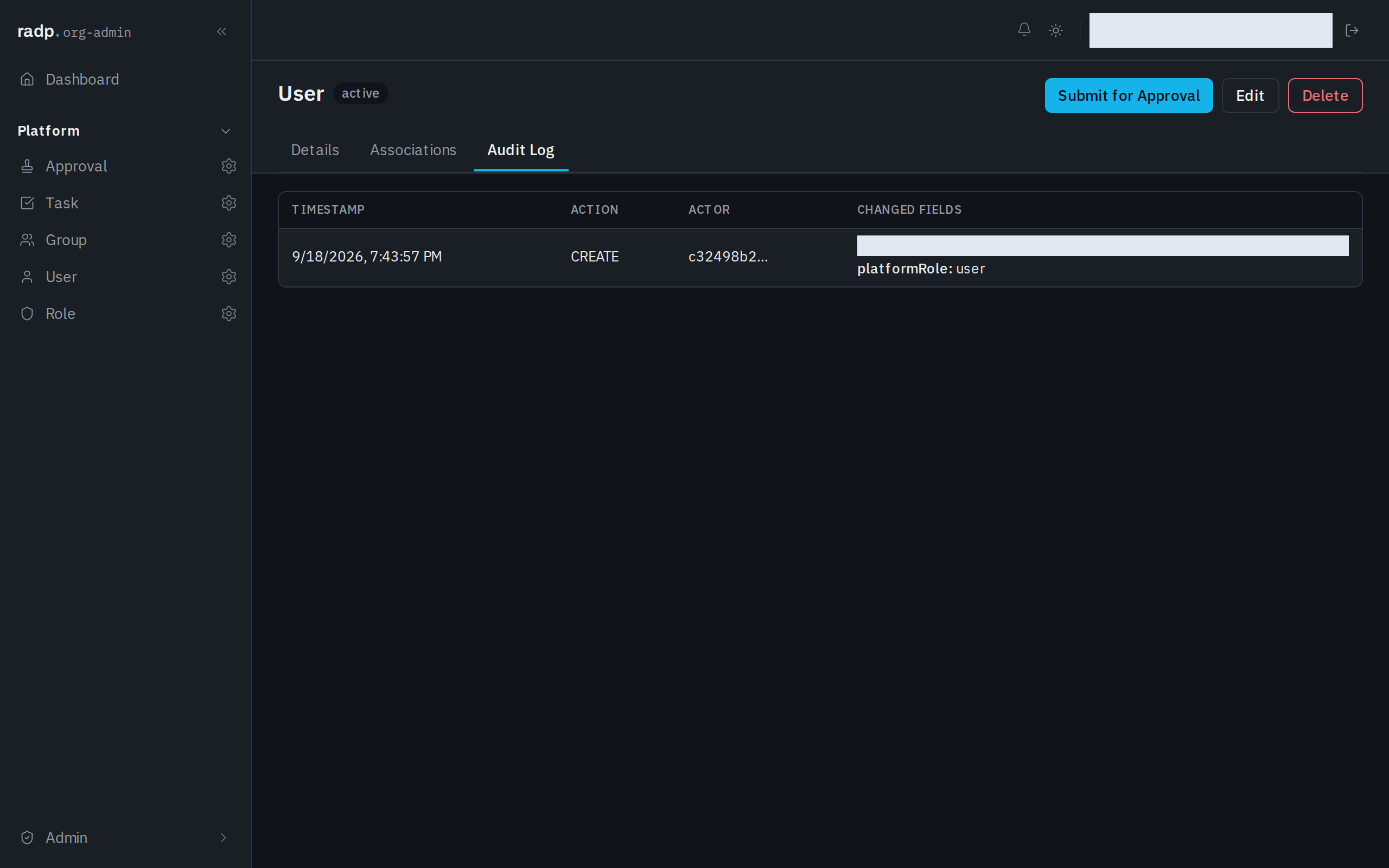
Audit Log is this record's own history — one row per change, with Timestamp, Action (such as CREATE), Actor and Changed fields, newest first. Use it to answer who changed a value and when.
Editing
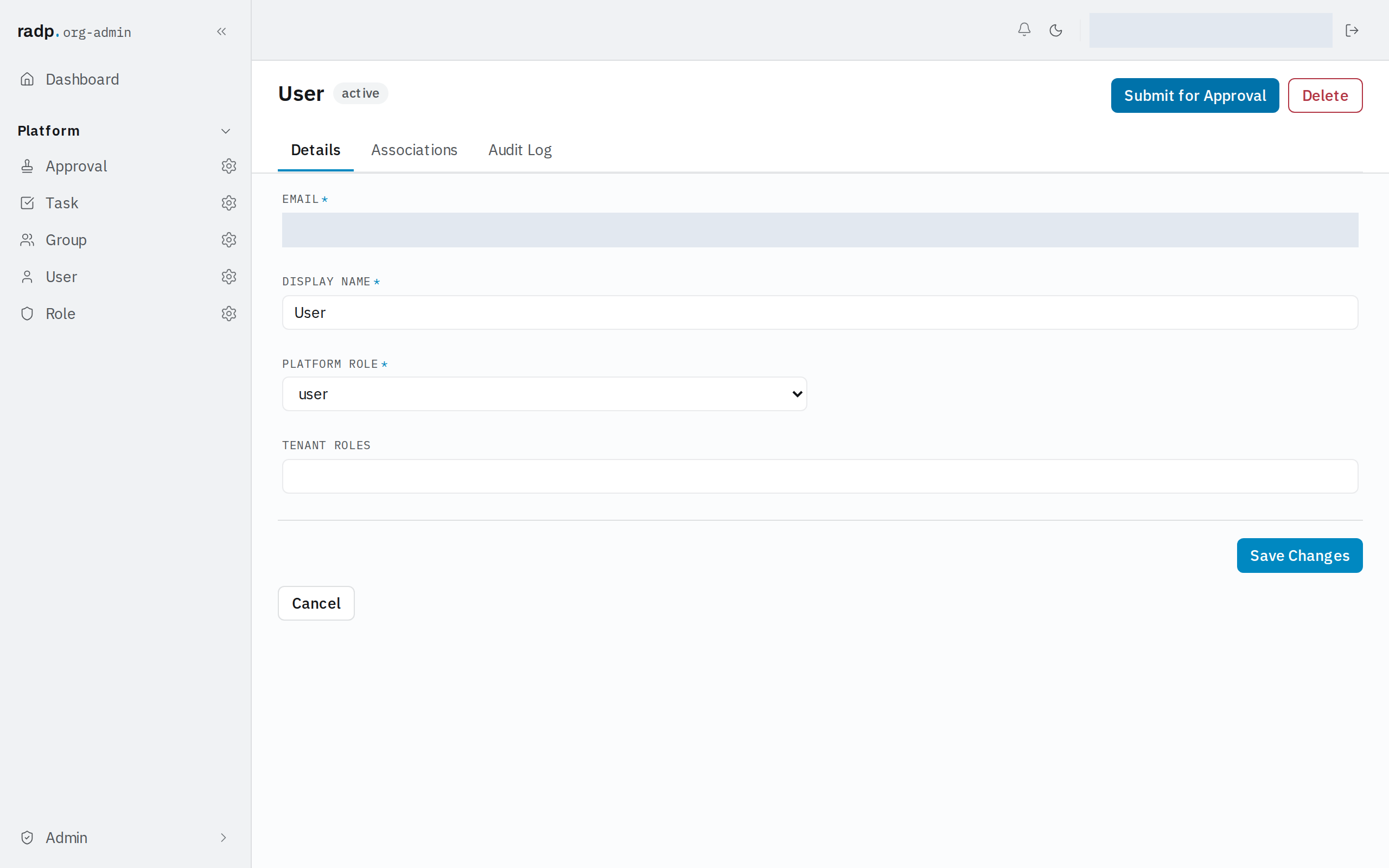
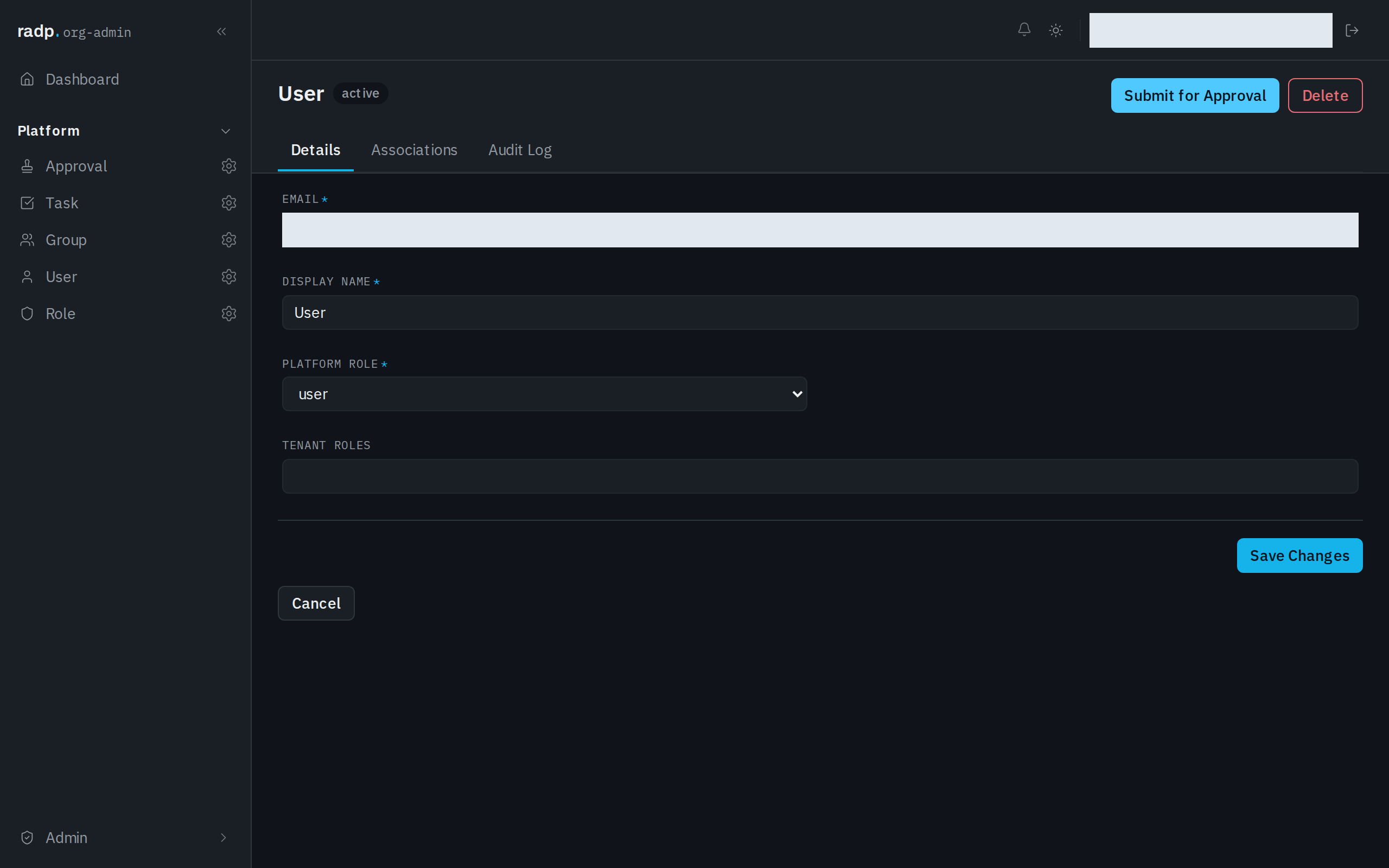
- Select Edit. The Details tab becomes a form. The Edit button goes while you are in it.
- Change what you need. Labels ending in
*are required. Some values are chosen from a list rather than typed. - Select Save Changes, or Cancel to leave the record as it was.
Every save is written to the record's Audit Log tab, with your name against it.
Submitting for approval
Submit for Approval hands the record to the approval process its record type has, and the record goes into review.
It depends entirely on there being a workflow. Select it on a record type that has none and nothing is submitted: a message reports that there is no workflow definition for that record type, and the record stays in the state it was in.
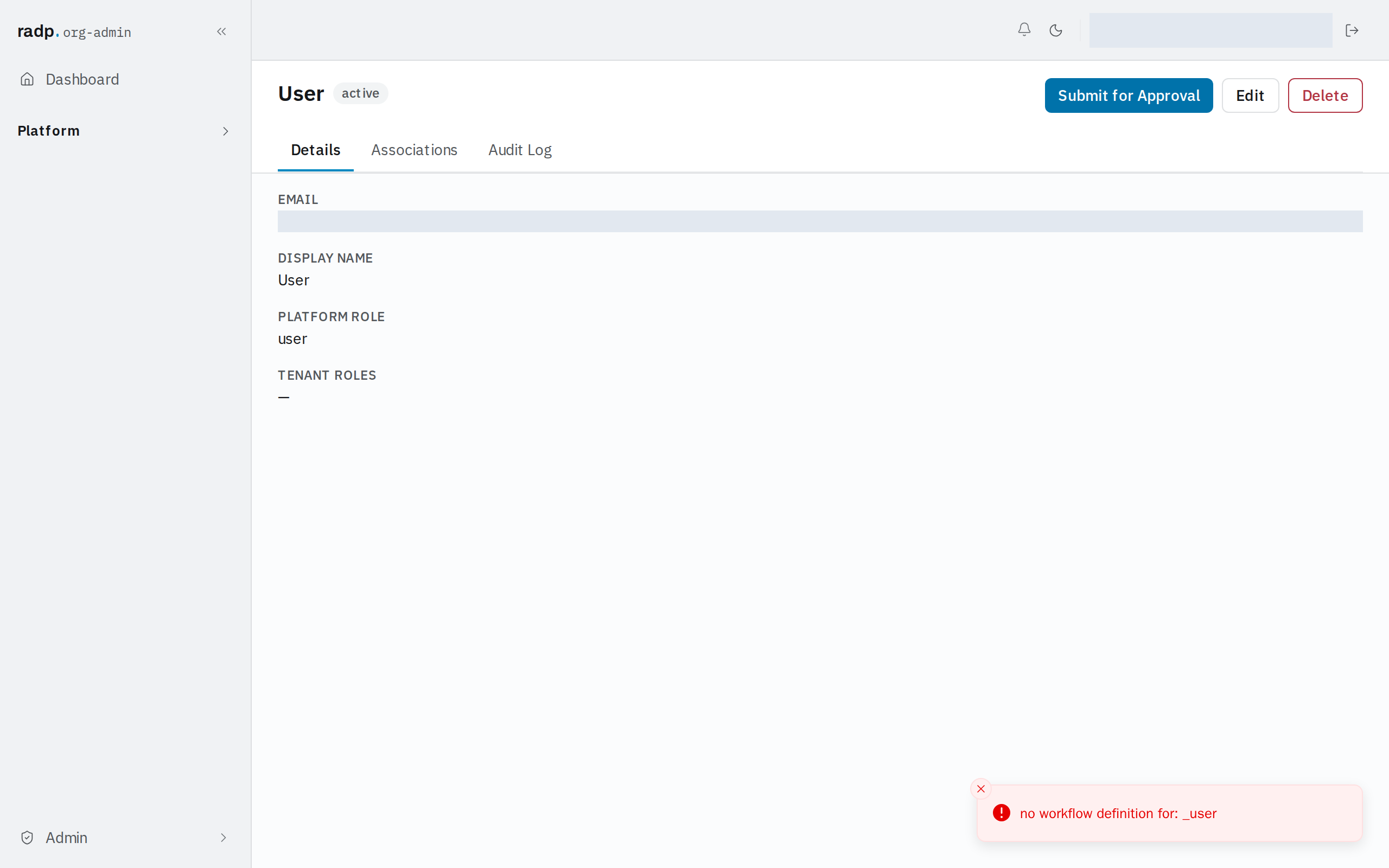
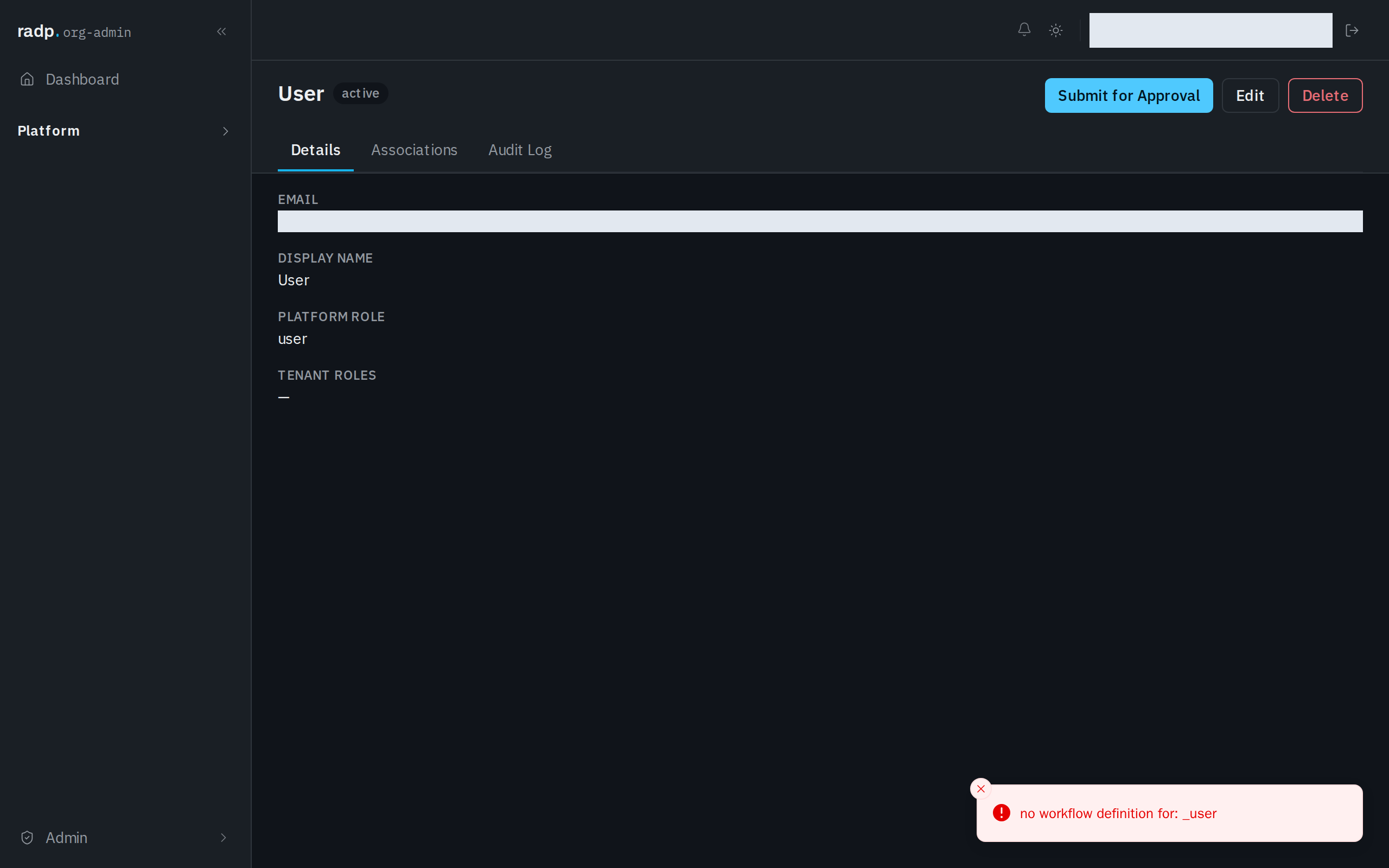
If you see that, the record type is not set up for approvals. An org-admin has to build and switch on a workflow for it first.