Adding fields
Work with a record type's fields on the Fields tab, and see which field types you can choose from.
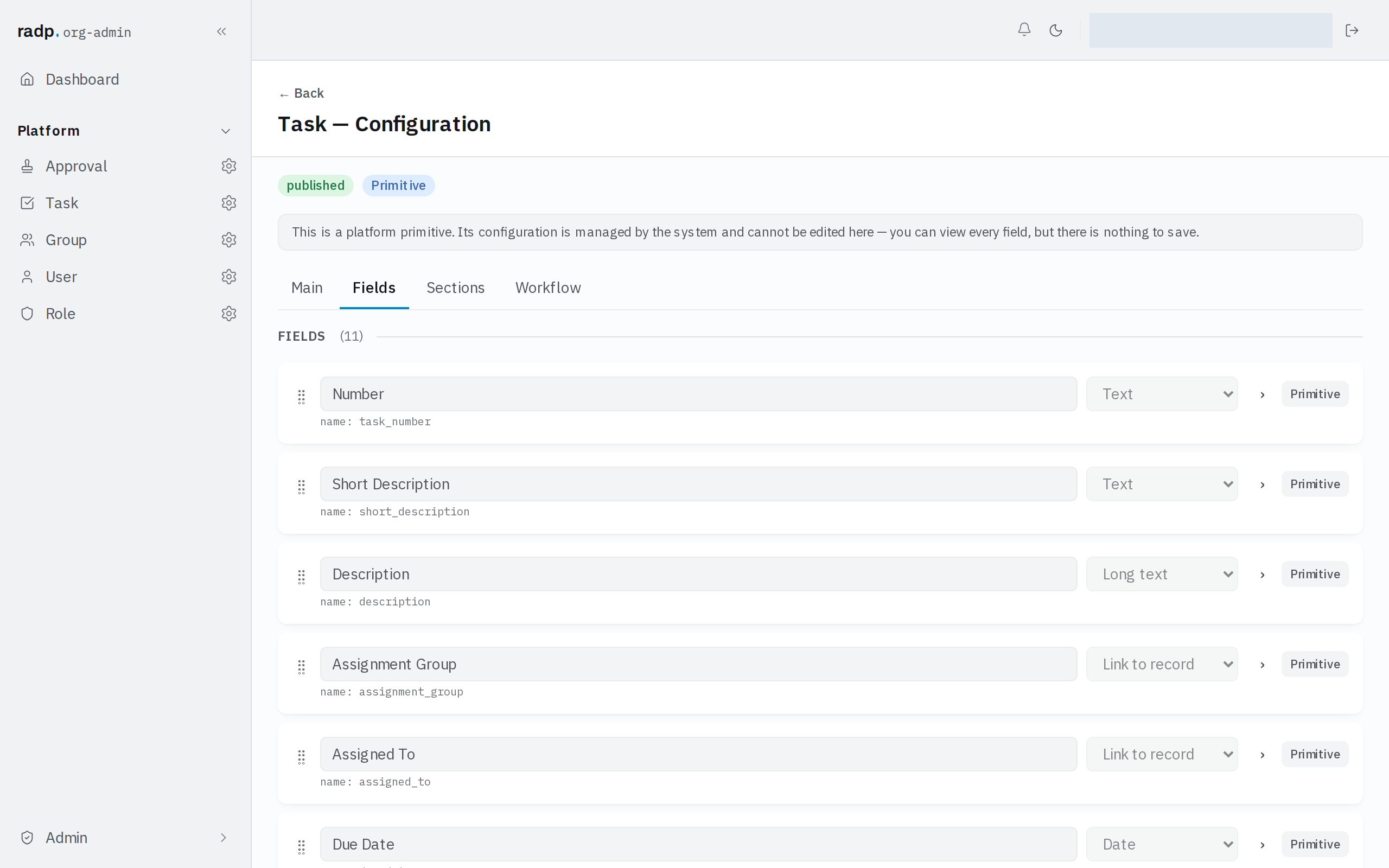
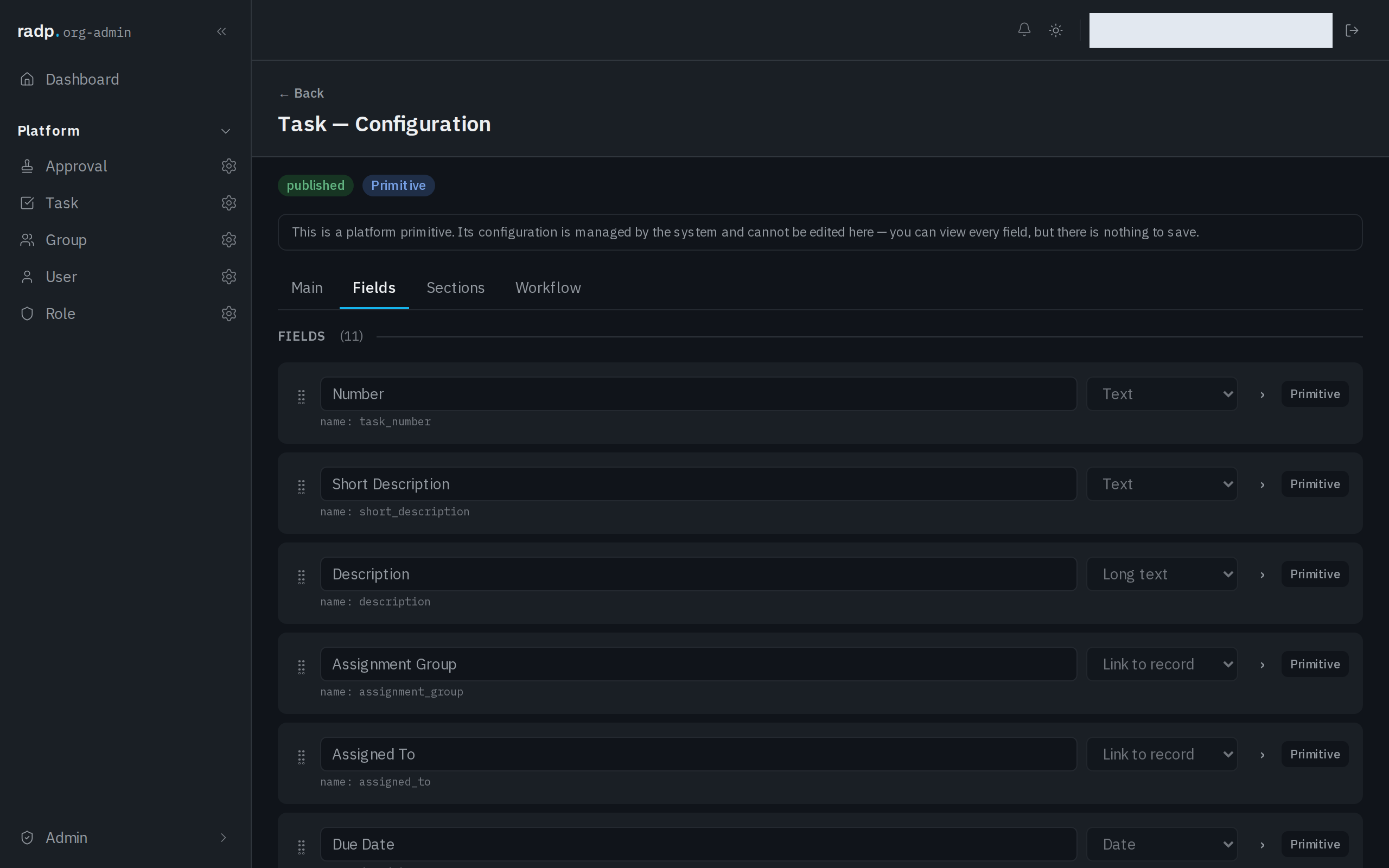
Fields hold the values on a record. You set them up on the Fields tab of a record type's configuration, which lists every field the record type has and counts them in its heading.
Only org-admins and radp-admins can reach this screen.
What a field row holds
Each field is one row. On it you set:
- The label — what people read next to the value on a record. Until you type one, the box reads Field label.
- The type — chosen from the list below. It decides what the field can store and which settings it then offers.
The field's machine name is shown under the label. It is the name the platform uses for the field, and it is fixed once the field has been saved, so the label can be reworded later but the machine name stays as it was.
Fields appear on the record in the order the rows are listed, and each row starts with a grip control for moving it.
Each row opens with the › control to reach the field's remaining settings.
Field types you can choose
The type chooser offers:
| Text | |
| Web address (URL) | Phone |
| Long text | Number |
| Yes / No | Date |
| Date & time | Duration |
| Amount | Drop down |
| Multi-select | Rich text |
| Link to record | Comments |
Where a field sits on the form
The Sections tab turns part of the form into its own tab, shown after the fields above. A field that is in no section stays in the main form.
Fields you cannot change
Fields that belong to the platform are marked Primitive. On a record type that is part of the platform, the whole configuration is read-only: you can see every field and its type, but there is nothing to save.