Platform record types
Read how User, Group, Role, Task and Approval are set up, and know why none of it can be changed or deleted.
RADP comes with five record types of its own: User, Group, Role, Task and Approval. They are listed in the sidebar under Platform. You can read everything about how they are set up. You cannot change any of it.
Reading the configuration
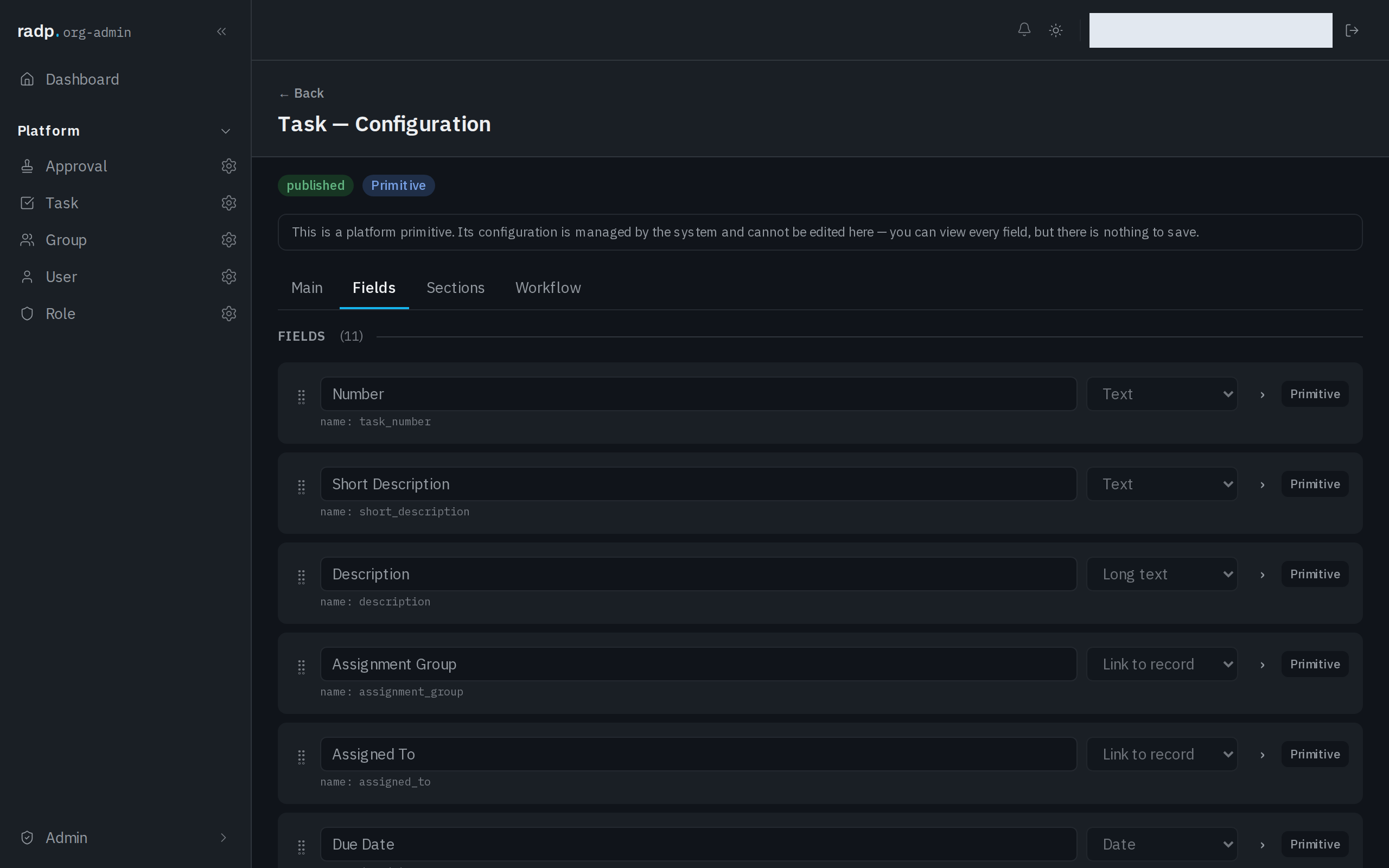
The header marks the type published and Primitive, and the screen says what that means:
This is a platform primitive. Its configuration is managed by the system and cannot be edited here — you can view every field, but there is nothing to save.

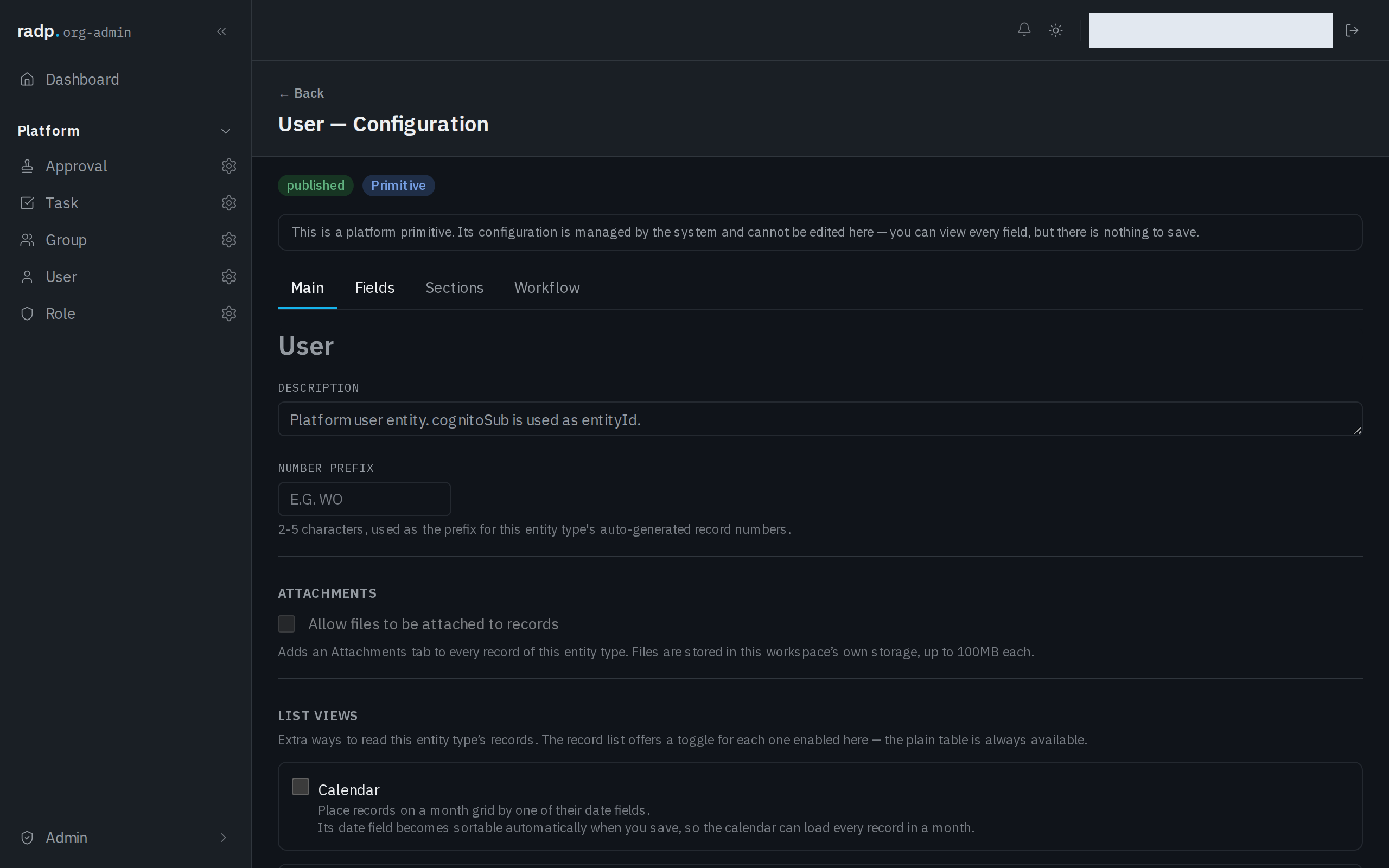
Open it when you need to know how one of these types behaves: what its fields are called and what type each one is, whether attachments are on, and which quick actions its list offers. Every field is there to read, each marked as coming from the platform, and there is nothing on the screen to save and no delete.
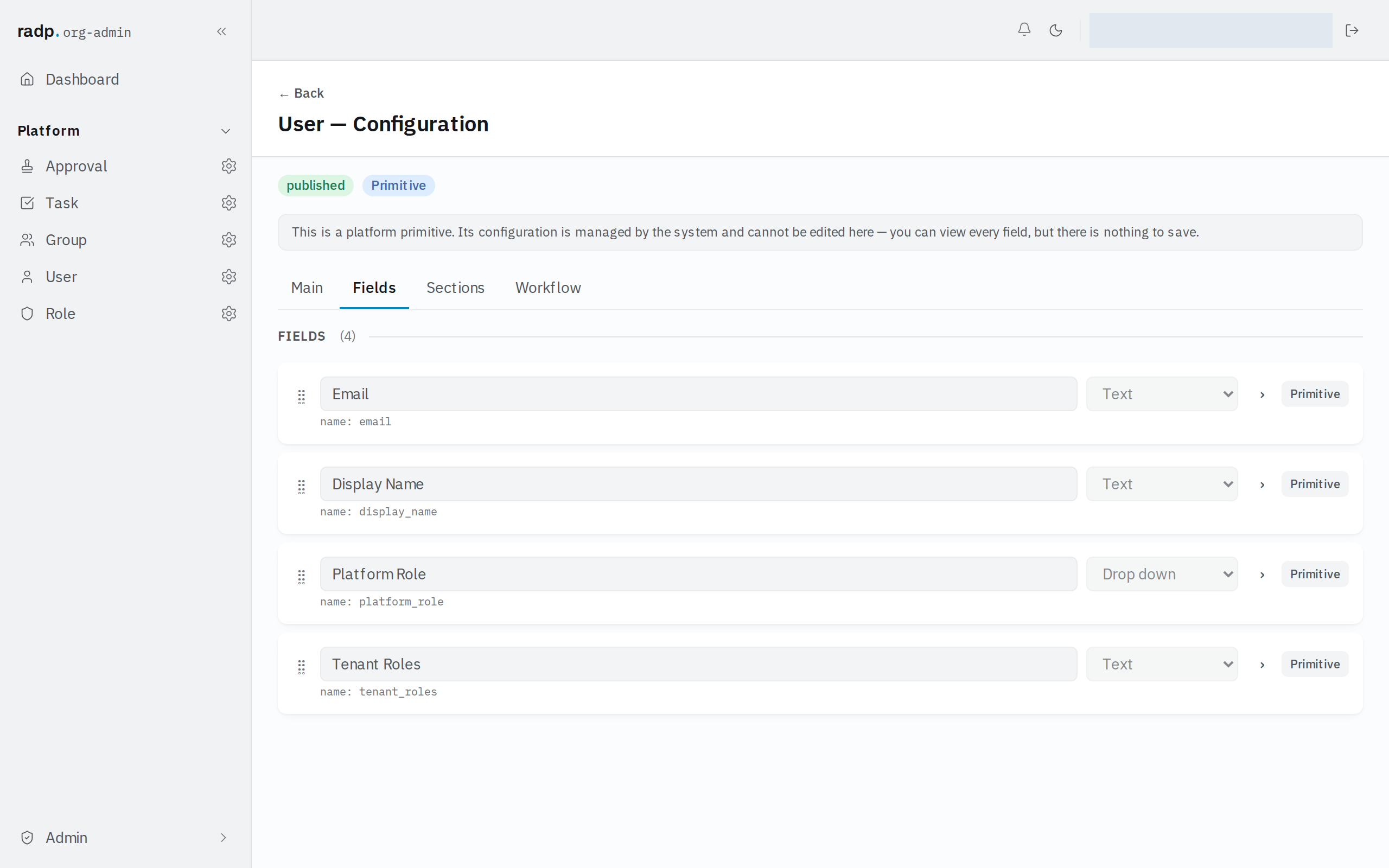
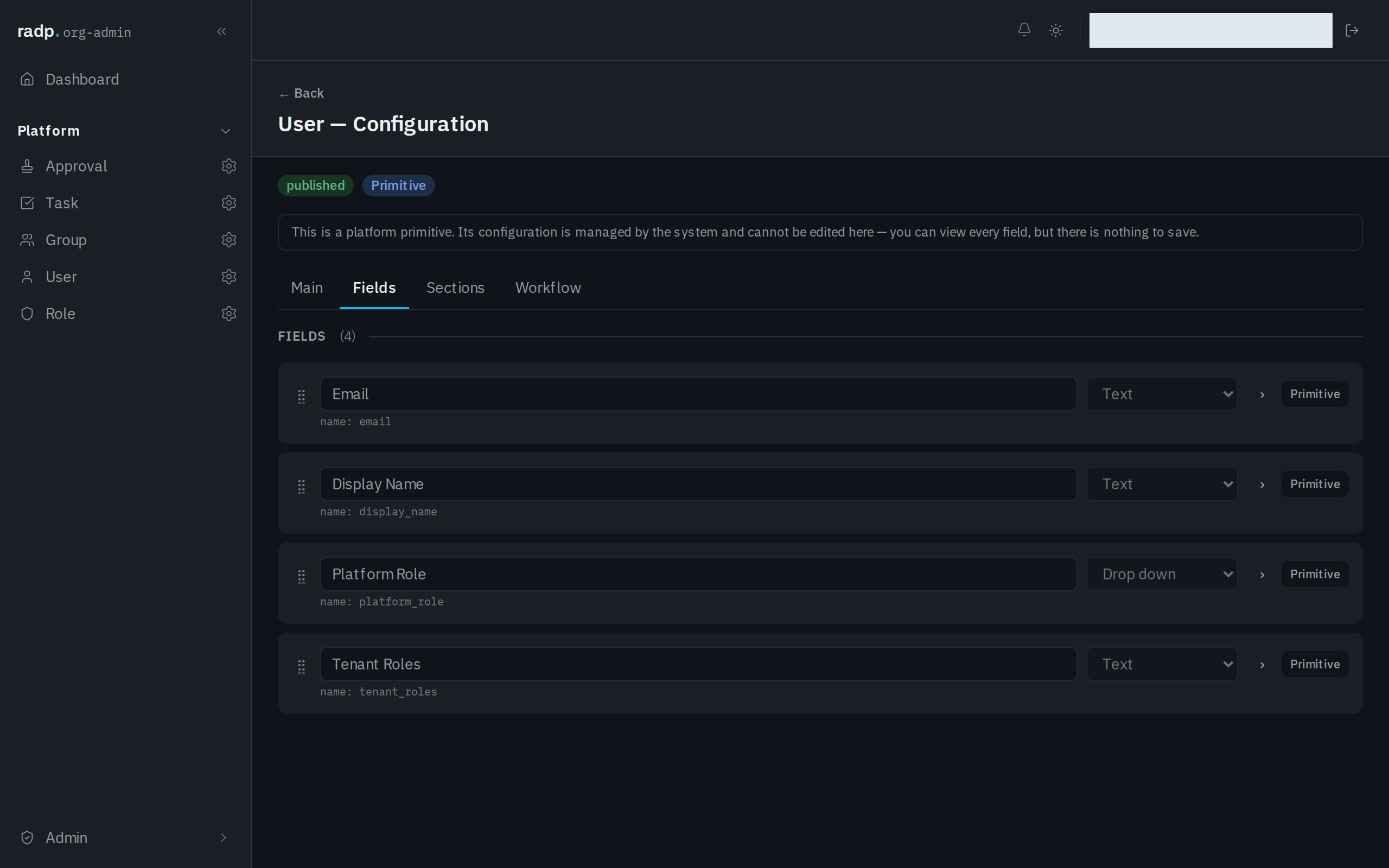
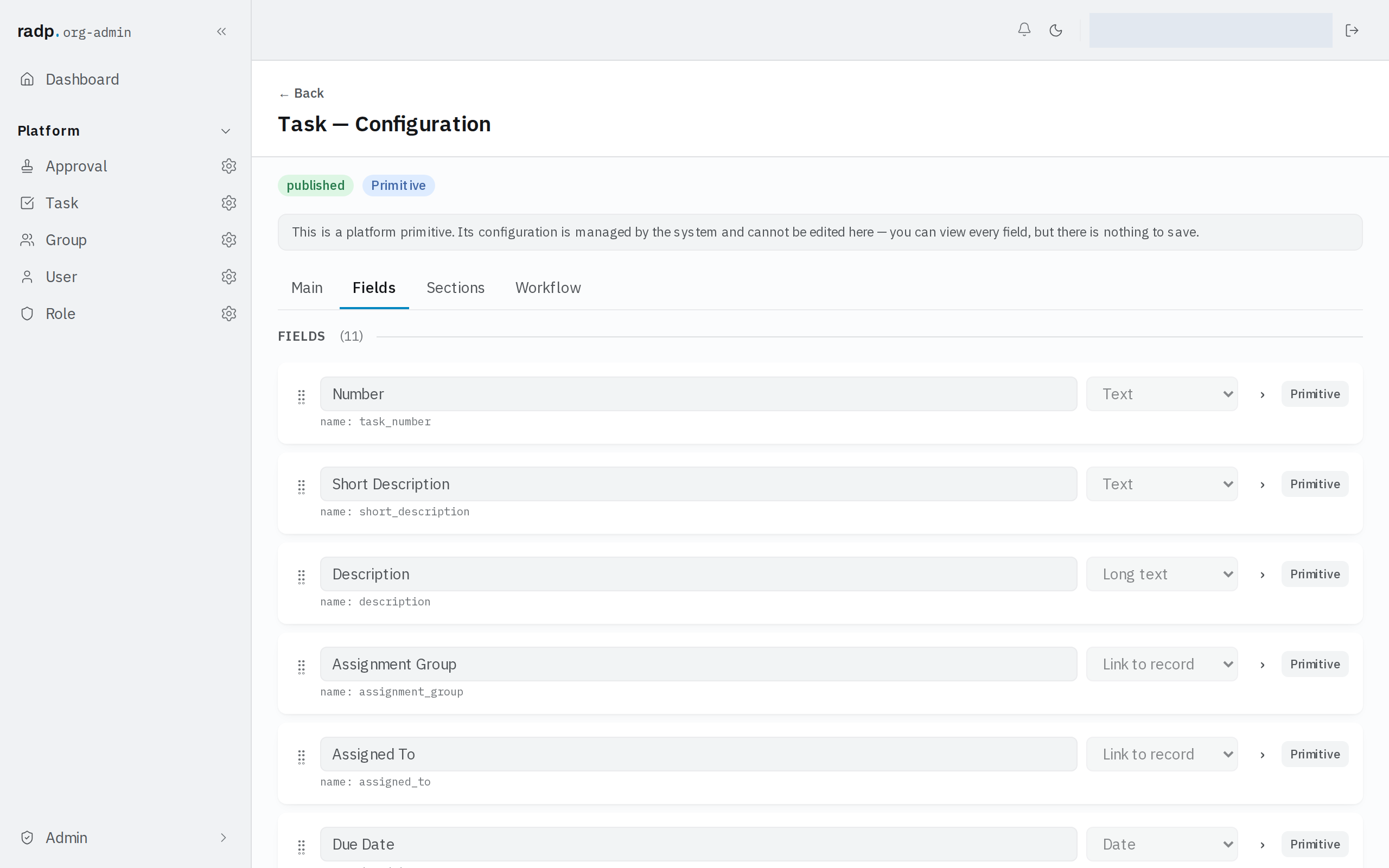
The five are not the same size. Task carries the most fields of the five, so it is the one worth reading before you build anything that works alongside the tasks a workflow hands out.
(The configuration screens call a record type an entity type.)
Why it is locked
These five types are what the platform itself runs on. People sign in as users; permissions are held by groups and roles; workflows hand out tasks and approvals. A field changing shape underneath them would break work already in progress. So:
- You cannot add a field to one, change a label, or turn one of its settings on or off.
- You cannot delete one — see Deleting a record type.
- Their records are still ordinary records. People, groups and roles are created and edited by administrators in the Admin area, and tasks and approvals arrive from workflows.
When you need something they do not hold
If you need your own value against a person or a piece of work — a staff number, a cost code, a note of your own — keep it on a record type of your own, inside a module. That is the part of the workspace you can change.
Who can see this
The Admin area, including these configuration screens, is for org-admins and radp-admins. Everyone else never sees them.