Sortable and filterable fields, and the limit
Mark the fields people need to sort and filter by, and manage the small number of marks a record type has.
A field can only be sorted on, filtered on, or used to pick records by date range if it is marked Sortable & filterable. A record type has at most five of those marks, so spend them on the fields people actually search by.
Marking a field
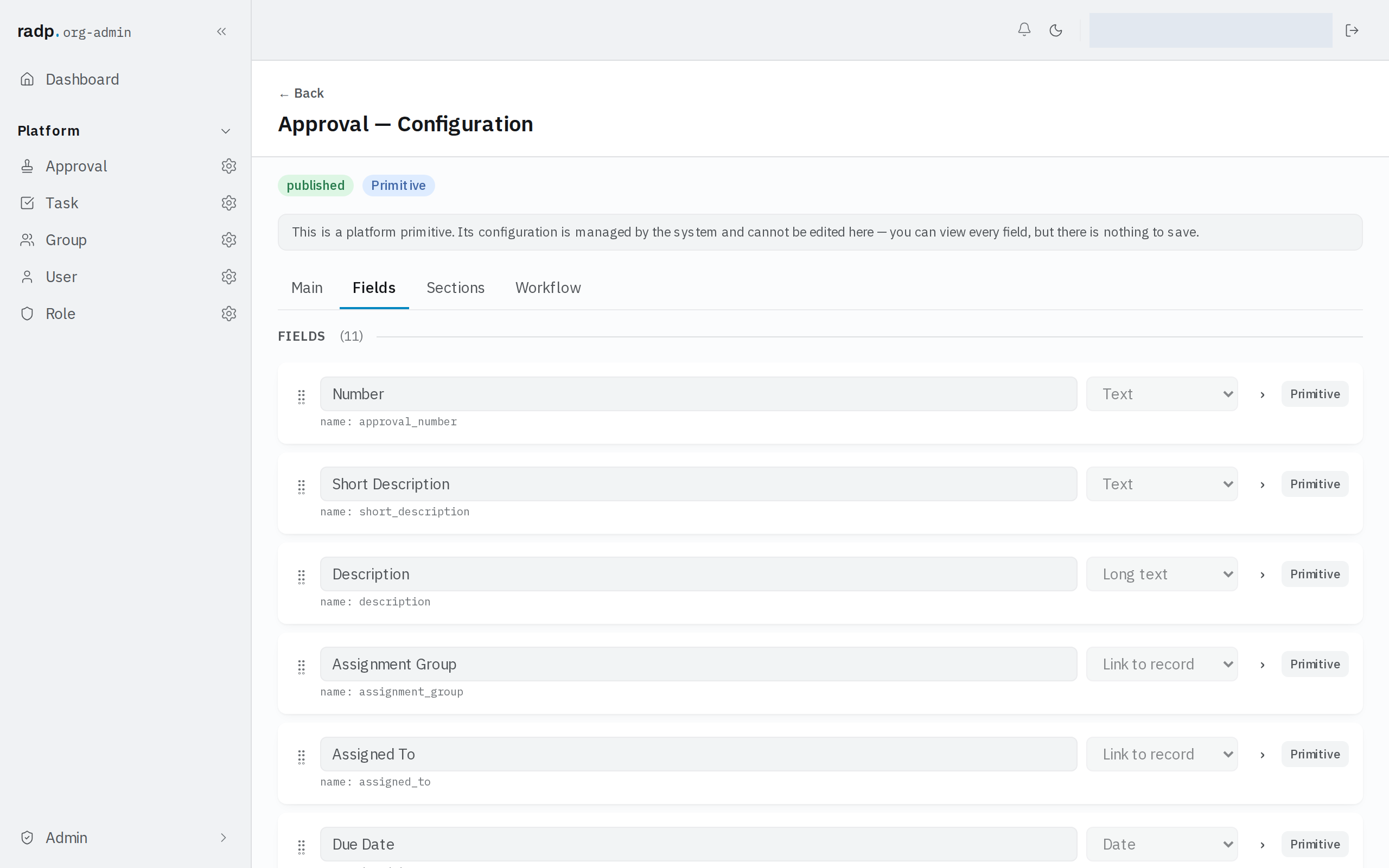
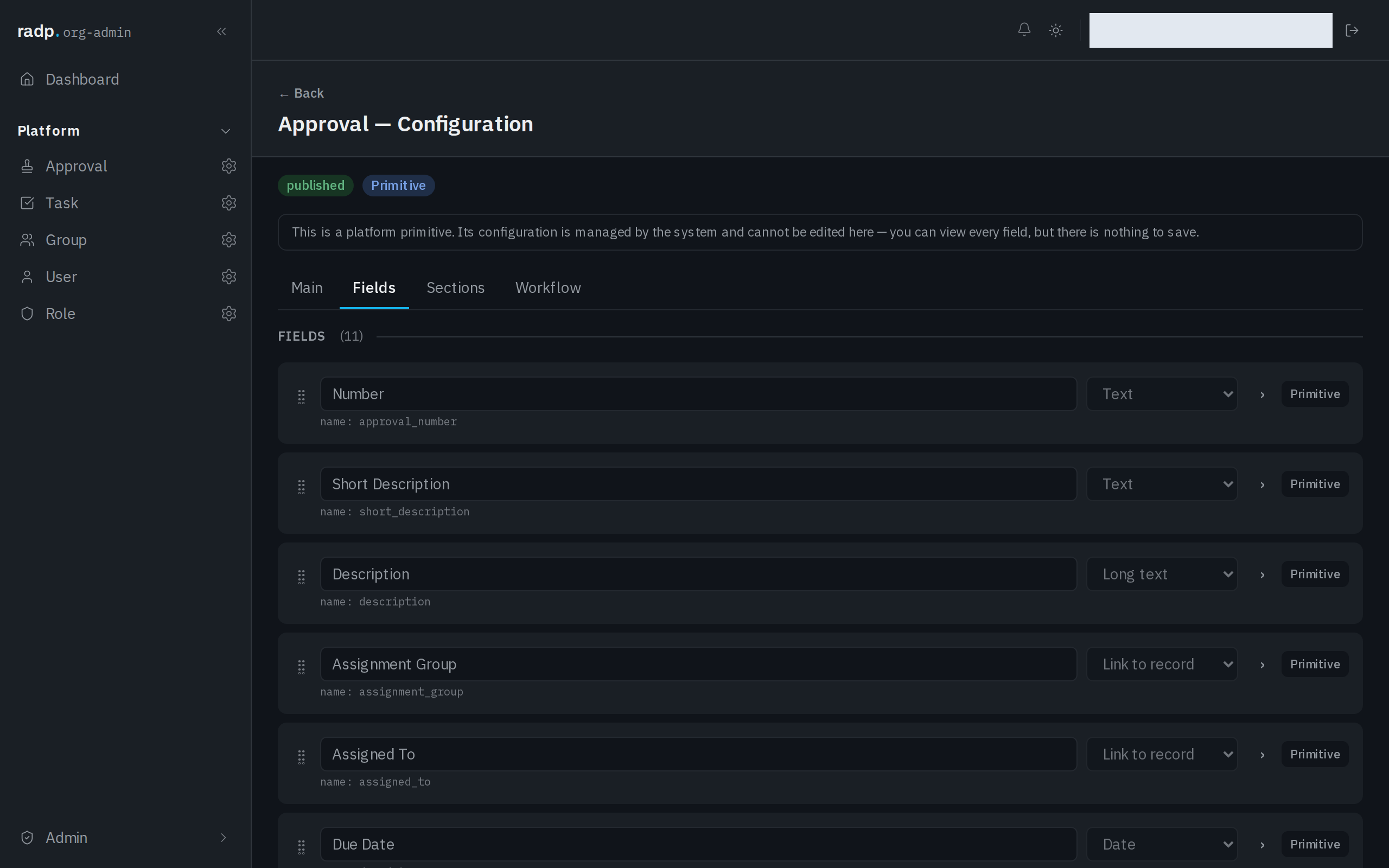
- Open the record type's configuration and go to the Fields tab.
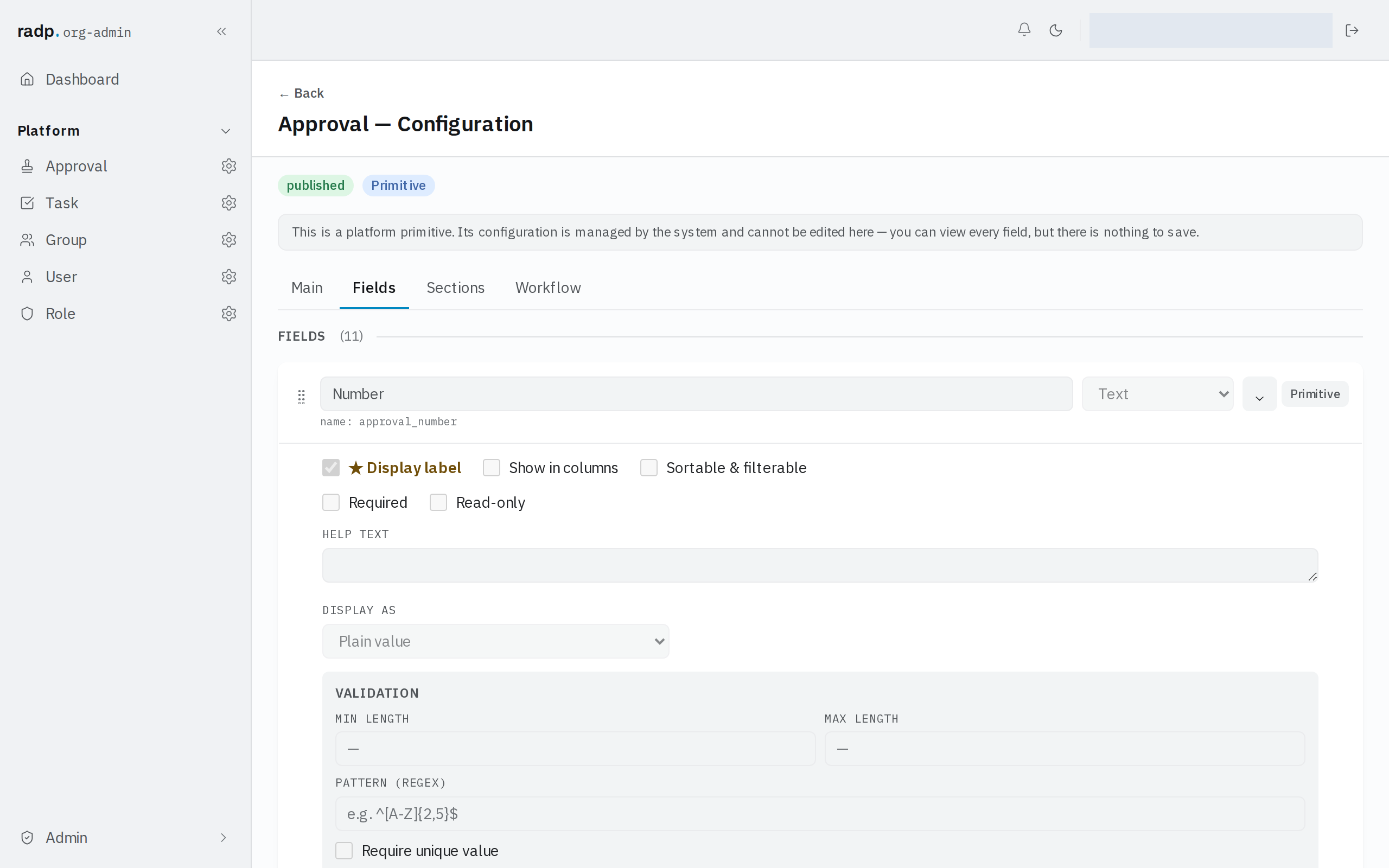
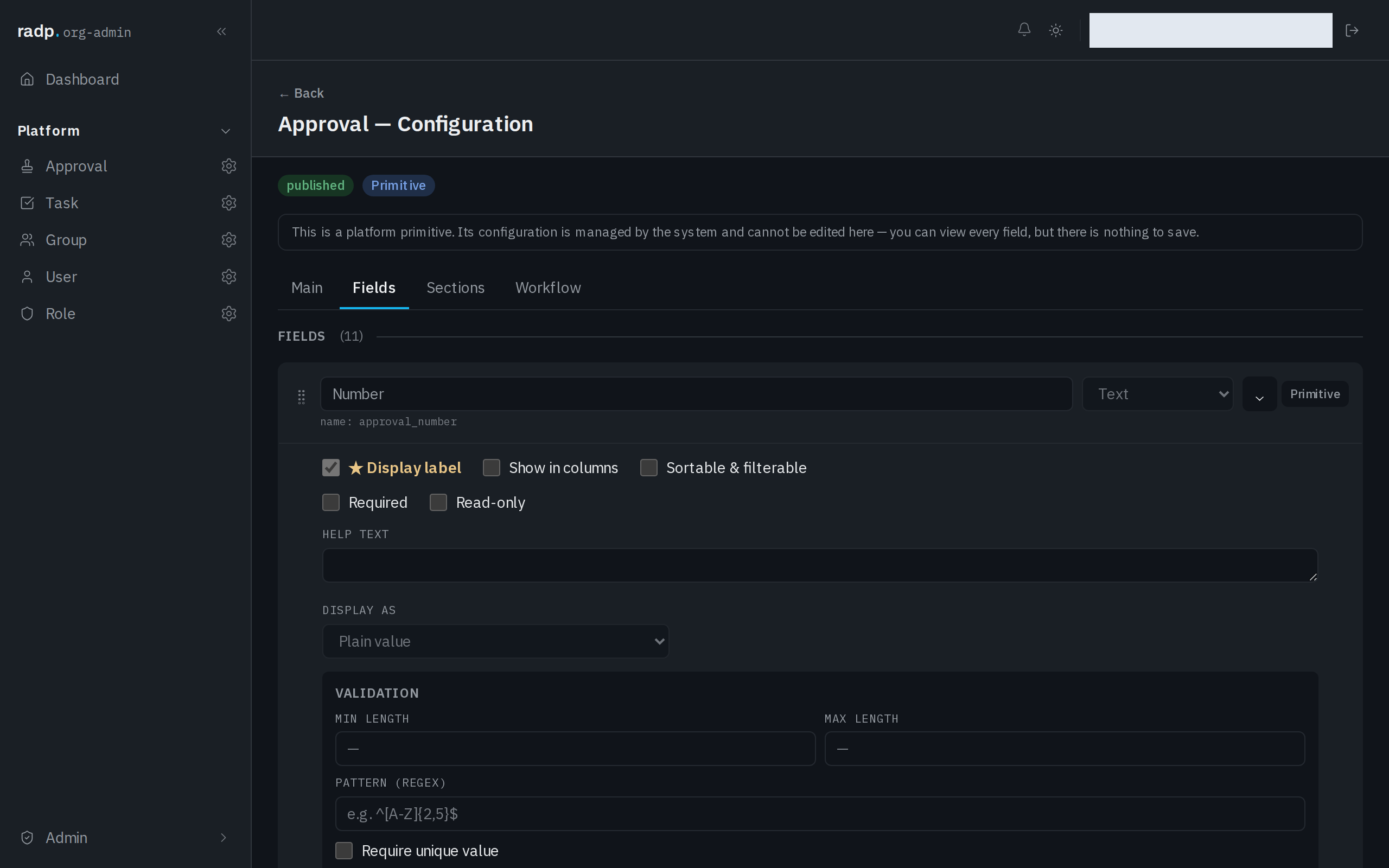
- Open the field's row with the chevron and tick Sortable & filterable.
- Save the record type.
Records that already exist are added to the index in the background after you save, so a sort or filter on that field can come back short for a short while. Give it a moment and look again before treating a missing record as lost.
A list view spends a mark for you
Turning on one of the extra list views marks the field that view reads. The Main tab says so on each view: its field becomes sortable automatically when you save, so the view can load a whole month, group or column at once.


| View | The field it marks |
|---|---|
| Calendar | Its date field |
| Agenda | Its date field |
| Grouped | Its Drop down or Yes / No group field |
| Board | Its Drop down column field |
So four views on four different fields account for four of the five marks on their own.
When the marks run out
If a save is refused because all five are spent, the message names the view that used one up. To make room:
- Untick a field nobody sorts or filters by any more.
- Turn off a list view you do not use. That releases the field it was holding.
- Reuse a field two views can share. A Calendar and an Agenda on the same date field spend one mark, not two.
Fields that cannot be marked
Multi-select, Rich text, Link to record and Comments cannot be sorted or filtered on. If people need to search by something, keep it in a field of a type that can be marked — a Drop down rather than a Multi-select, for instance, where one value is enough.