Setting up quick actions
Choose the actions people can run straight from a row of the record list, and the order they appear in.
Quick actions are the things someone can do to a record without opening it. They are set per record type and appear on each row of the record list.
Where they appear
Order decides how visible an action is. The first two in the list appear as buttons on the row; everything after that sits in the ⋯ menu. Put the action people use most at the top.
Each action is shown only to people allowed to do it, so a user without the permission an action needs never sees it on the row.
Setting them up
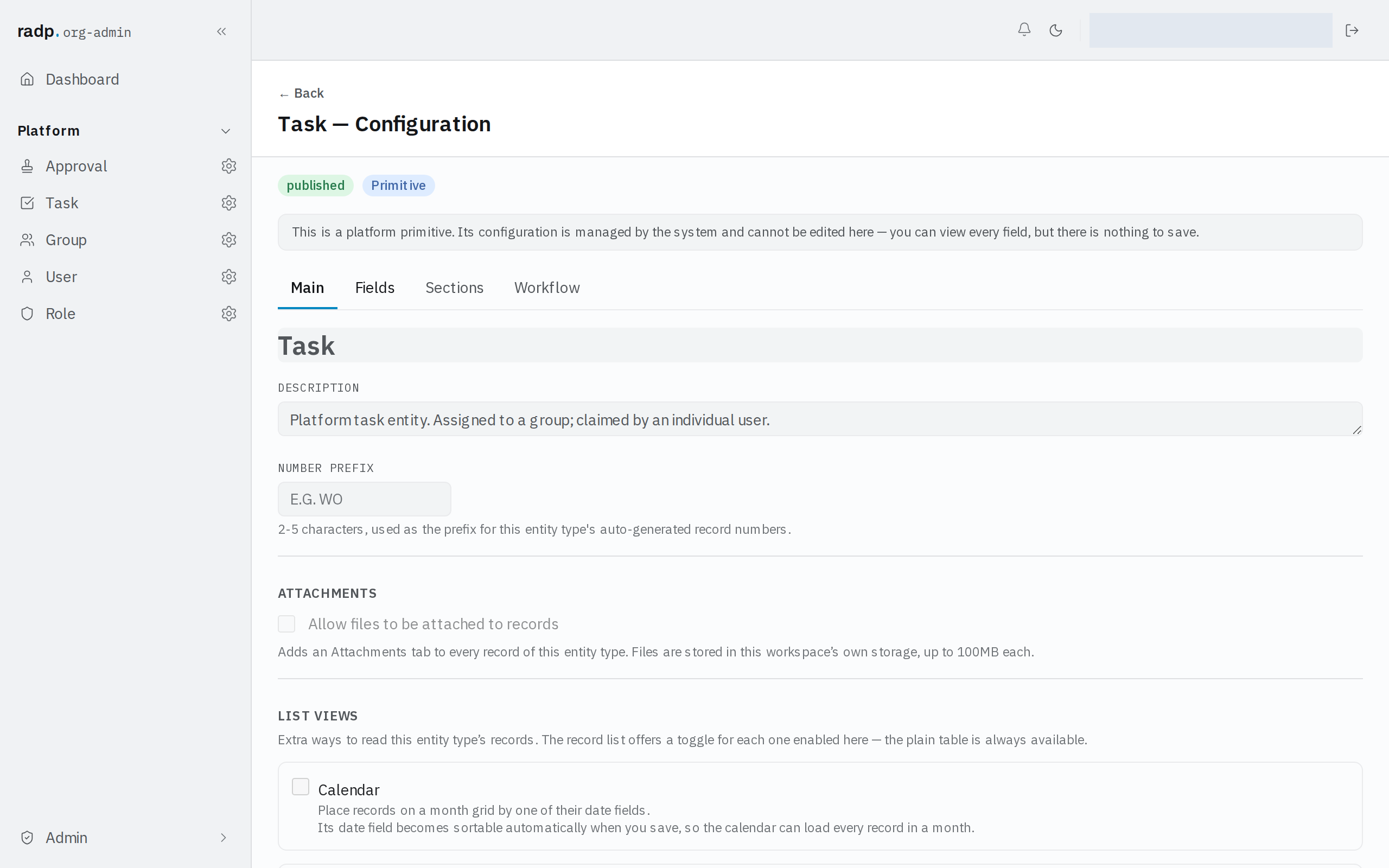
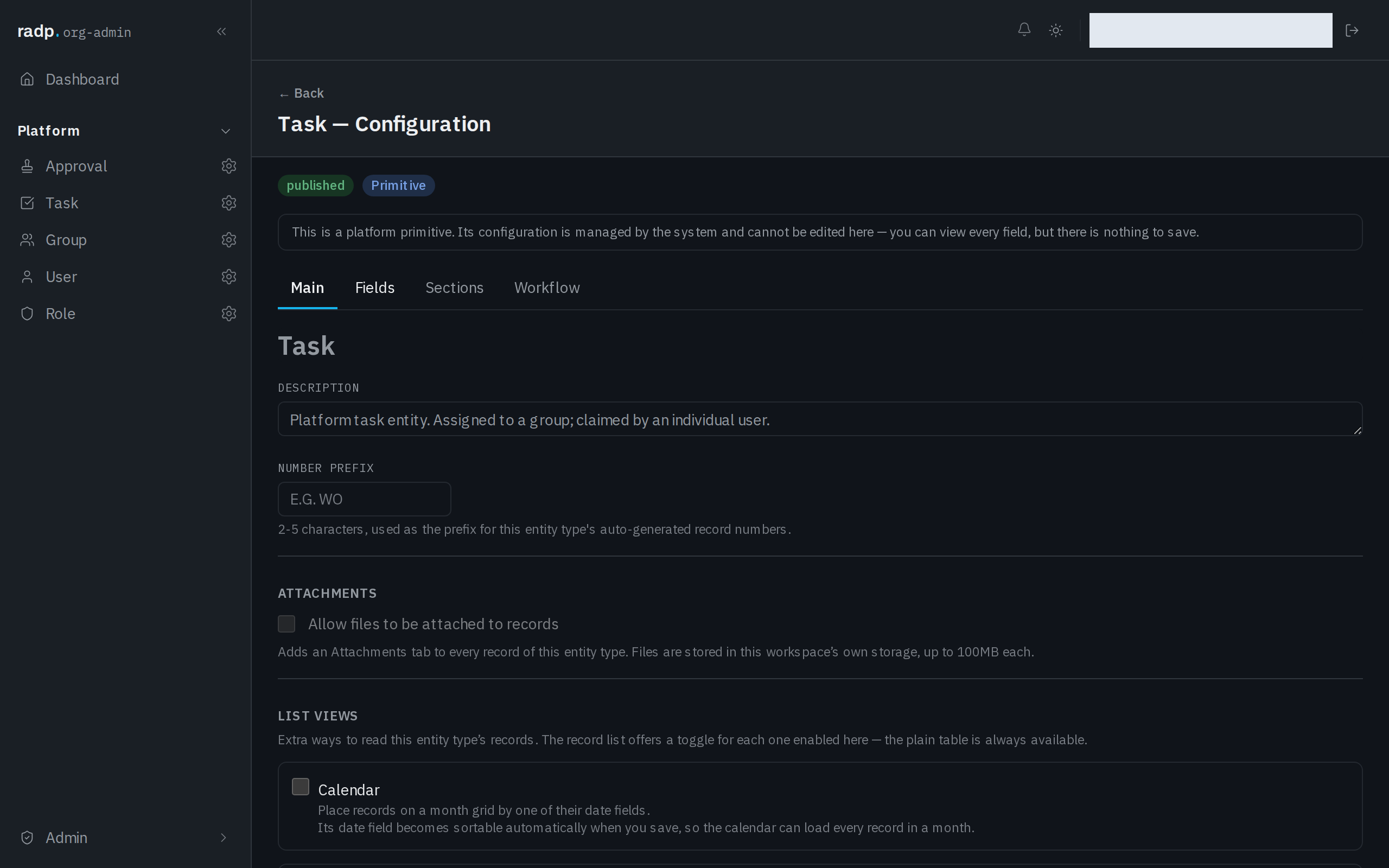
- In the sidebar, open Admin, then open the record type you want. Its configuration opens on the Main tab.
- Scroll to QUICK ACTIONS. The actions are numbered in the order they will appear.
- Use the ↑ and ↓ arrows on a row to move an action up or down, and ✕ to take it off the list.
- Save.
Delete
Delete permanently deletes the record, after asking you to confirm. Because it is permanent, think about whether it belongs in the first two positions, where it sits on the row as a button, or further down in the ⋯ menu.
Who can change it
Quick actions are set in the Admin area, so only org-admins and radp-admins can change them. On the record types that come with RADP — users, groups, roles, tasks and approvals — the list can be read but not changed.