The settings every field offers
Set a field's label and help text, mark it required or read-only, and choose where it shows up — the settings you meet on any field, whatever its type.
Whatever type a field is, the top of its settings panel is the same. These settings decide what the field is called, where people meet it, and whether they have to fill it in.
Opening a field's settings
- In the sidebar, open Admin, then open the record type you want.
- Go to the Fields tab. Each field is one row, with its label, its type in a picker, and underneath the label the machine name the value is stored under.
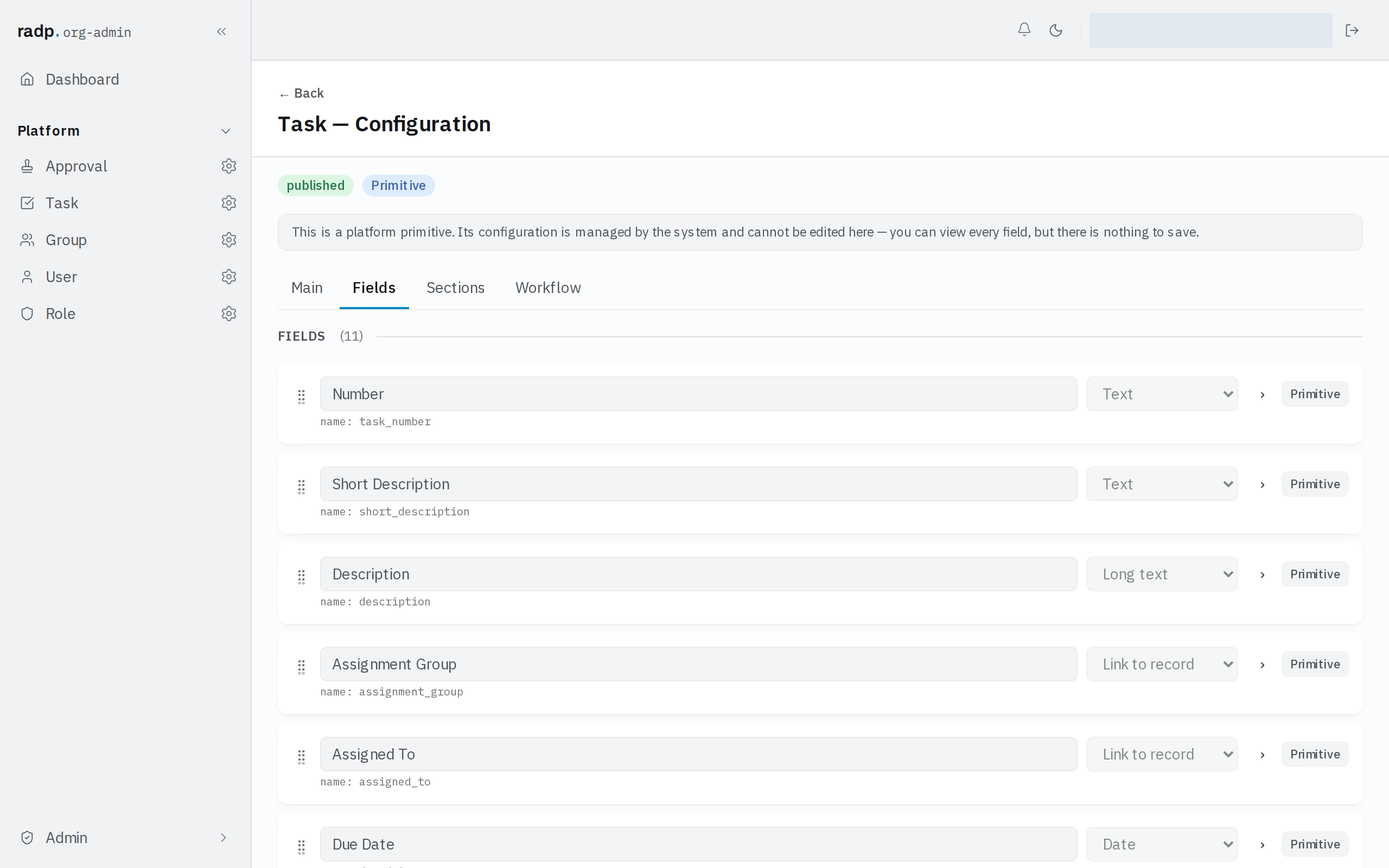
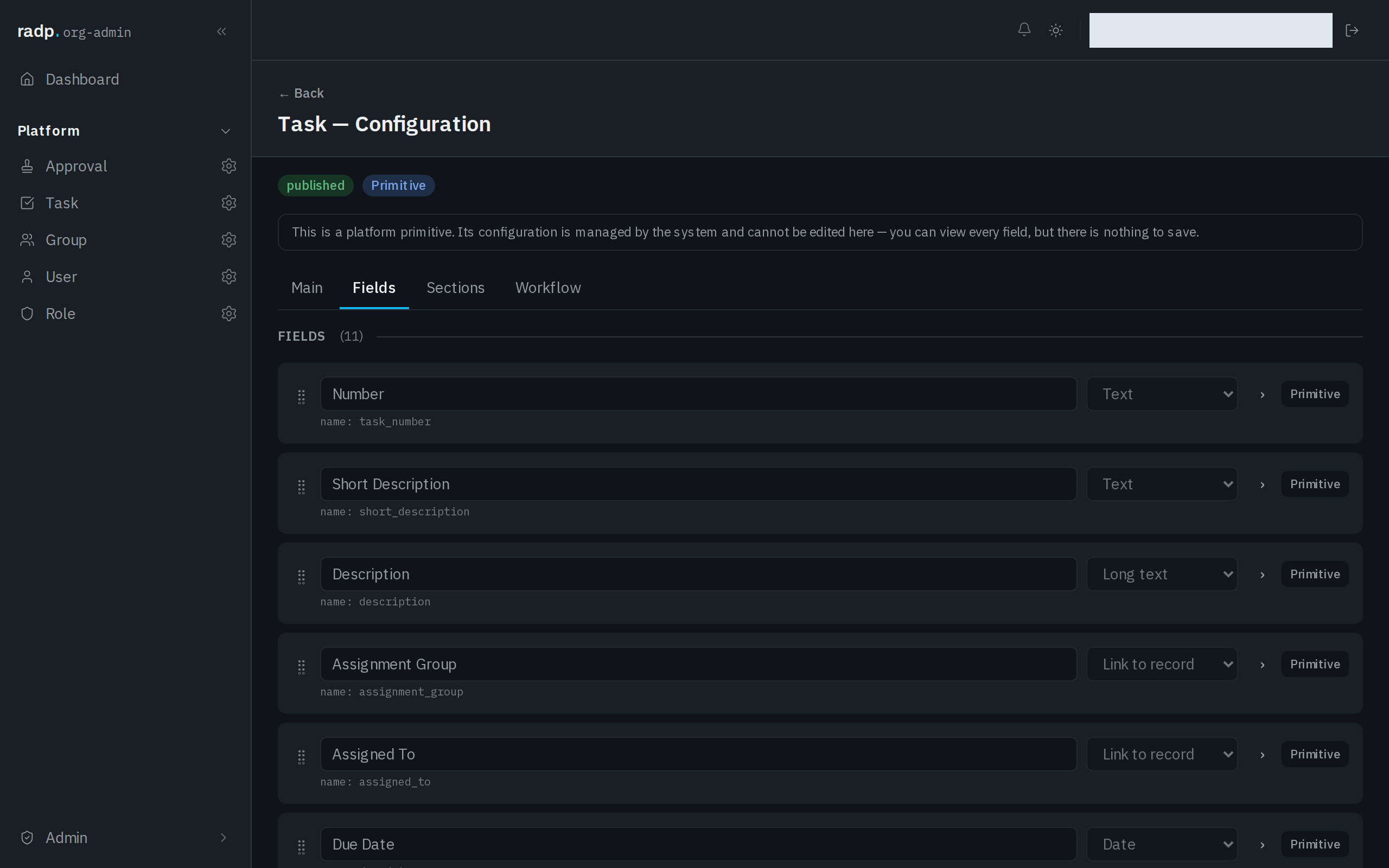
- Click the chevron (›) on the row to open that field's settings. It turns to ⌄ while the field is open; click it again to close.
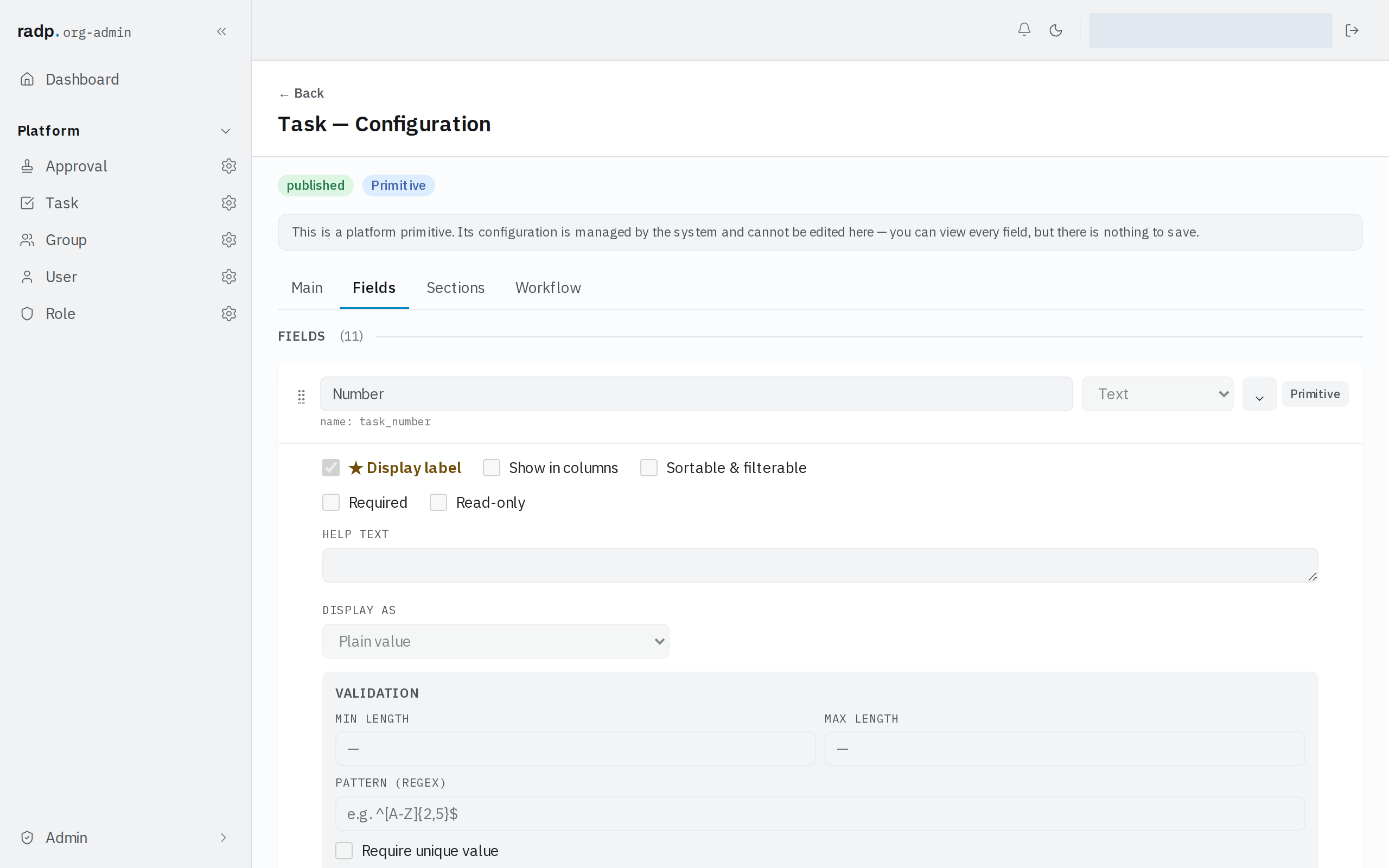
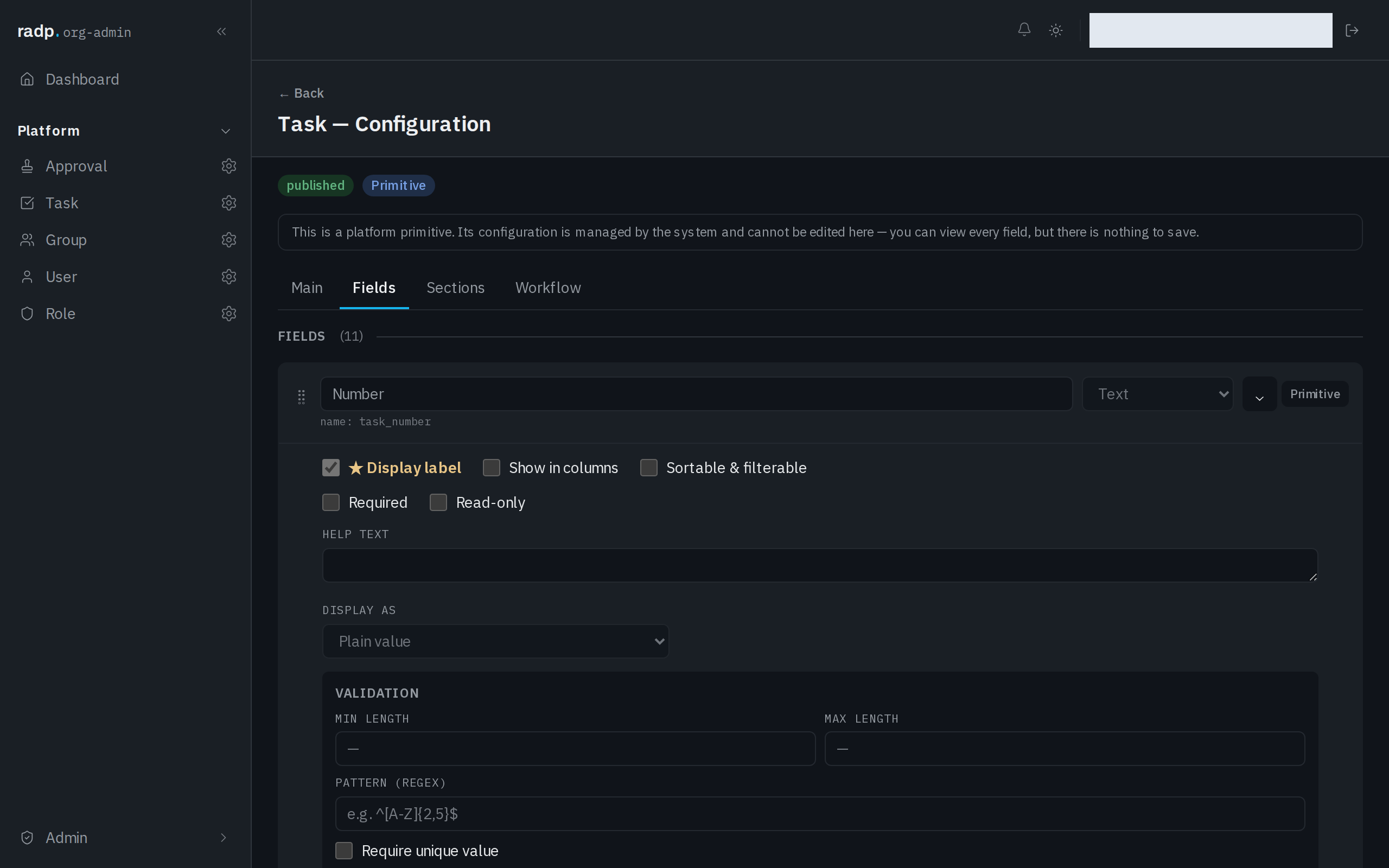
The label can be changed whenever you like. The machine name shown beneath it is fixed once the field has been saved, so it is worth getting right when you create the field.
The settings at the top of the panel
| Setting | What it does, and when it matters |
|---|---|
| ★ Display label | Makes this field the one that stands for the whole record, so it is what another record shows when it links to this one. One field per record type carries it, so give it to the field that tells people which record they are looking at. |
| Show in columns | Lets the field be used as a column in the record list. Turn it on for the handful of values people need to see without opening a record. |
| Sortable & filterable | Lets people sort and filter by this field. A record type only has a few of these marks — see Sortable and filterable fields, and the limit. |
| Required | The record cannot be saved while the field is empty. See Required for what counts as empty. |
| Read-only | The value is shown but people cannot type into it. Use it for values something else is responsible for setting. |
Help text
HELP TEXT is a note that travels with the field for whoever is filling the record in. Use it for the thing they cannot guess from the label — which of two similar values belongs here, or the form a value has to take. A field with a clear label needs none.
Below that, the settings belong to the type
Under the help text the panel carries on with settings that come from the field's type rather than from every field. On the text field captured here that is a DISPLAY AS choice, between Plain value and Large value, and a VALIDATION group holding MIN LENGTH, MAX LENGTH, PATTERN (REGEX) and Require unique value. Change the type in the picker and this lower part of the panel changes with it. The pages under Field types and Validation cover those.
Who can change these
The Fields tab is in the Admin area, so only org-admins and radp-admins can reach it.
On the record types that come with RADP — users, groups, roles, tasks and approvals — the panel opens and every setting can be read, but nothing can be changed. The page says so at the top: the configuration is managed by the system, and there is nothing to save.