Choosing a field type
Pick the type that fits what a field has to hold, and see which types a list view or a sort can use.
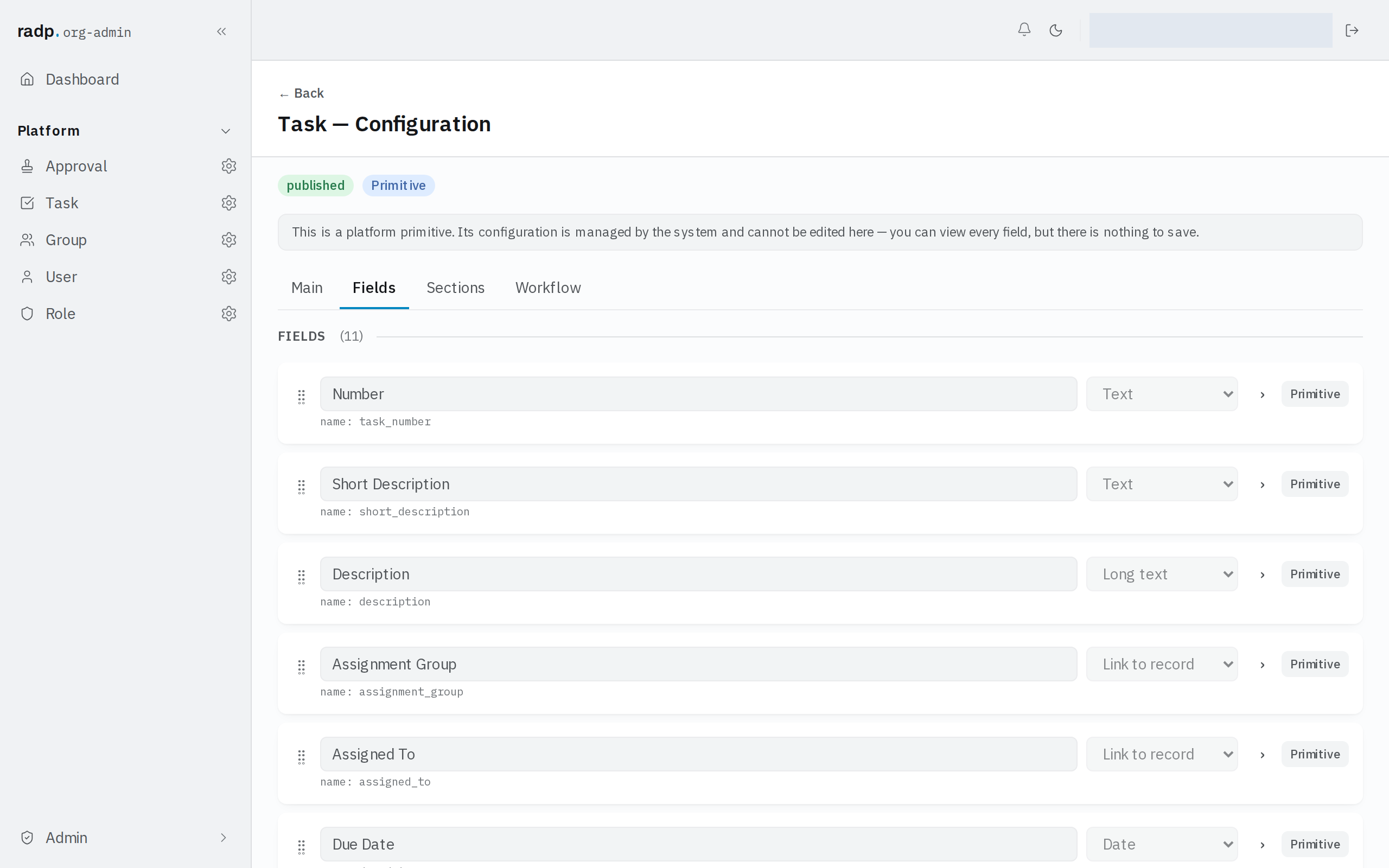
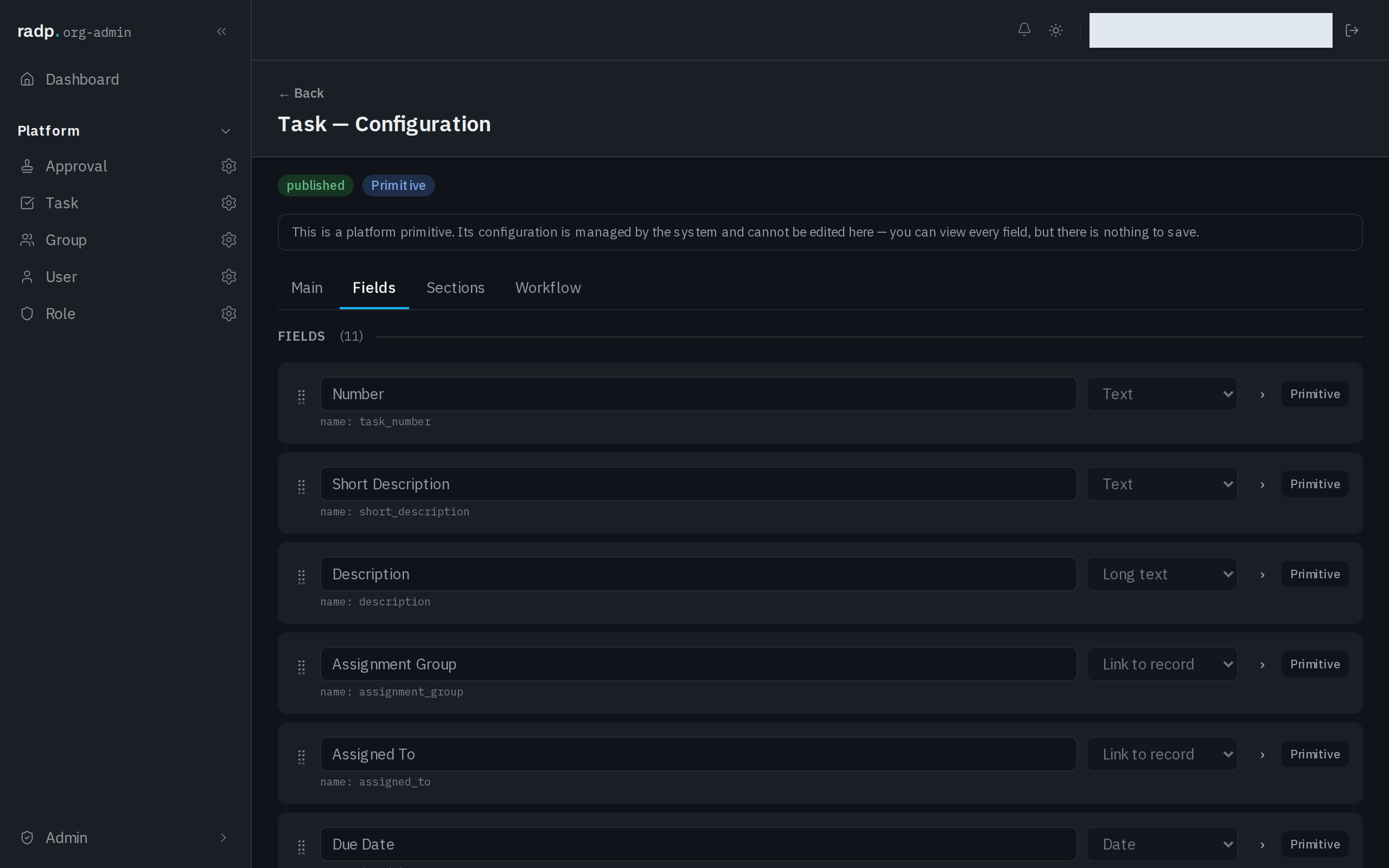
Every field you add has a type. The type decides what the field can hold, how people fill it in, and whether a list view or a sort can use it. You set it in the type list on the field's row, in the record type's Fields tab.
The types on offer
| Type | Use it for |
|---|---|
| Text | Short text on one line: a name, a reference, a code. |
| One email address, with its shape checked. | |
| Web address (URL) | One web address, with its shape checked. |
| Phone | One phone number, with its shape checked. |
| Long text | Several lines of plain text. |
| Number | A number you may want to compare or add up. |
| Yes / No | A value with two states. It can also split a list into groups. |
| Date | A calendar date, with no time on it. |
| Date & time | A date together with a time. |
| Duration | A length of time, kept in whole minutes. |
| Amount | Money. The currency is one setting for the whole workspace, not per field. |
| Drop down | One choice from a list of options you write. |
| Multi-select | Several choices from a list of options you write. |
| Rich text | Text with formatting. |
| Link to record | A pointer to a record of another type. It shows that record's display label. |
| Comments | A comment thread on the record. |
Types a list view needs
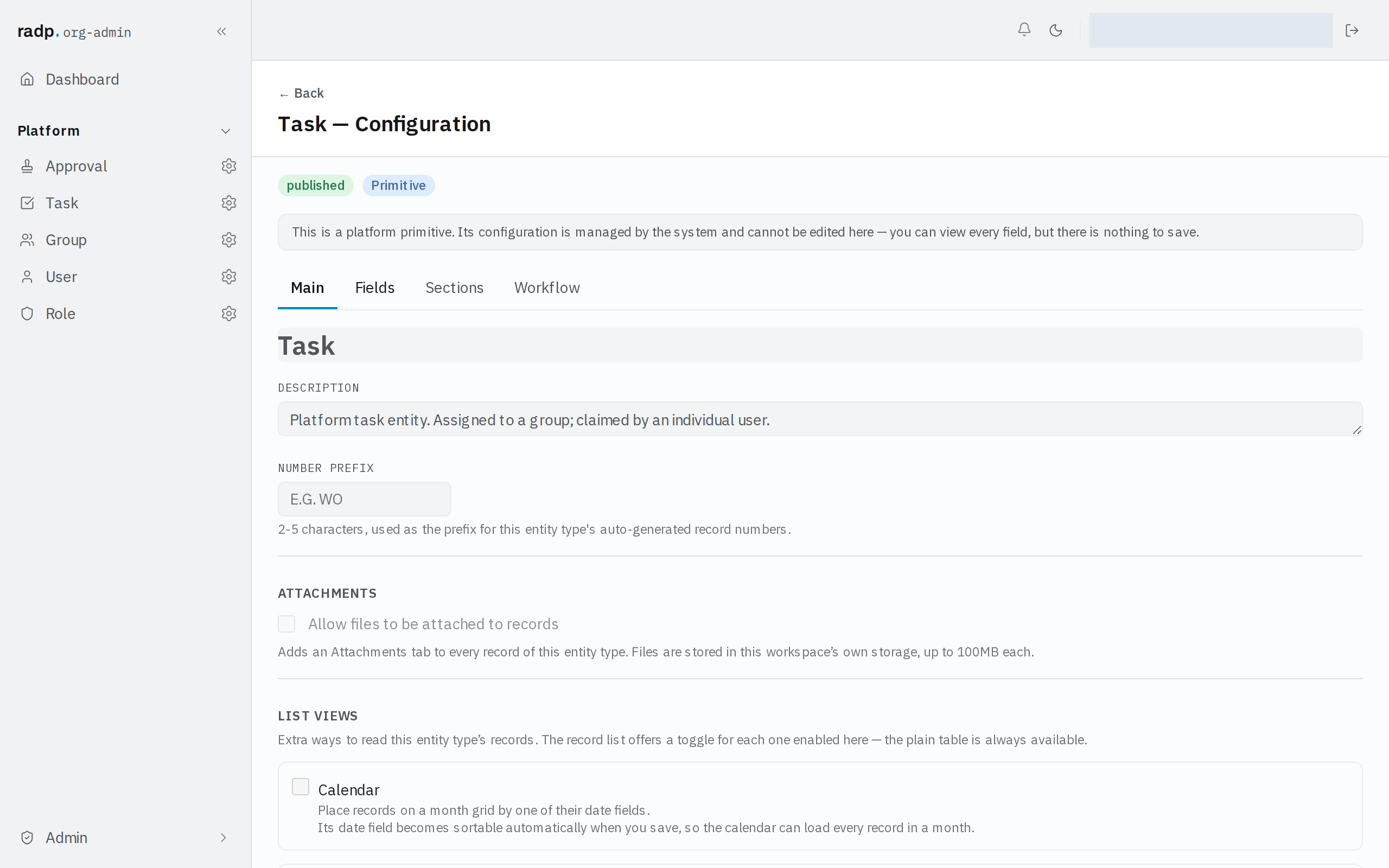
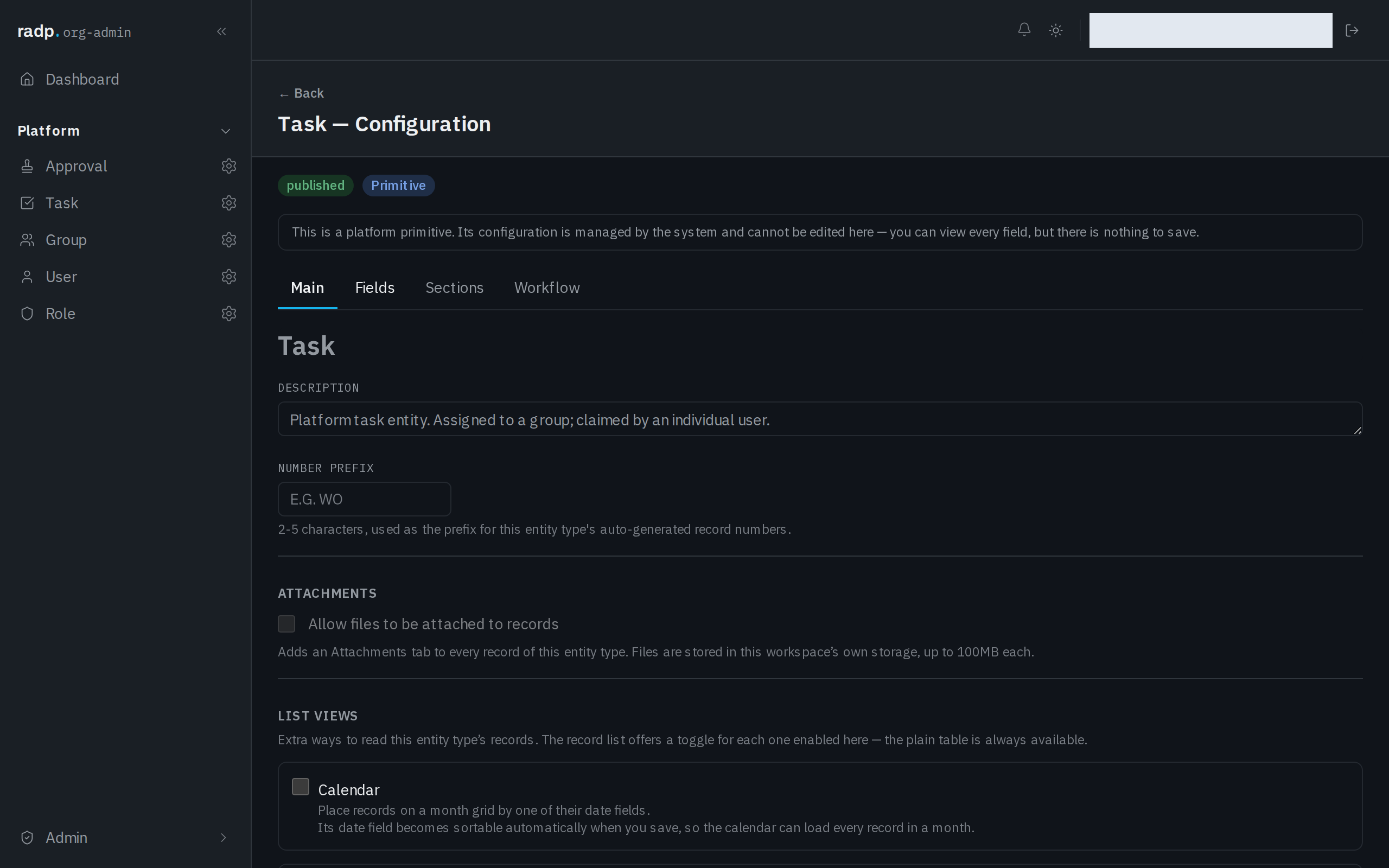
The extra list views are not available to every record type. Each one reads one field, and only certain types will do. If you know you want a board or a calendar, make sure the record type has a field of the right type before you go looking for the view.
| View | The field it reads |
|---|---|
| Calendar | A date field. Records are placed on a month grid by it. |
| Agenda | A date field. Records are listed day by day, and the view also works on a phone. |
| Grouped | A Drop down or Yes / No field. The table splits into collapsible groups by it. |
| Board | A Drop down field. One column per option, and dragging a card changes the value. |
The plain table is always there. The views above are extras you turn on.
Sorting and filtering
A field can only be sorted or filtered on if it is marked Sortable & filterable, and a record type has a small number of those marks to spend. Turning on one of the extra list views spends one for you: the field that view reads is made sortable when you save, so the view can load a month, a group or a column in one go.
Multi-select, Rich text, Link to record and Comments cannot be marked at all, so do not choose them for the value you expect people to sort or filter by. See Sortable and filterable fields, and the limit.
Picking well
Choose the narrowest type that fits the value. A date kept as Text cannot drive a calendar, and options typed as Text cannot become board columns or groups. Text with a checked shape — Email, Web address (URL), Phone — catches mistakes at the point someone types them, without you writing a pattern.
An older type you may meet
Some long-standing record types have a File field. It held a file name only, it cannot be created any more, and it is not in the type list. To let people attach real files, turn attachments on for the record type instead.