Multi-select
Let people pick several options from a fixed list, and know which views and sorting that rules out.
A Multi-select field offers a fixed list of options and lets someone pick more than one — the systems a fault touches, the skills a job needs. Where exactly one answer is right, use a Drop down instead; it can do things a multi-select cannot.
Field types are chosen in the Admin area, which only org-admins and radp-admins can open.
Choosing the type
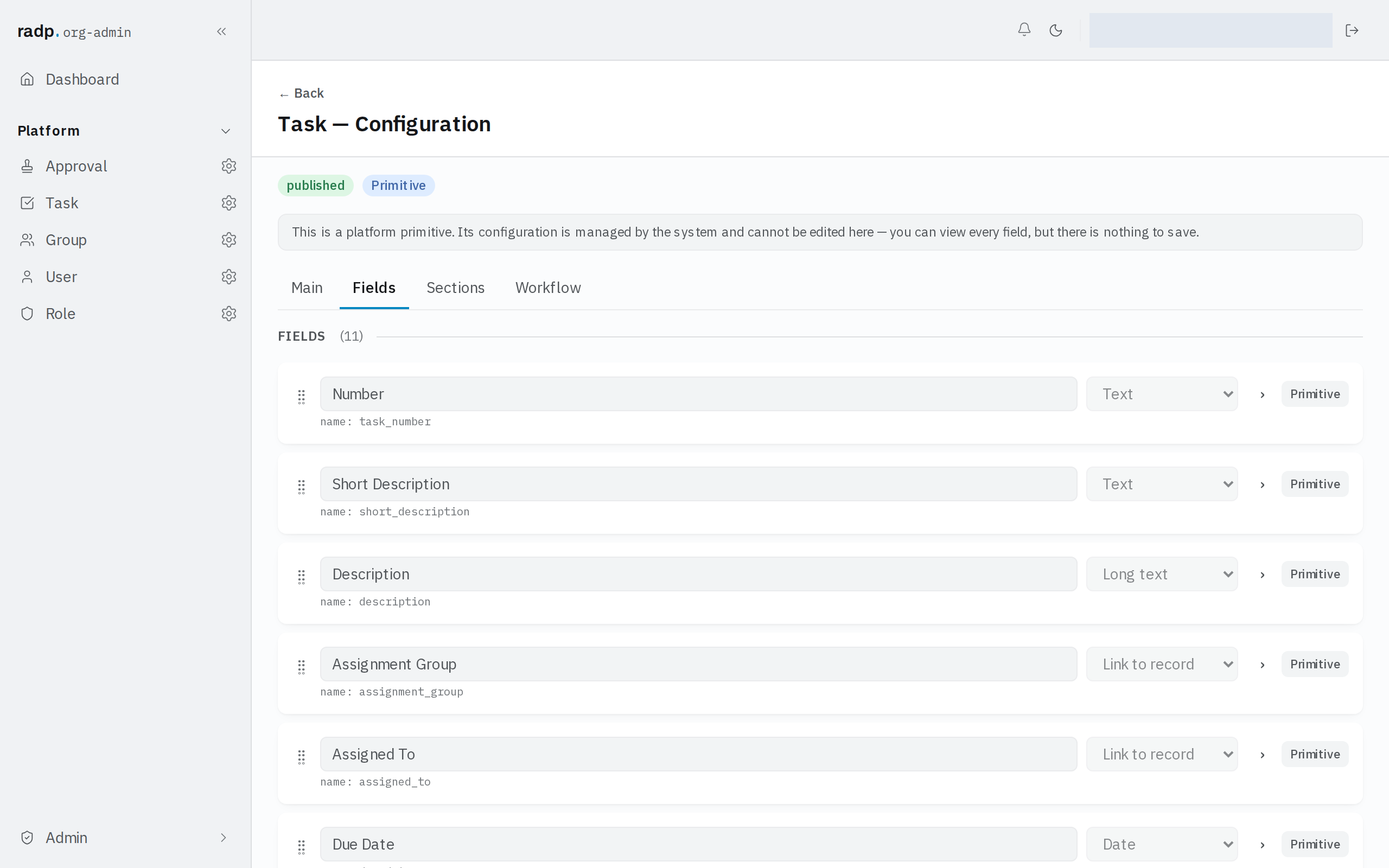
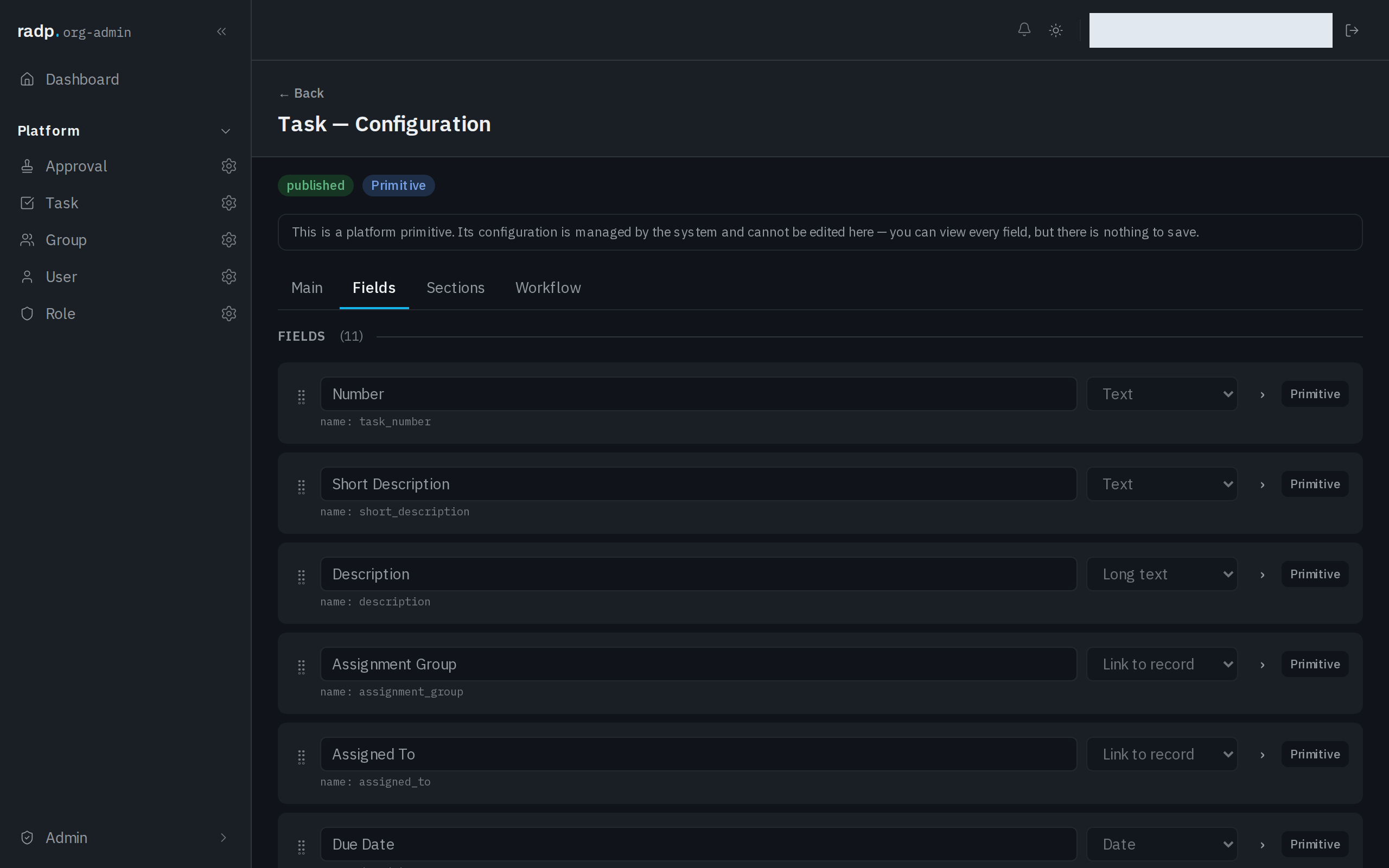
- Open the record type's configuration from the Admin area and choose the Fields tab.
- Expand the field you are setting up.
- Choose Multi-select from the field's type list.
Every value picked must be one of the options, and a save is refused if it is not. If the field is required, an empty list counts as empty, so at least one option has to be chosen.
What you give up by choosing it
A multi-select cannot stand behind the extra list views. The Grouped view splits the table by a Drop down or Yes / No field, and a Board takes its columns from the options of a Drop down field — a record holding three values has no single group or column to sit in.
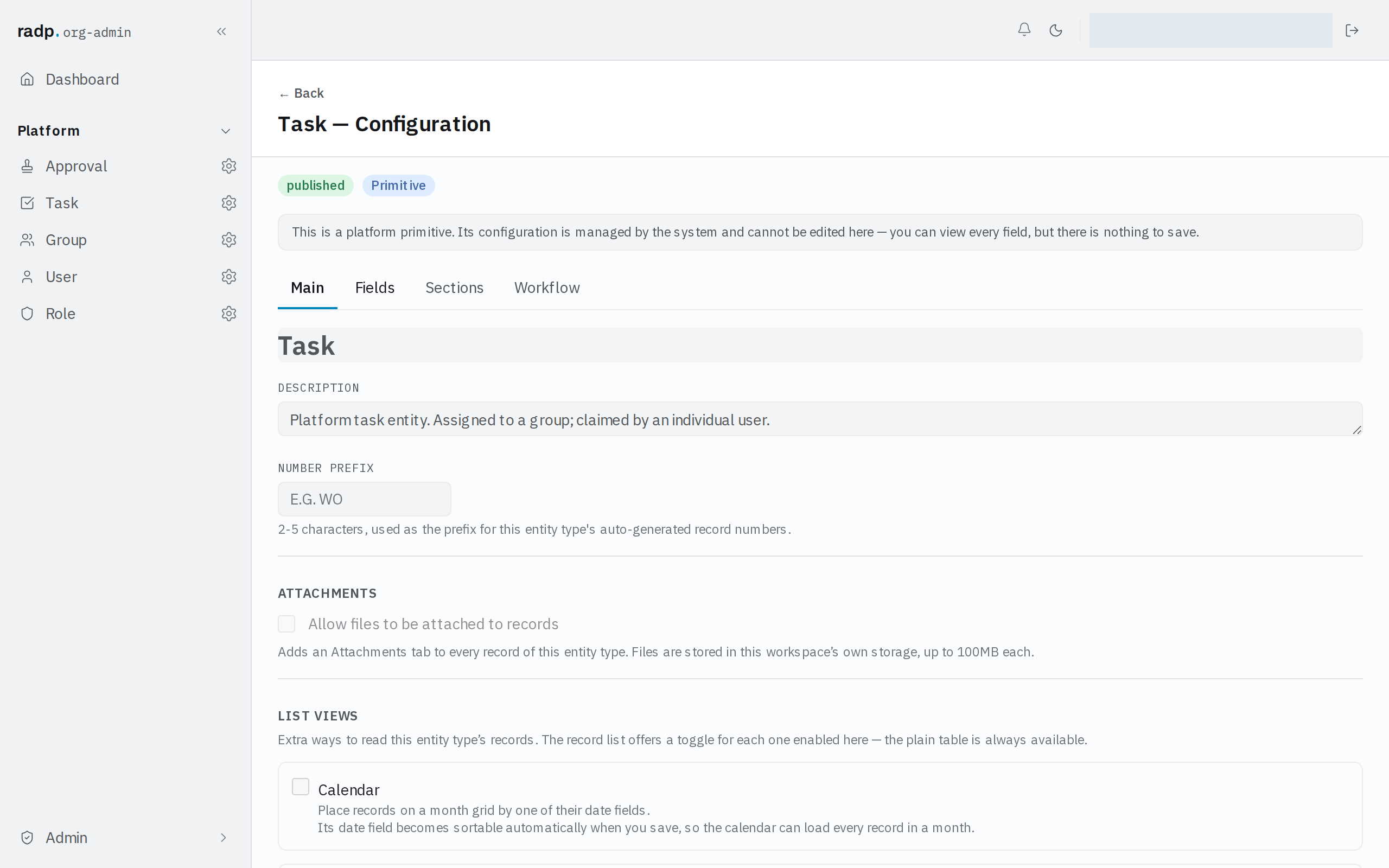
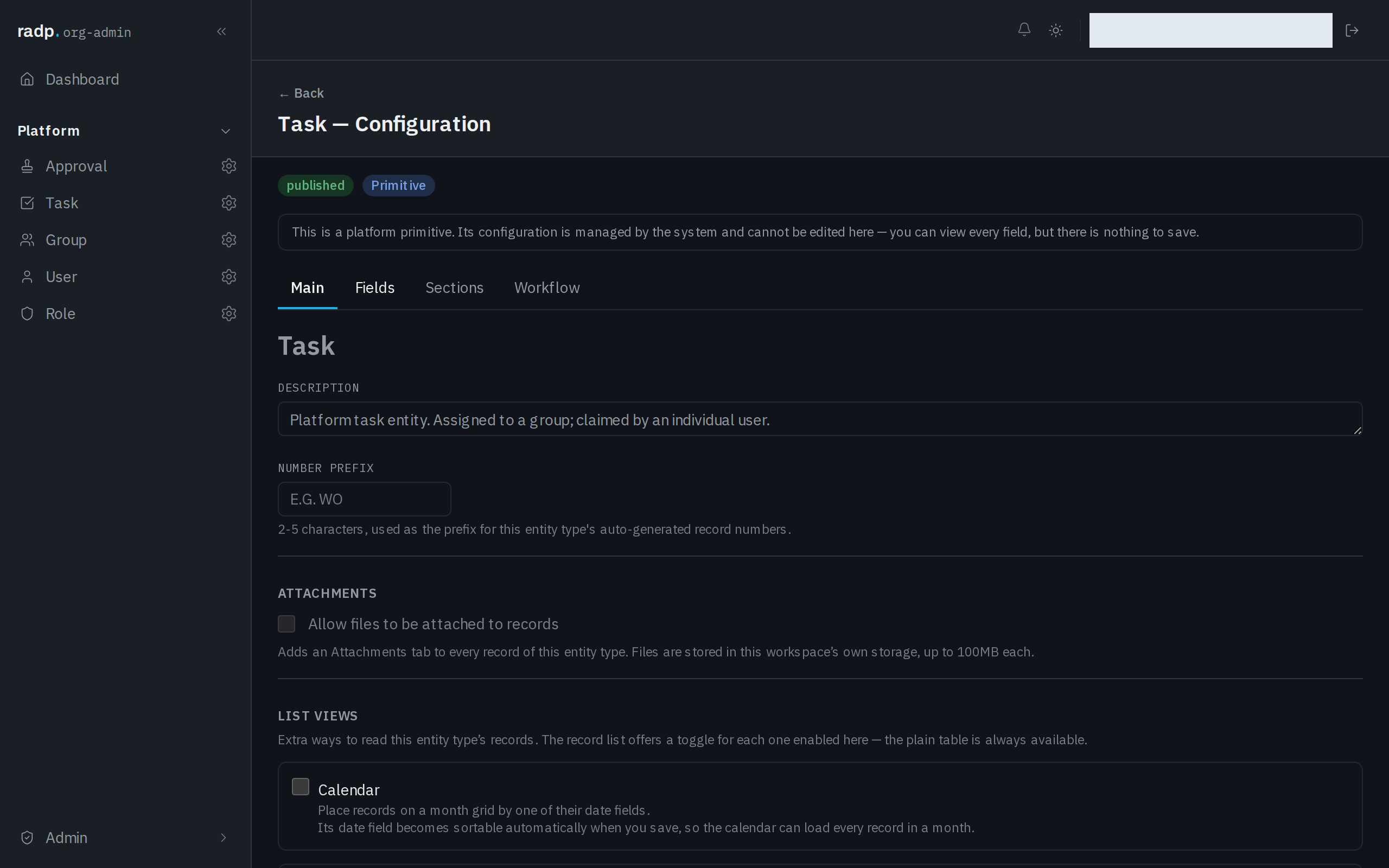
A multi-select field also cannot be marked sortable and filterable, so lists cannot be sorted or filtered by it.
If people need to group, board or filter by one of these values, keep a Drop down field alongside for the single value that matters most, and let the multi-select carry the rest.