Date
Hold a calendar date on a record, and use it behind a calendar or agenda view.
Use a Date field for a day with no time on it: a due date, a start date, the day something was inspected.
Adding one
A field's type is chosen on the record type's Fields tab, from the list of types the platform offers. Pick Date from that list.
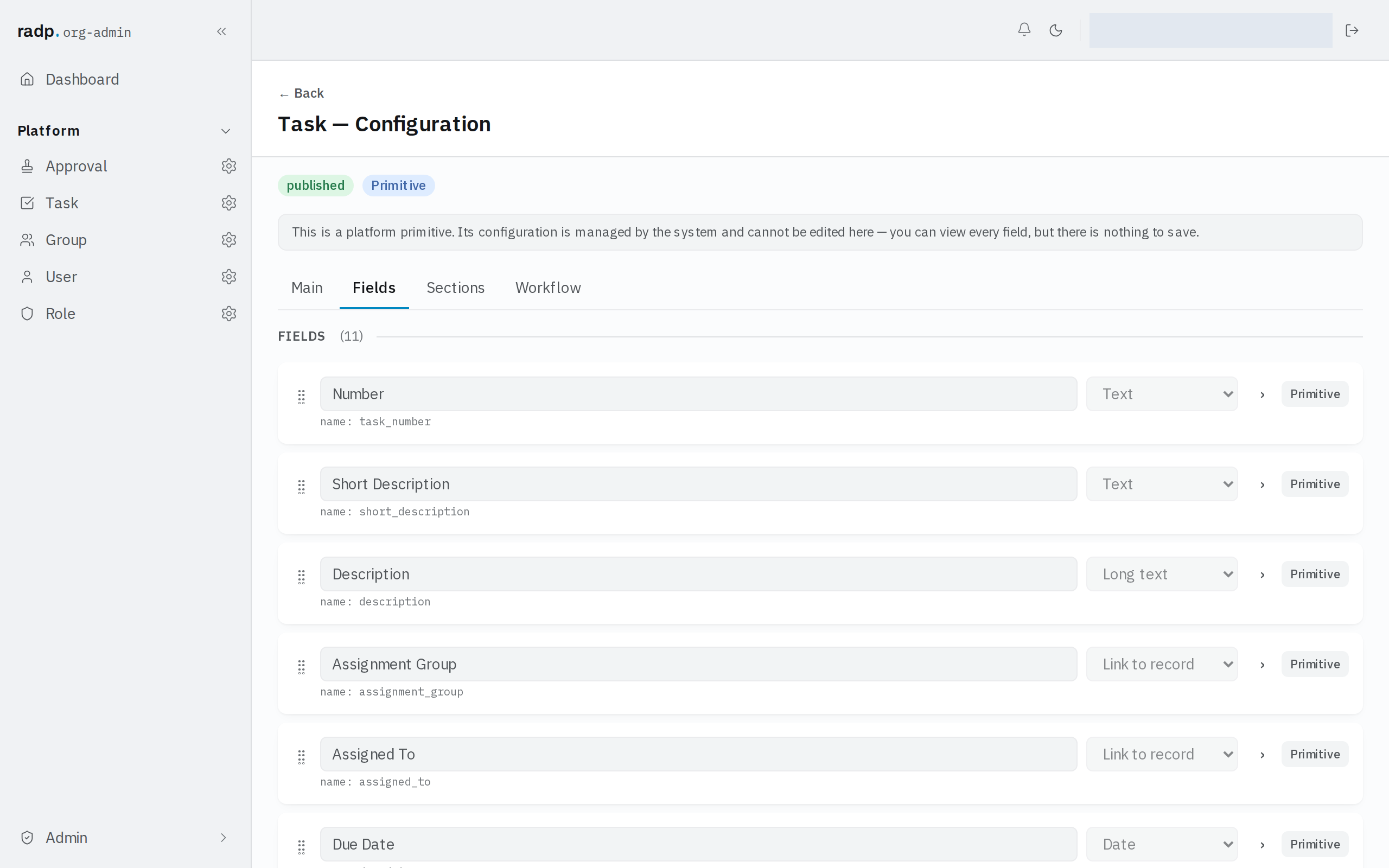
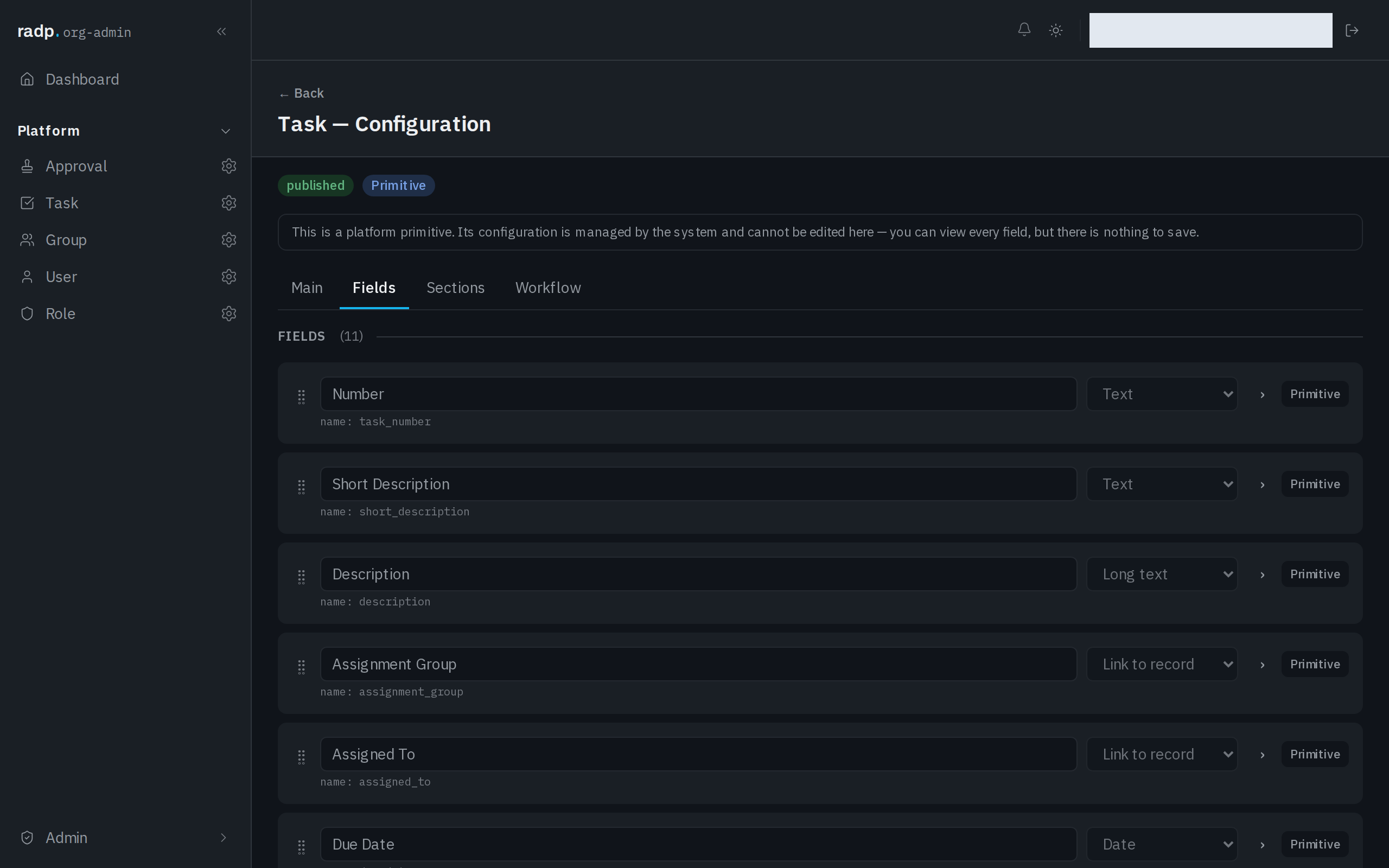
Only an org-admin or a radp-admin can add fields, and only inside a module that is checked out to them. Record types that come with the platform can be read, but nothing on them can be saved.
Date or Date & time
| Choose | When |
|---|---|
| Date | The day is the answer. A deadline, a date of birth, the day a visit is booked for. |
| Date & time | The time of day matters as well — see Date and time. |
If you are unsure, prefer Date. A day is the same day for everyone reading it, and it is the type the calendar and agenda views are built around.
What a Date field unlocks
Two of the extra list views read a date field. Both are turned on per record type, under List views on the record type's Main tab.
- Calendar places records on a month grid by one of their date fields.
- Agenda shows upcoming records as a day-by-day list — the calendar in a form that also works on a phone.
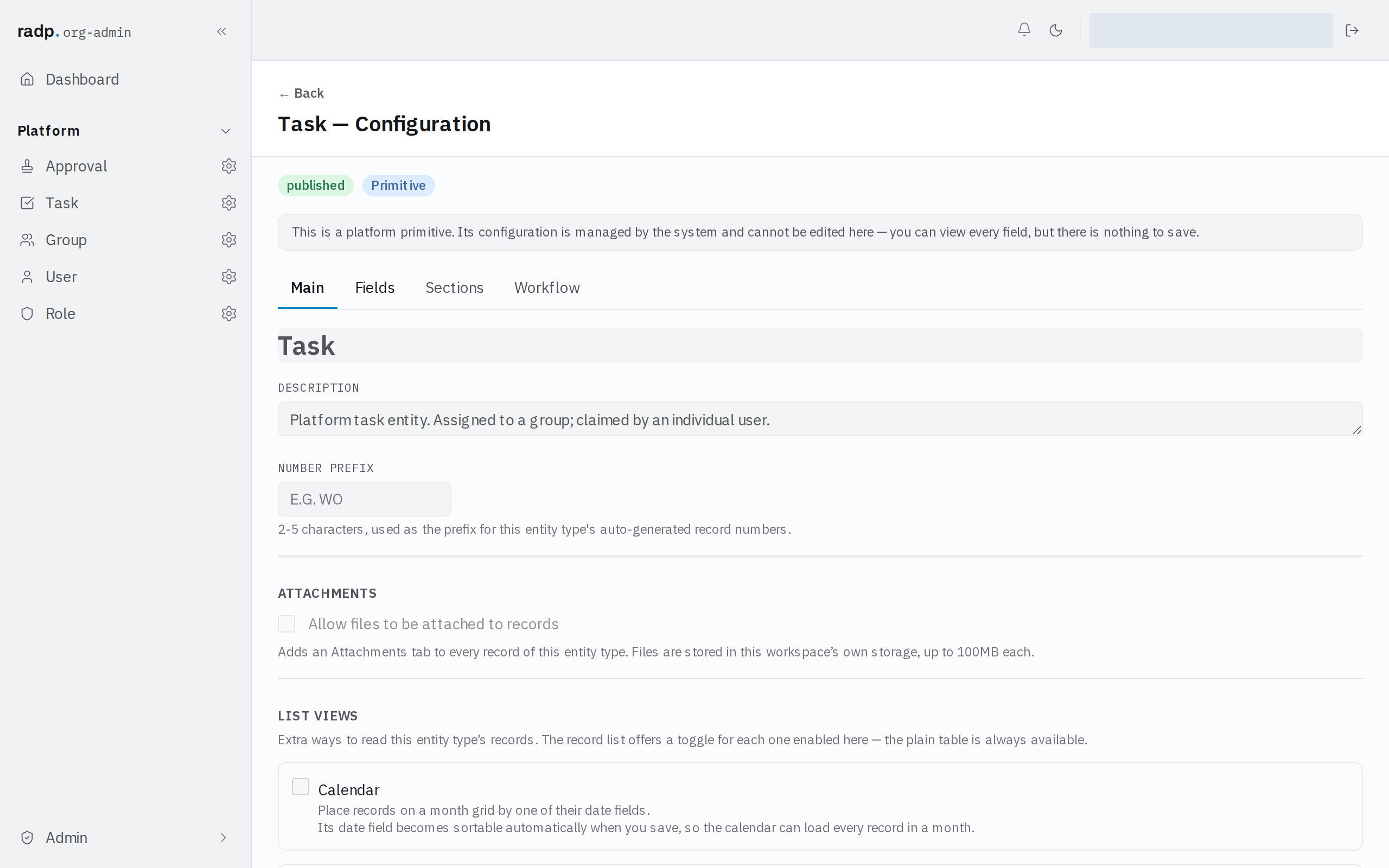
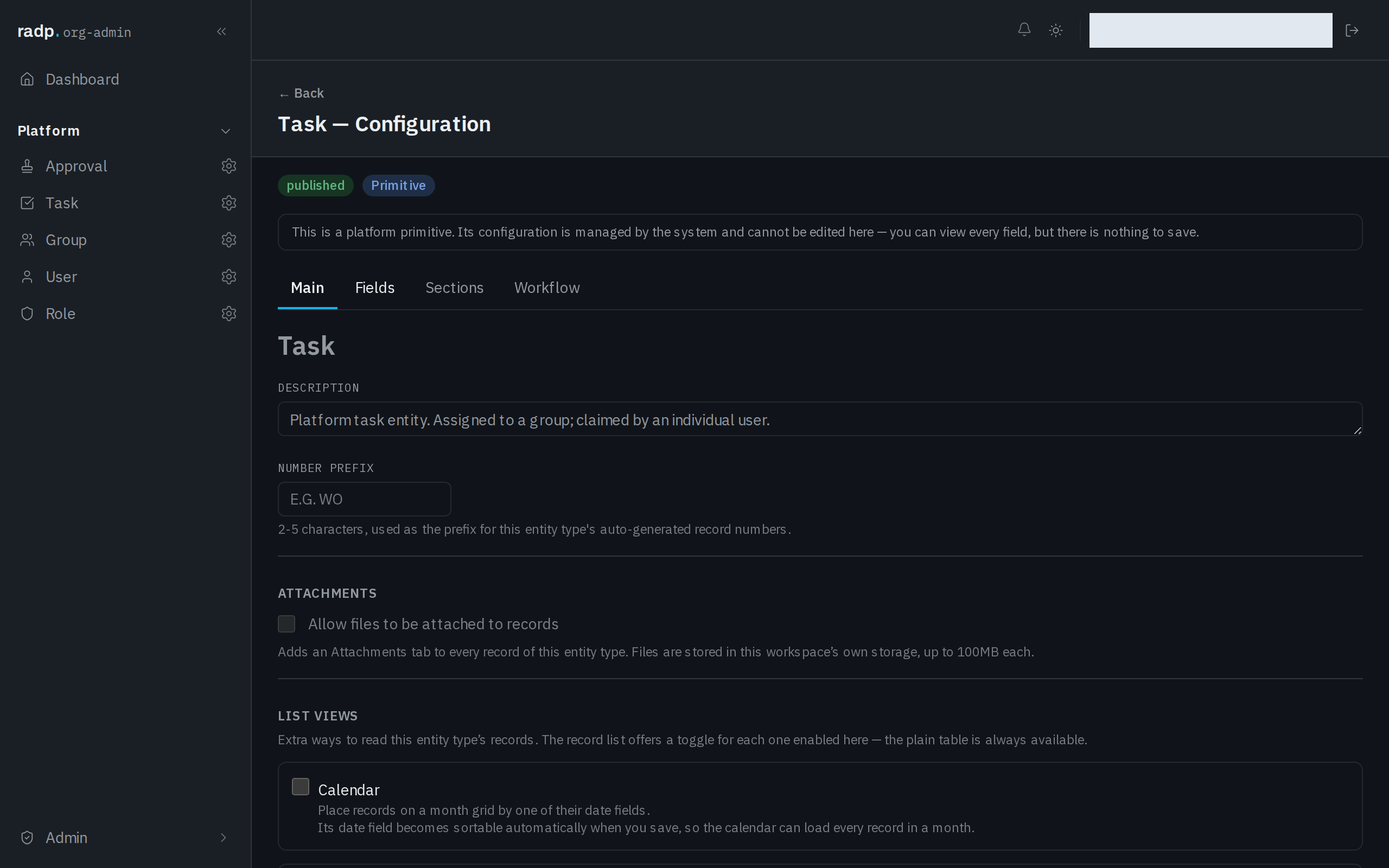
The plain table is always available. The views you enable here appear as toggles on the record list.
Turning on either view makes its date field sortable when you save, so the calendar can load every record in a month and the agenda a whole period. You do not have to mark the field yourself.
Sorting and filtering
A date field can only be sorted on, filtered on, or used for a date range once it is marked Sortable & filterable in the field's settings. Enabling Calendar or Agenda on that field does this for you; otherwise tick it yourself.
Each record type has only a small number of these marks, so spend them on the dates people actually search by.
If a date is refused
What you type is checked in the browser and again on the server when you save. The server's check is the one that decides, and a refused save comes back with a message against the field.